Process Copilot
Process Copilot is an assistant you can access from anywhere in the application. Simply describe what you need in plain language, and it will take care of the configuration for you, including creating menus and submenus, editing them, adjusting colors and themes, adding fields, dropdowns, relations, building processes, and more.
Accessing Process Copilot
Click the Process Copilot button in the top-right corner of the application to open the assistant panel. It is available from every section of BrainGrid.
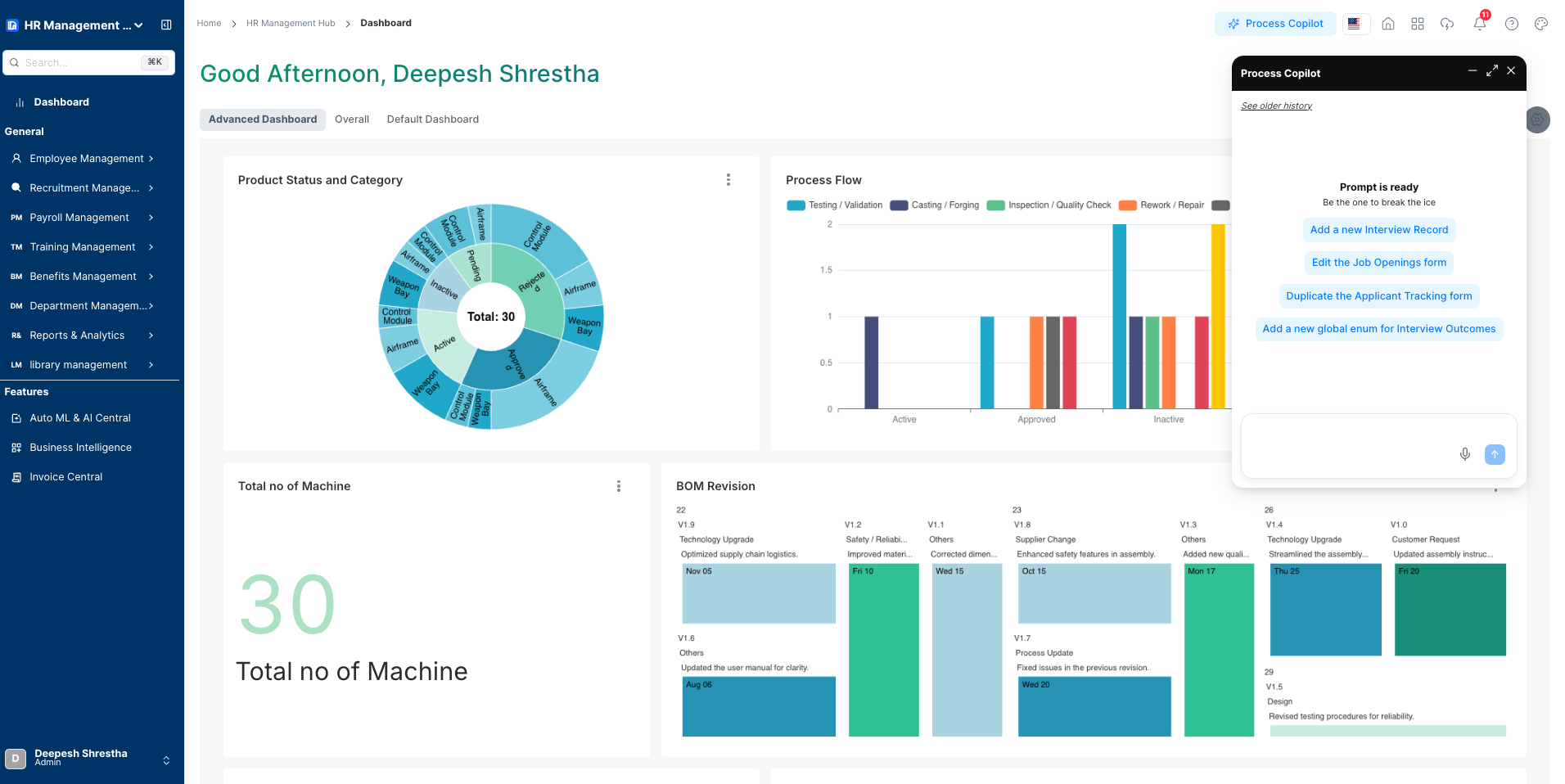
Using Process Copilot
Type your request in the chat input at the bottom of the panel. Process Copilot reads your message, outlines a plan, and presents the result as a card with options to review or apply it directly.
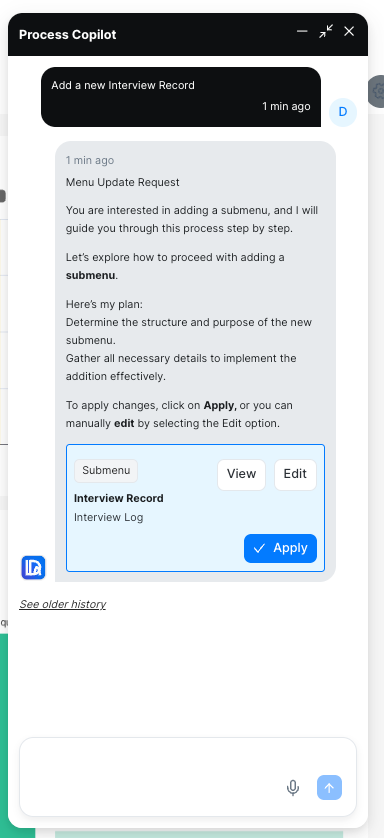
| Option | Description |
|---|---|
| View | Preview the generated structure before committing. This opens a dialog showing exactly what will be created or changed. |
| Edit | Open the result in edit mode to make manual adjustments before applying |
| Apply | Apply the changes immediately to your system |
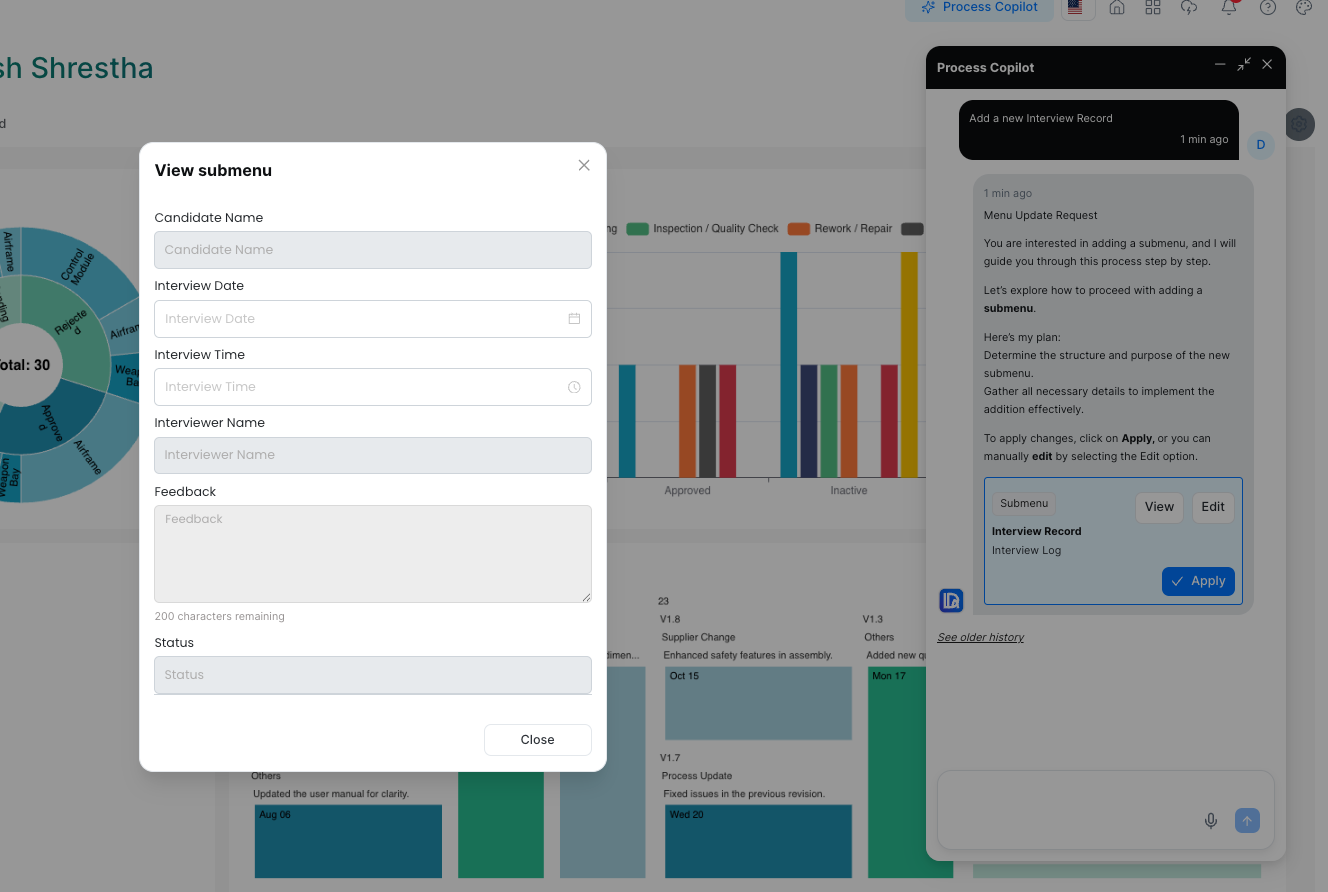
Previewing Before Applying
Clicking View opens a preview of the proposed change so you can verify all fields, names, and structure are correct before anything is saved.
After Applying
Once you click Apply, the card updates to show a Finalized badge and a confirmation that your preferences have been updated and will take effect immediately.
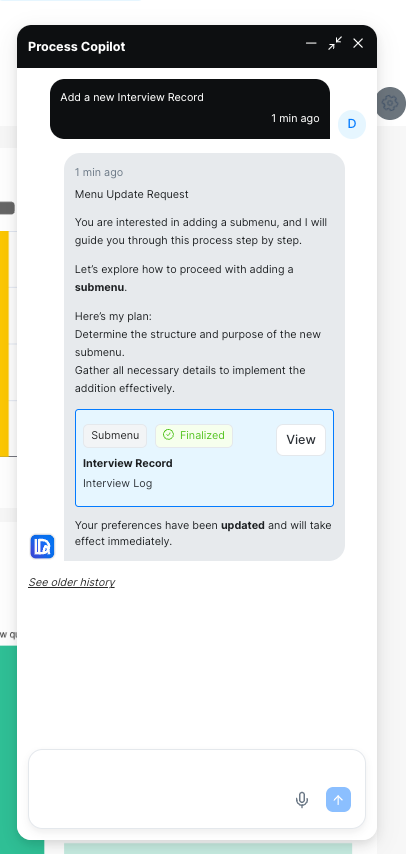
You can continue the conversation to make further changes or ask Process Copilot to do something else. Previous requests are accessible via See older history in the panel.