Organization Settings
Overview
As an Organization Owner, you can manage and update:
- Organization Logo
- Organization Details
- Organization Address
This section provides details on how to view and modify these settings.Each section is explained below.
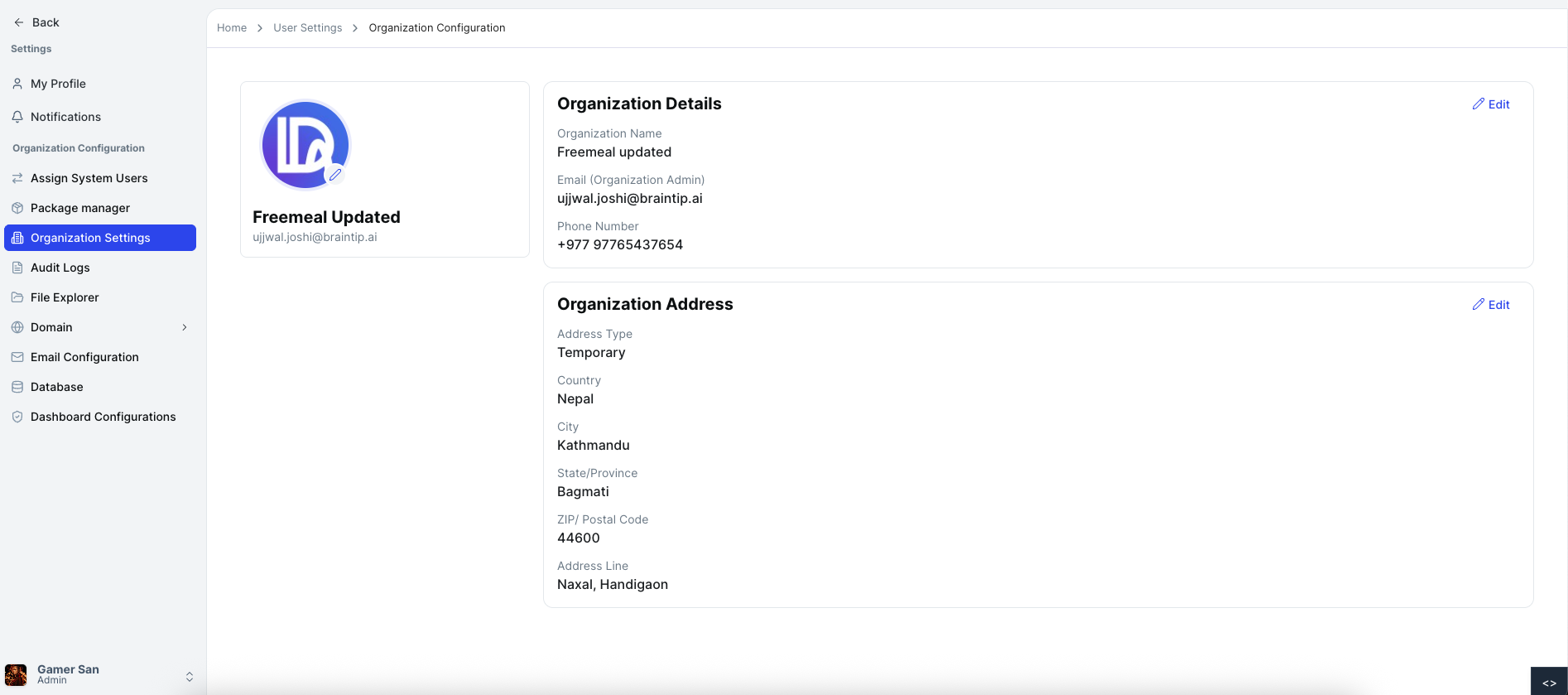
Viewing Organization Settings When logged in as an organization owner on the Organization Settings page, you will see the current organization logo, name, country, location, and address.
Organization Details
The Organization Details section includes:
- Organization Name
- Email (Organization Admin)
- Country
- Location
- Chatbot URL
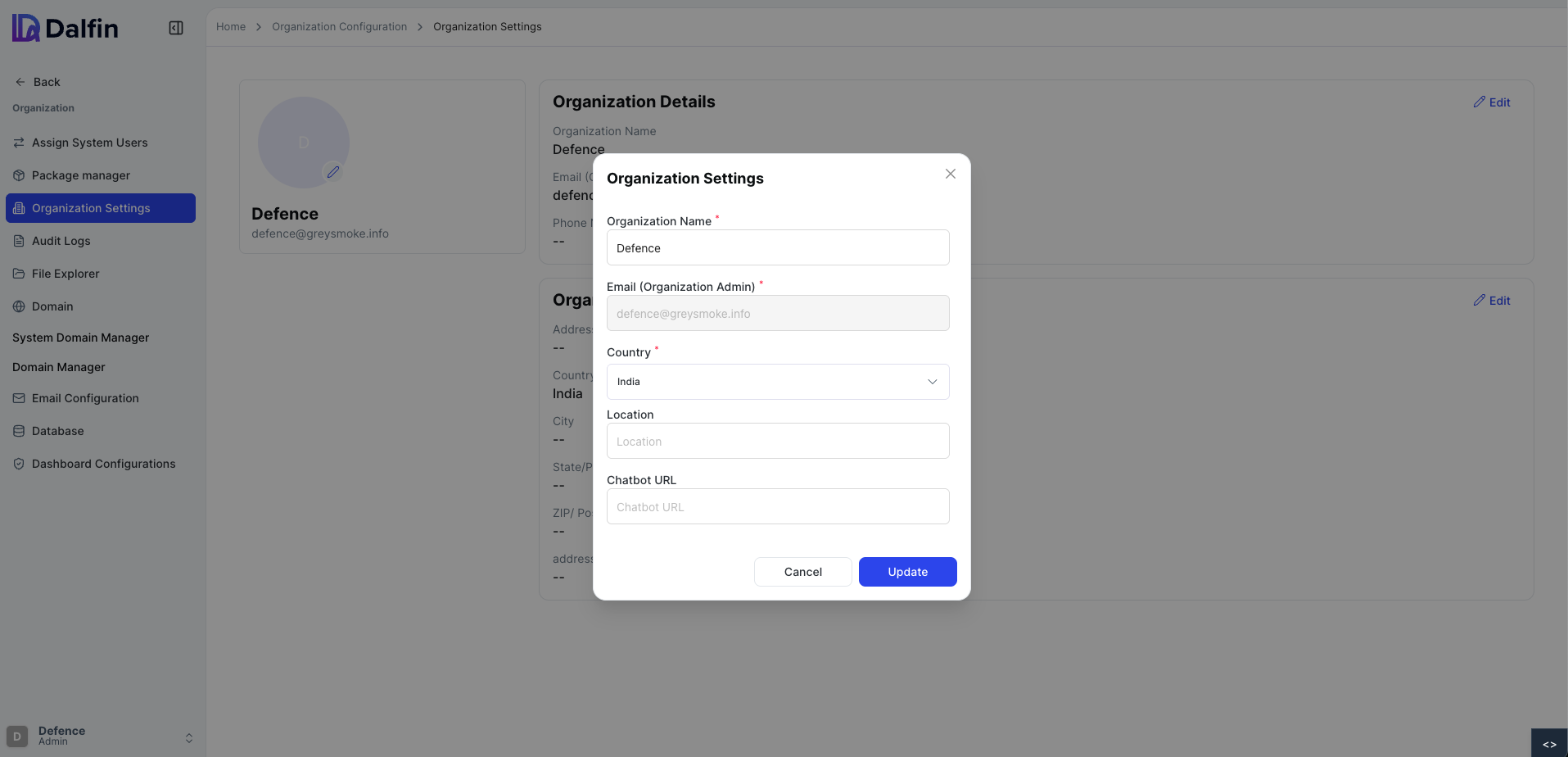
Updating Organization Details
- Navigate to Organization Settings.
- Click the Edit icon in the Organization Details section.
- A modal form will appear.
- Update the editable fields.
- Click Update.
- A confirmation message will appear.
Organization Logo
The organization logo represents your brand across the system.
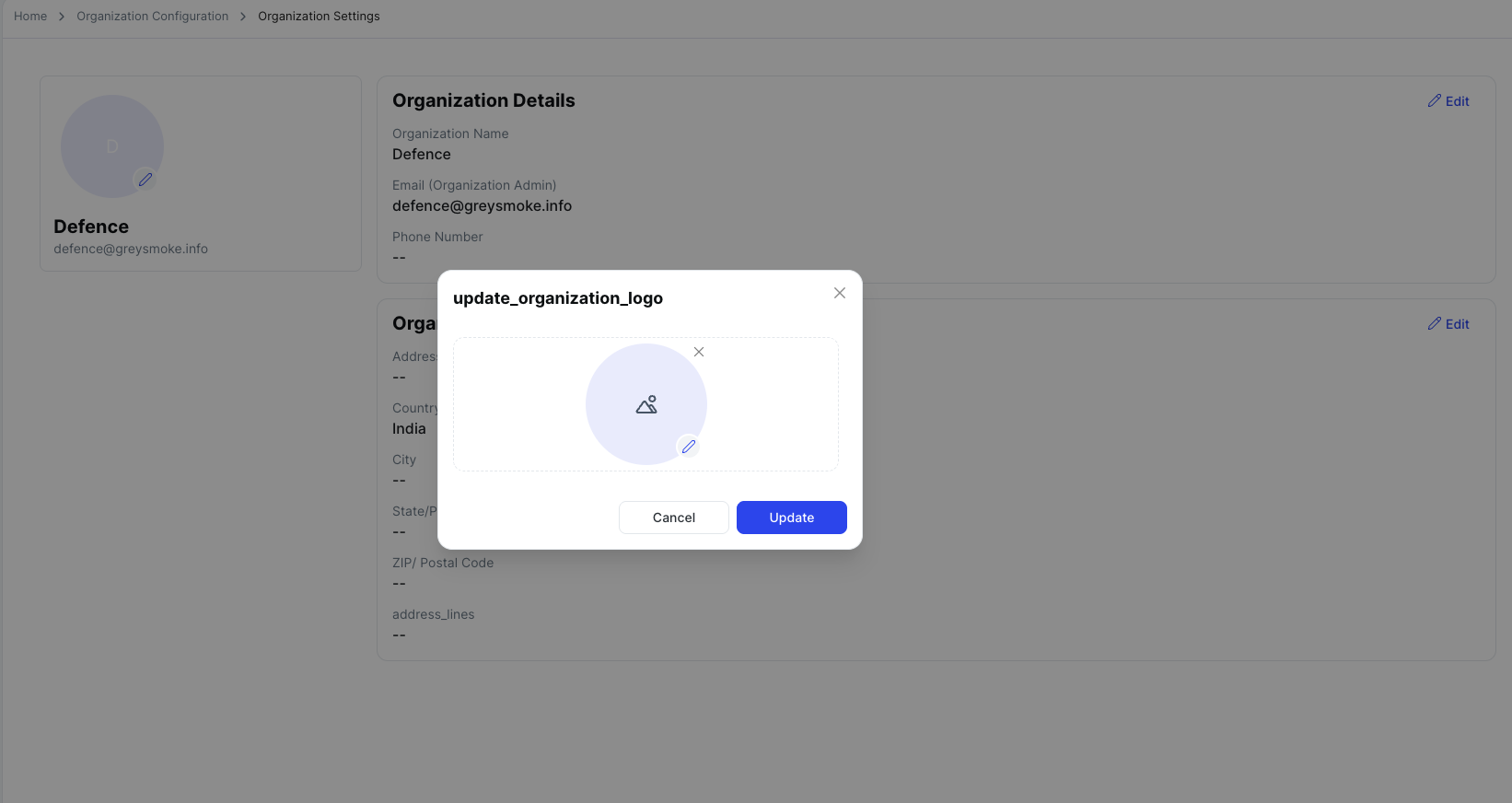
Updating Logo
- Go to Organization Settings.
- Click Edit icon.
- Upload a new logo image.
- The logo updates instantly.
- A confirmation message will appear.
Organization Address
The Organization Address is managed separately.
Address Fields Include:
- Address Type
- Address Line
- City
- State / Province
- Country
- ZIP / Postal Code
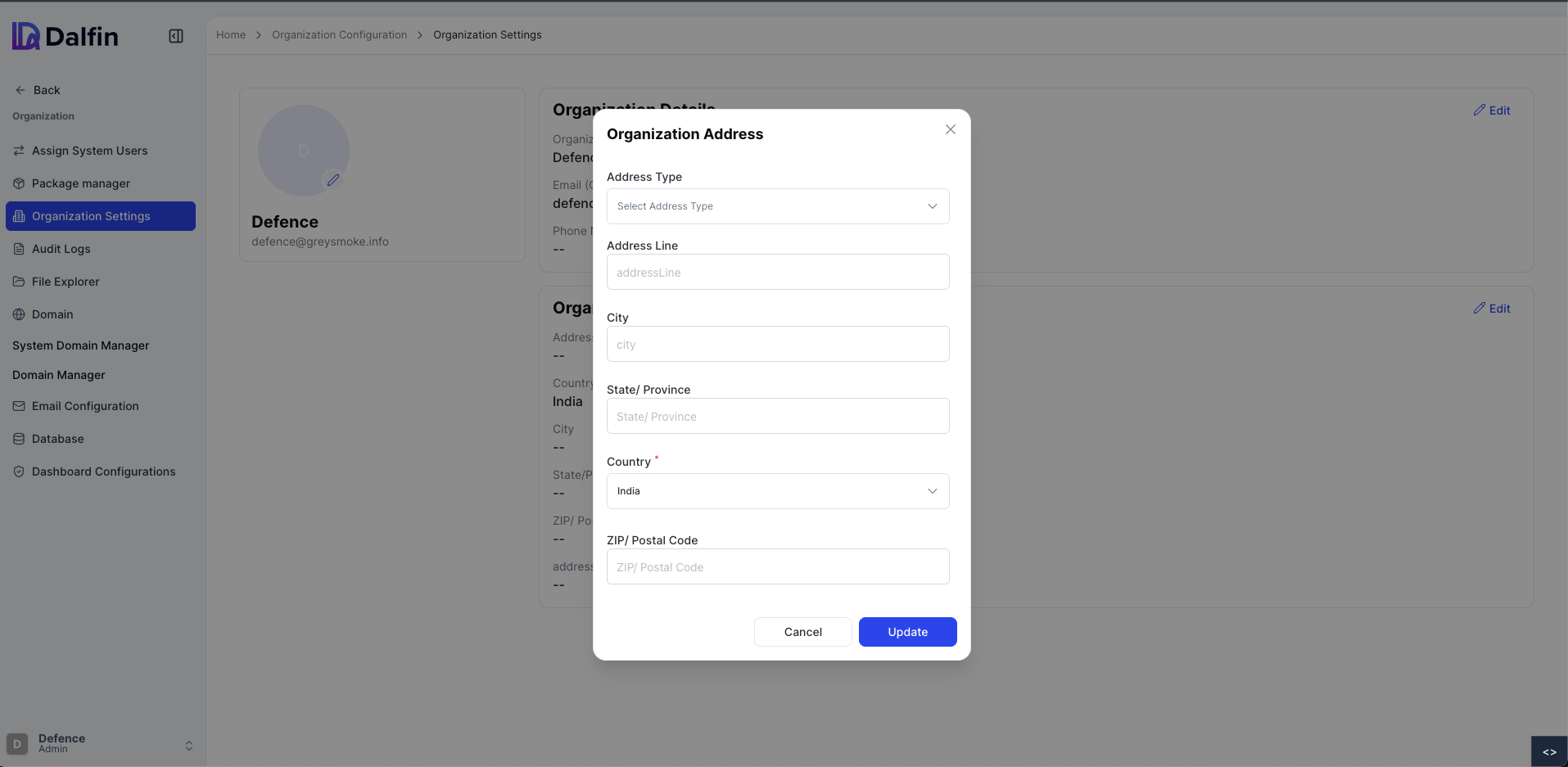
Updating Address
- Navigate to Organization Settings.
- Click Edit Address.
- Update the required address fields.
- Click Update.
- A confirmation message will appear.
All updates reflect immediately after successful submission.
💡
For additional assistance, please refer to the help section or contact support.