My Profile
Overview
The My Profile page in Dalfin allows users to view and update their personal information, manage passwords, and configure security settings such as two-factor authentication (2FA).
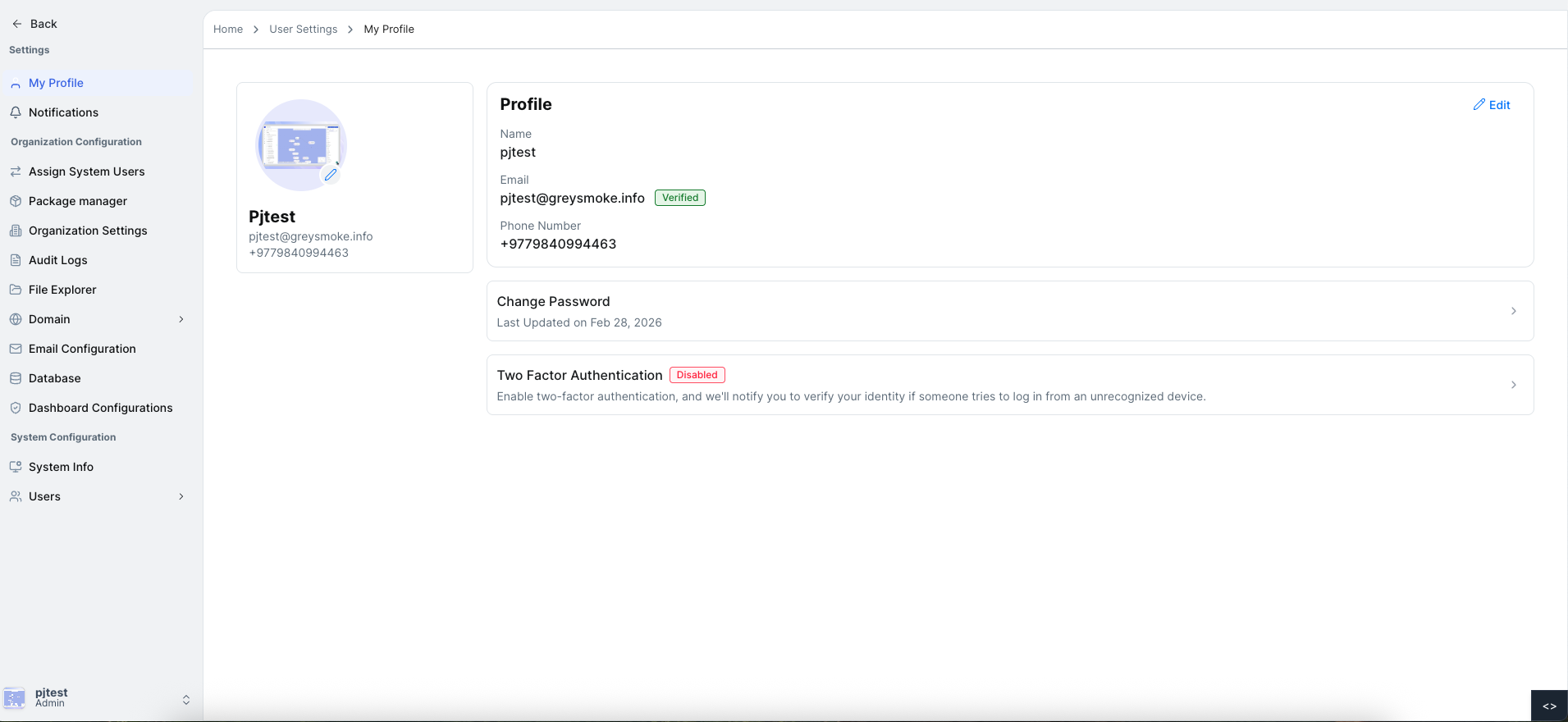
Users can manage their profile details, update their profile image, change passwords, and enable two-factor authentication (2FA) for enhanced account security.
Profile Details
The Profile section displays user information including:
- Profile Image – User’s avatar.
- Name – Full name of the user.
- Email – Email address with a verified or not verified status tag.
- Phone Number – User’s primary contact number.
- Alternative Number – Optional secondary contact number.
Updating Profile Image
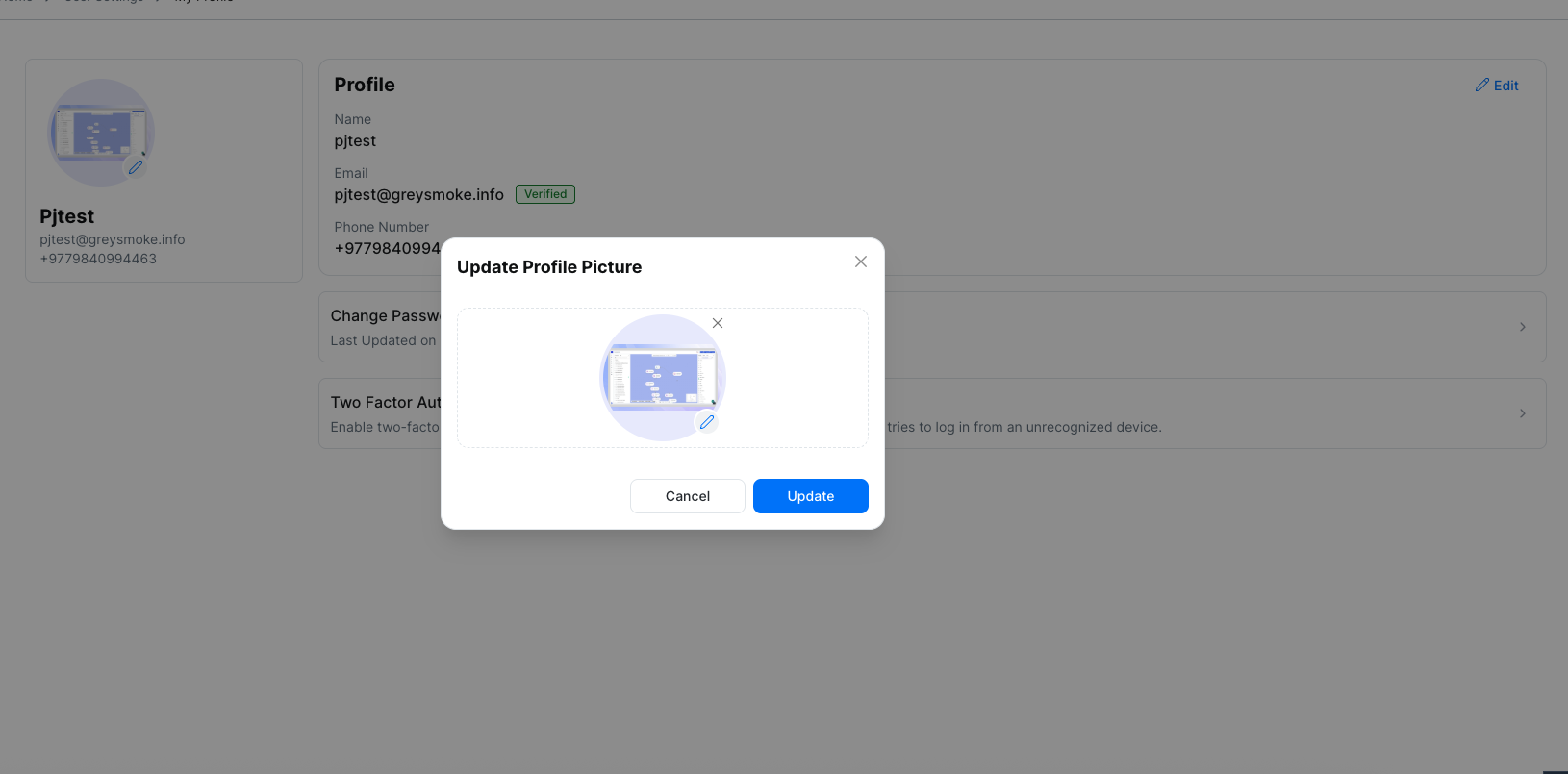
- Click the Edit icon on the profile image card.
- A Profile Image Update modal will appear.
- Upload or select a new profile image.
- Click Update to save the new profile image.
Updating Profile Details
- Click the Edit icon on the profile details card.
- The Edit Profile modal will appear.
- You can update the following fields:
- Name
- Phone Number
- Alternative Number
- Email (disabled and cannot be updated)
- Click Update to save changes.
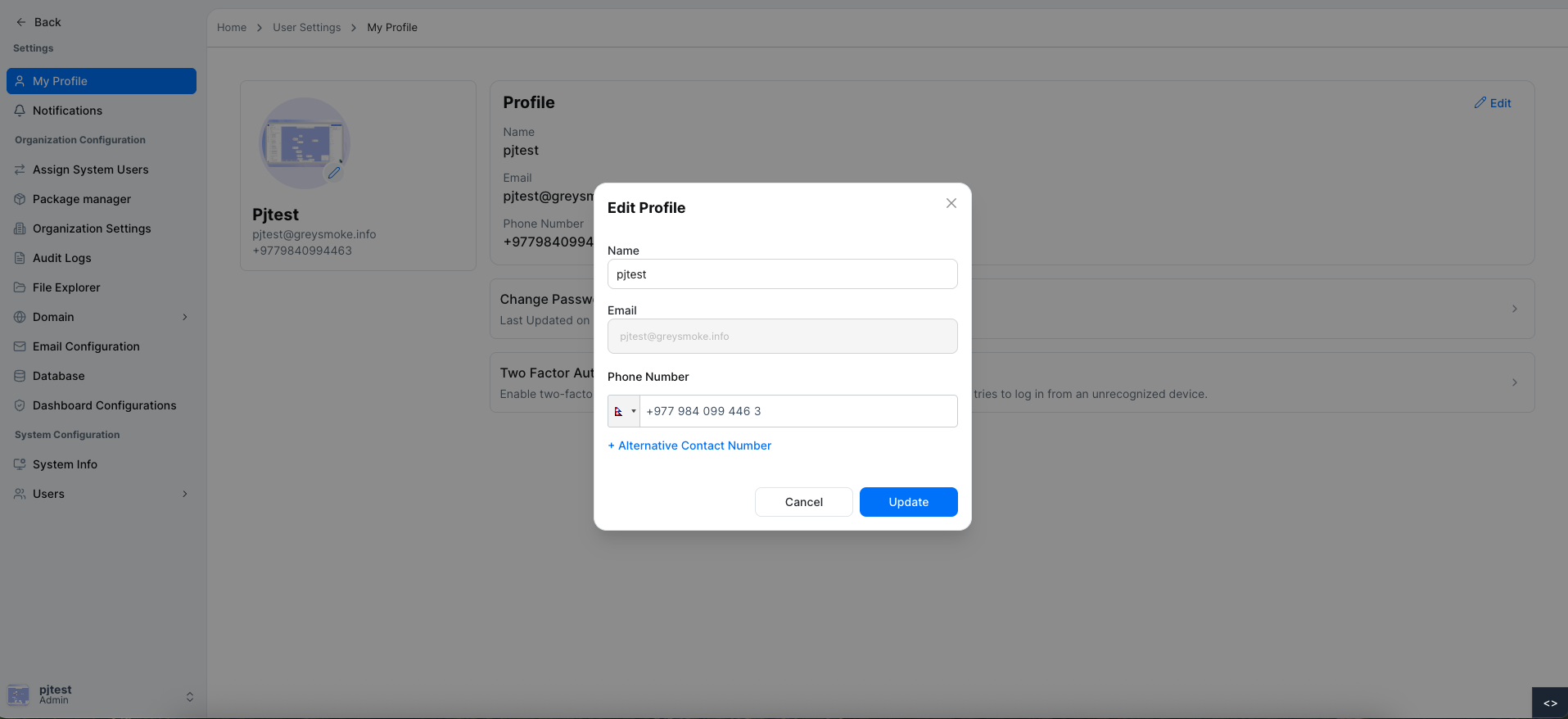
The modals ensure that updates to profile information are secure and changes are saved only after confirmation.
Change Password
The Change Password section allows users to update their account password.
Steps to change your password:
- Click on the Change Password section.
- Fill in the following fields in the form that appears:
- Current Password
- New Password
- Confirm Password
- Click the Update button to submit.
- A confirmation message will appear indicating that the password has been successfully updated.
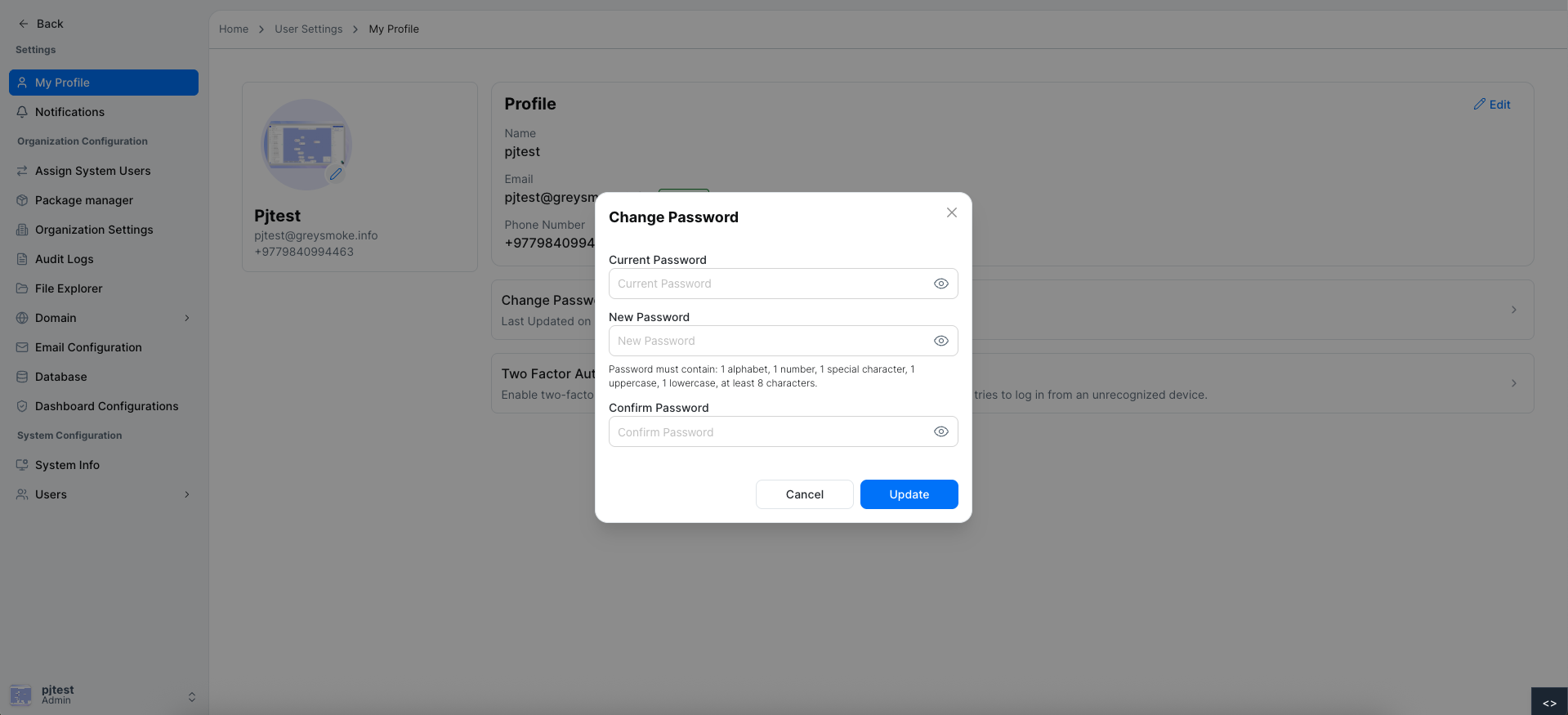
Passwords must meet the platform's security requirements. Ensure the new password matches the confirmation field.
Two-Factor Authentication (2FA)
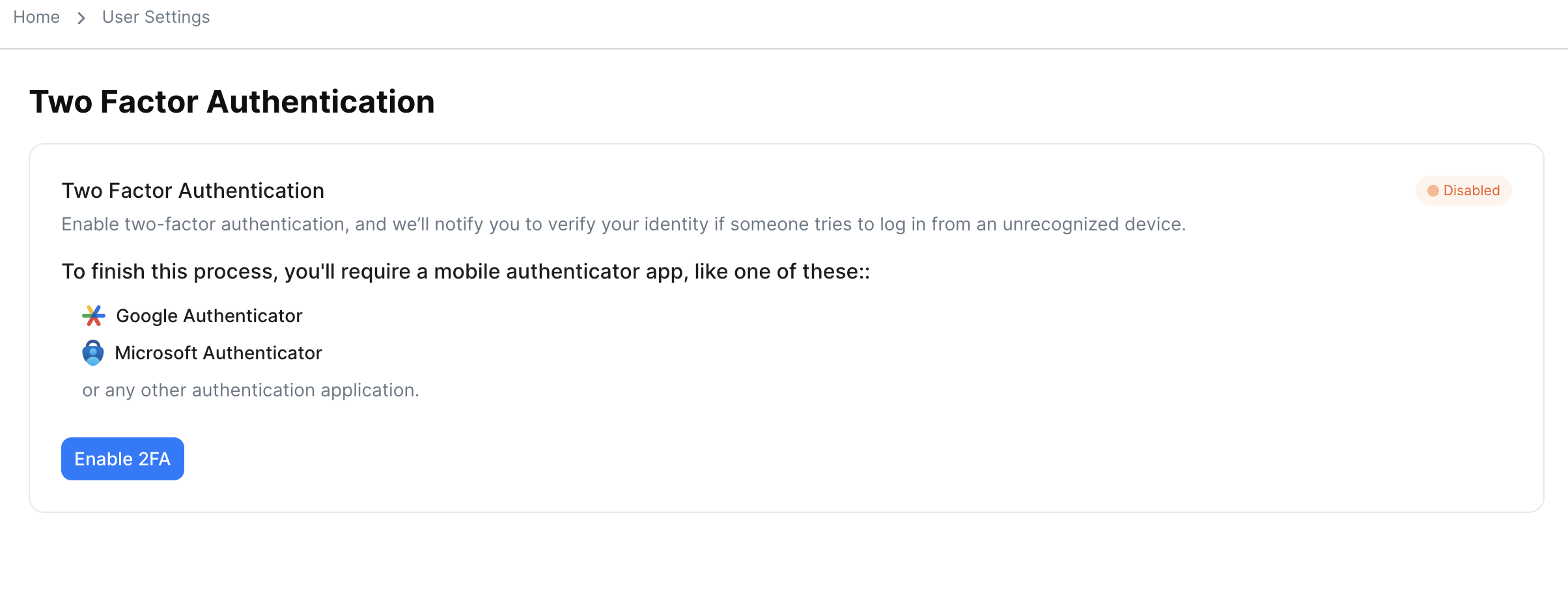
The Two-Factor Authentication section allows users to enhance account security by enabling 2FA.
Steps to enable 2FA:
-
Navigate to the Two-Factor Authentication section.
-
Click the Enable 2FA button.
-
A modal will appear asking for your current password to confirm your identity.
-
Enter your current password.
-
Click the Update button to enable 2FA.
-
Follow the instructions in the modal to complete the 2FA setup.
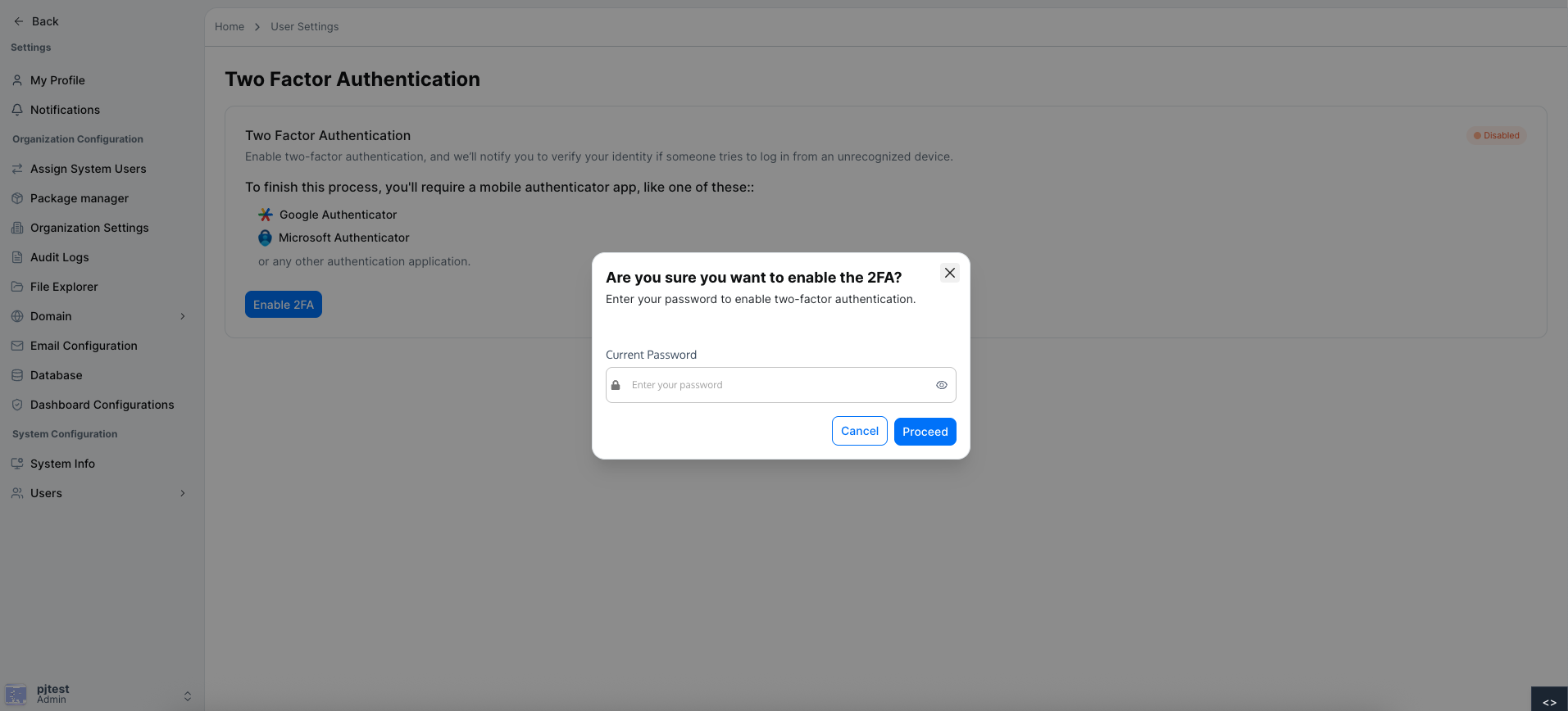
Once 2FA is enabled, you will need to enter a verification code from your authentication app each time you log in. The modal ensures secure activation by verifying your identity first.
This guide provides a complete overview of the My Profile page in Dalfin, including viewing profile details, updating the profile image and details, changing passwords, and enabling two-factor authentication via secure modals.