Field Visibility
Field Visibility lets you control when a specific field is shown or hidden based on the value of another field in the same window.
Accessing Display Settings
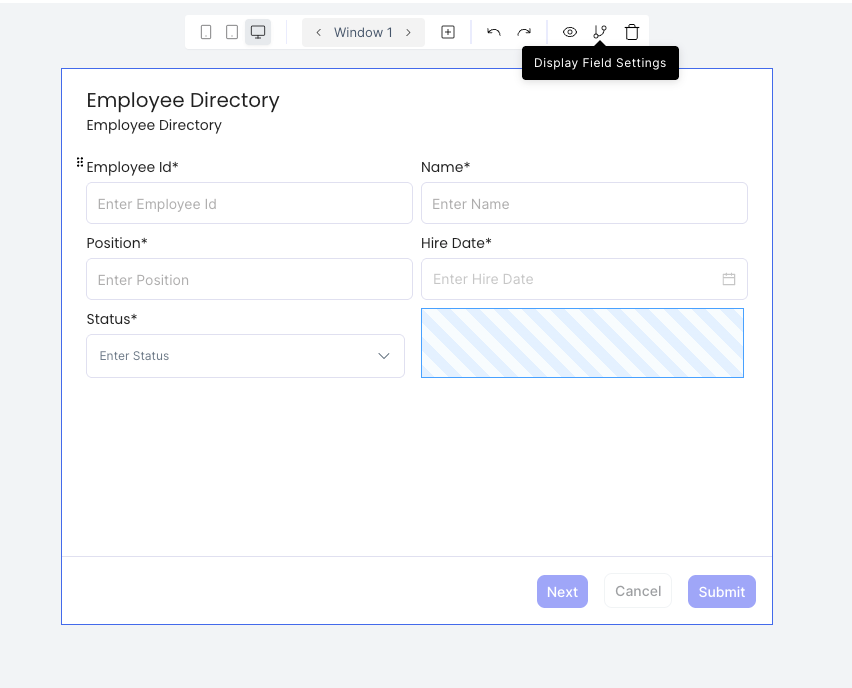
Open the window in the canvas, then click the Display Field Settings icon in the top bar.
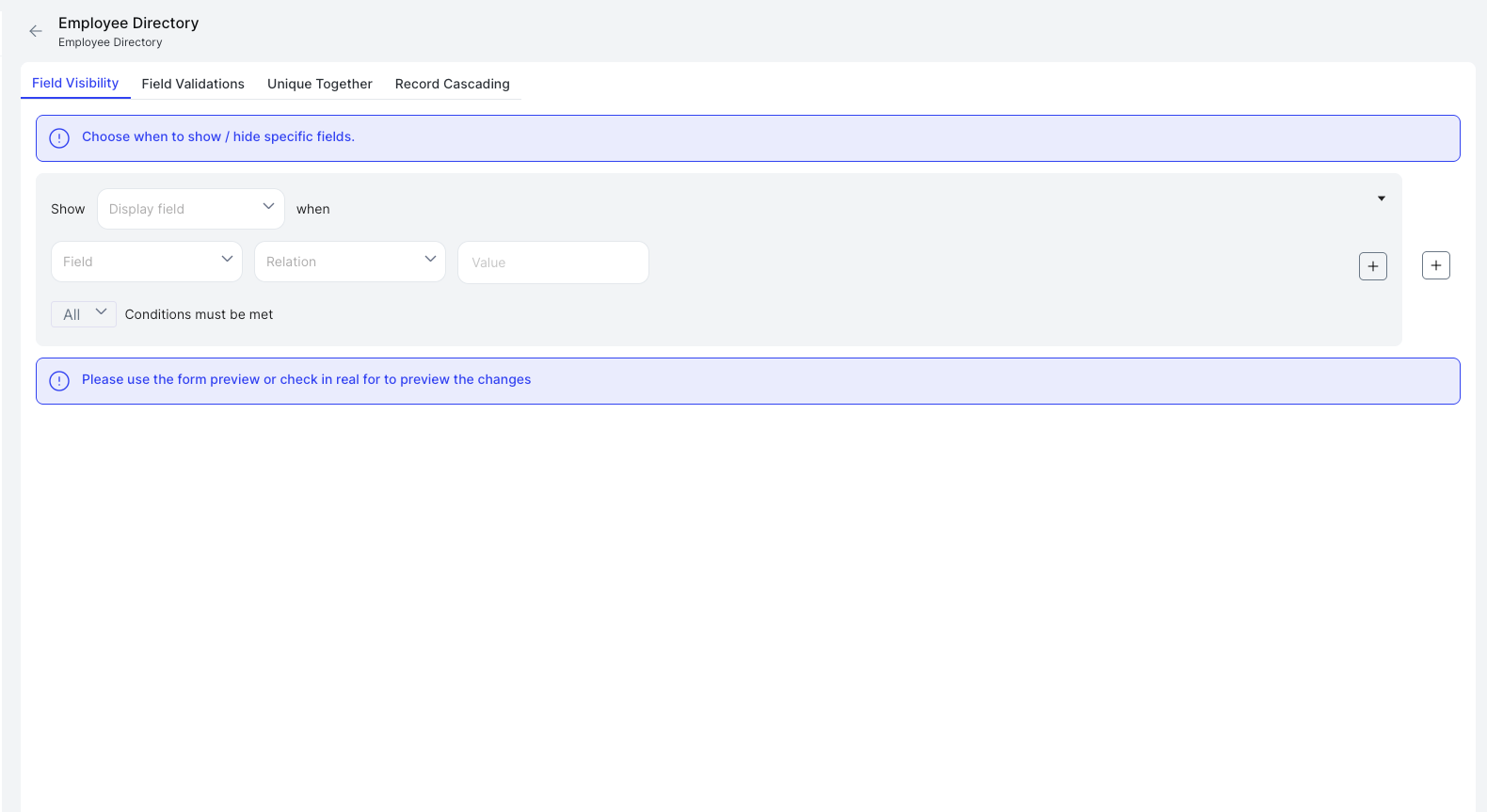
The panel opens with four tabs: Field Visibility, Field Validations, Unique Together, and Record Cascading.
Setting Up a Visibility Rule
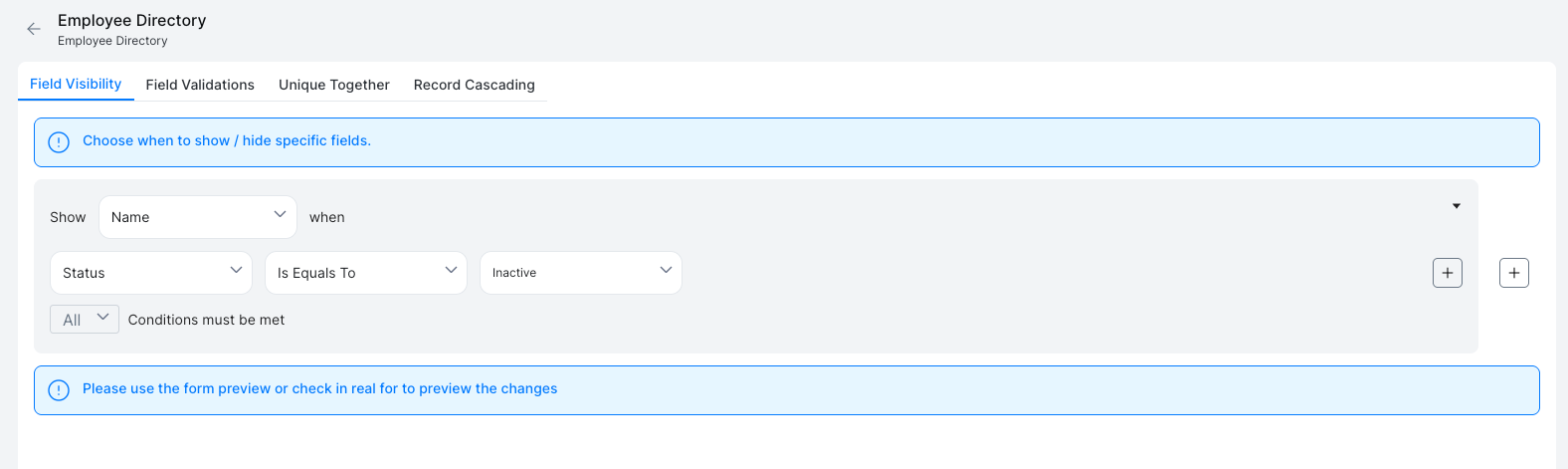
Each rule follows the structure: Show [display field] when [condition].
| Part | Description |
|---|---|
| Display field | The field to show or hide |
| Field | The field whose value is checked |
| Relation | Is Equals To, Is Not Equals To, Is One Of, Is Not One Of |
| Value | The value to compare against |
| All / Any | All: every condition must be met. Any: at least one condition must be met |
Click + to add another condition to the same rule. Click the second + to add a new separate rule for a different field.
Changes are only visible in the form preview or the live application, not directly on the canvas.