Audit Logs
Overview
The Audit Logs page allows Organization Owners to monitor and track all system activities within the organization.
You can review actions such as login, logout, create, update, and delete operations with detailed information for transparency and security.
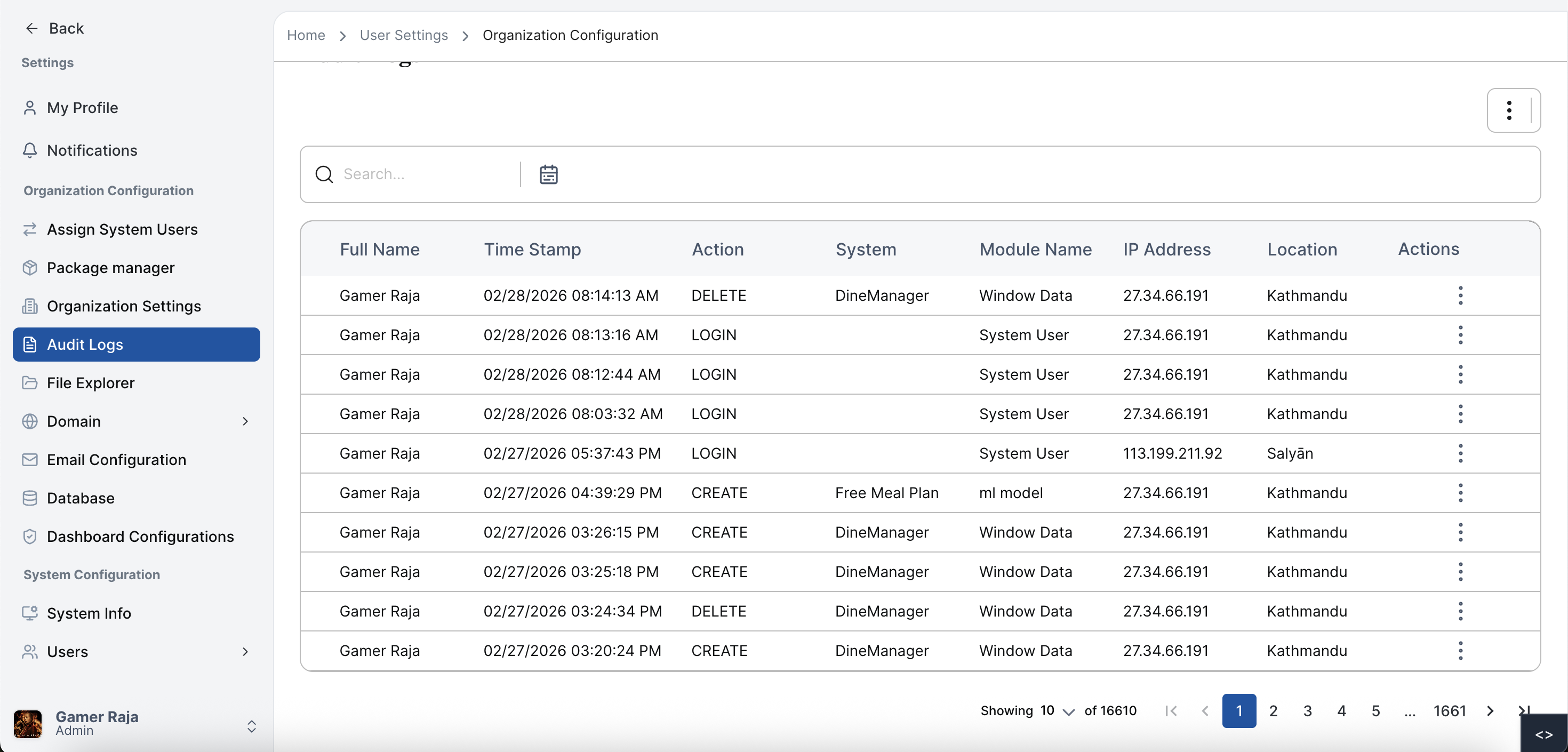
Viewing Audit Log History
When logged in as an Organization Owner and navigating to the Audit Logs page, you will see a list of audit records containing the following details:
- Full Name – Name of the user or system performing the action
- Timestamp – Date and time when the action occurred
- Action – Type of action (Login, Logout, Create, Update, Delete)
- System – The system where the action was performed
- Module Name – Specific module within the system
- IP Address – IP address from which the action originated
- Location of Access – Geographic location of the action
- Actions Menu – Menu icon with option to preview location on a map
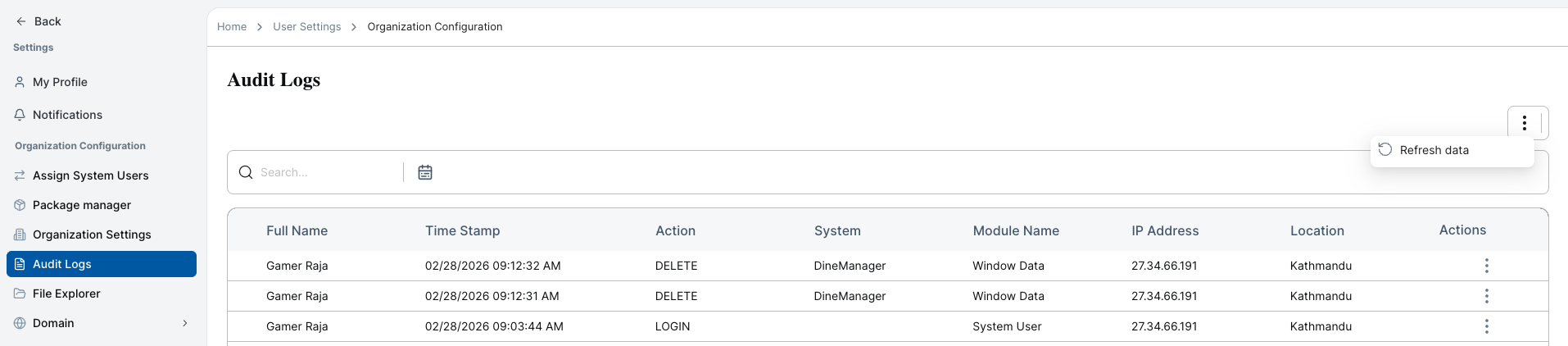
Refreshing Audit Logs
To refresh and load the latest audit records:
Click the Menu Icon
Locate the menu icon at the top of the Audit Logs page and click it.
Select Refresh Data
From the dropdown, choose Refresh Data.
View Updated Logs
The system will reload and display the most recent audit entries. Any newly recorded actions will appear in the updated list.
Searching Audit Logs
To quickly find specific audit records:
Enter a Keyword
Type a keyword (e.g., user name, action type, module name) in the search bar.
Review Results
Matching audit log entries will be displayed instantly.
Filtering Audit Logs
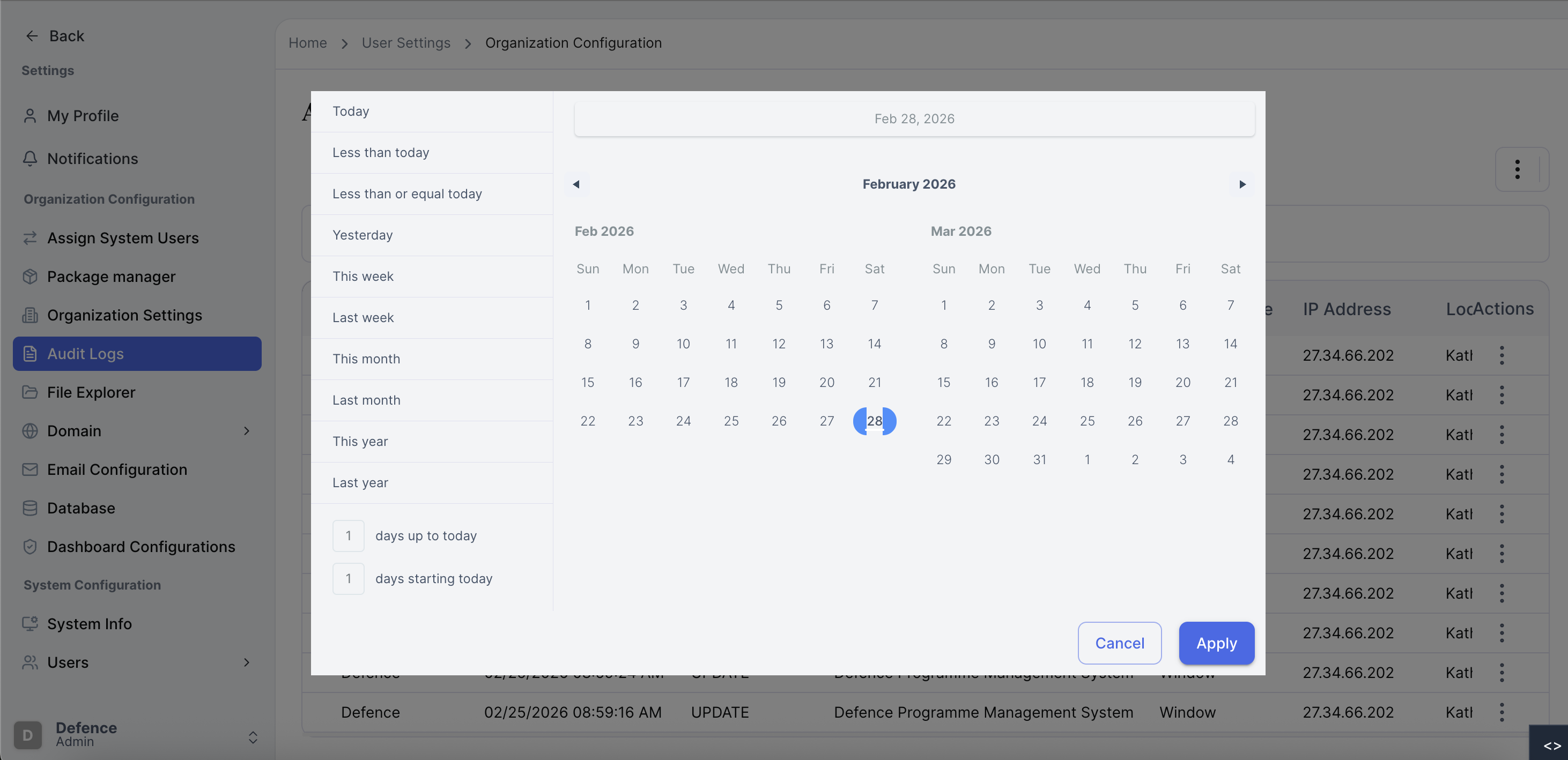
Filter by Date
To filter audit logs within a specific date range:
Open the Date Picker
Click the calendar icon located next to the search field.
Select Start and End Dates
A calendar view will appear. Choose your Start Date and End Date.
Apply the Filter
Click the Apply button. The system will display only logs within the selected date range.
Viewing Detailed Location Information
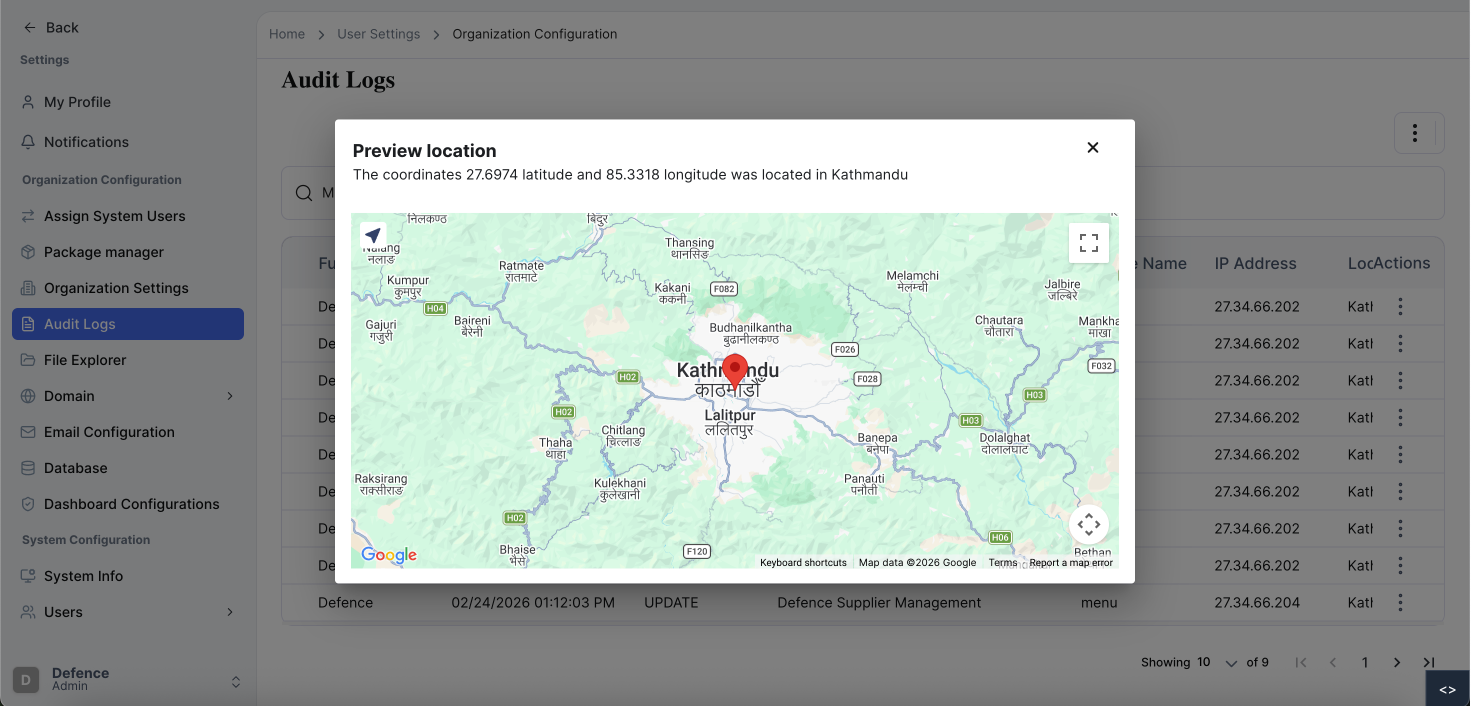
Preview Location on Map
To view detailed location information for a specific log entry:
Open the Actions Menu
In the row of the desired log entry, click the menu icon in the Actions column.
Select Preview Location
From the dropdown, choose Preview Location.
Examine the Map
A modal popup will appear displaying:
- Latitude and Longitude
- A visual map showing the exact access location
For additional assistance or more detailed instructions, please refer to the Help section or contact Support.