Multi-Language Support in Dalfin
Dalfin provides powerful multi-language support to ensure users around the world can interact with the system in their preferred language. Language should never be a barrier to productivity, collaboration, or learning.
With Dalfin, users can:
- Work in their native language
- Configure primary and secondary system languages
- Switch languages instantly
- Generate systems and prompts in multiple languages
- Use speech-to-text for supported languages
This ensures a truly global and accessible experience for teams and organizations.
Supported Languages
Dalfin supports a wide range of global languages to accommodate diverse users.
- 🇧🇩 Bengali
- 🇳🇵 Nepali
- 🇮🇳 Telugu
- 🇮🇳 Punjabi
- 🇮🇳 Oriya (Odia)
- 🇷🇺 Russian
- 🇮🇳 Malayalam
- 🇮🇳 Marathi
- 🇮🇳 Hindi
- 🇮🇩 Indonesian
- 🇸🇦 Arabic
- 🇯🇵 Japanese
- 🇫🇷 French
- 🇹🇷 Turkish
- 🇲🇾 Malay
- 🇮🇹 Italian
- 🇰🇷 Korean
- 🇻🇳 Vietnamese
- 🇱🇰 Tamil
- 🇮🇳 Assamese
- 🇵🇭 Tagalog
- 🇪🇸 Spanish
- 🇵🇰 Urdu
- 🇮🇳 Gujarati
- 🇵🇰 Sindhi
- 🇩🇪 German
- 🇮🇳 Kannada
- 🇬🇧 English (always available)
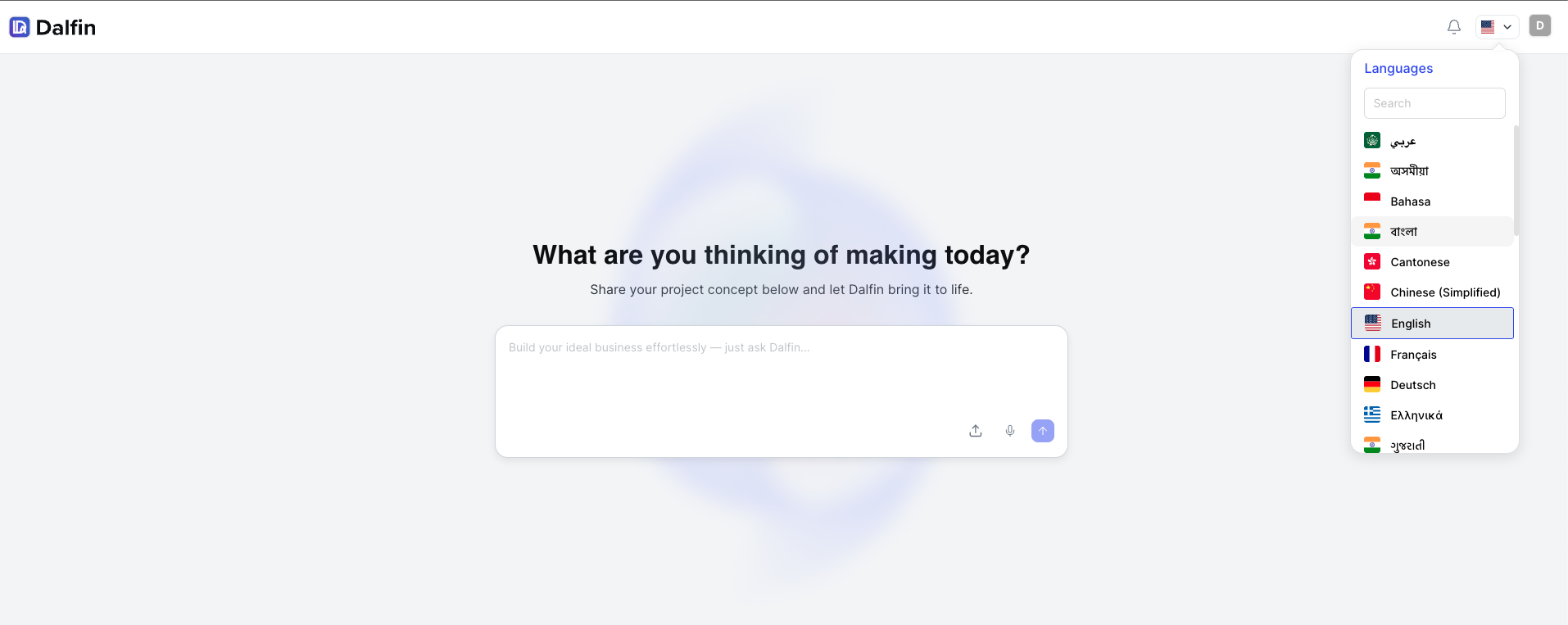
This extensive language support allows Dalfin to serve a truly international user base.
Key Multi-Language Features
Create Systems in Multiple Languages
Dalfin allows users to create systems, prompts, and process orchestrators in different languages.
Additionally, Dalfin includes speech-to-text support, allowing users to dictate prompts or system instructions.
Steps to Create a System in a Preferred Language
Select Language
Choose your preferred language when creating or configuring a system.
Create or Generate Prompts
Write prompts manually or use speech-to-text to generate content in that language.
Save the System
Save the system configuration once the prompts and instructions are completed.
This makes system creation faster and more accessible, especially for multilingual teams.
Primary and Secondary Language Configuration
Dalfin introduces a two-language system configuration for flexibility.
- Primary Language – The main language used across the system.
- Secondary Language – An alternative language users can switch to.
Important Rule
English will always remain available as either the Primary or Secondary language.

This setup helps organizations support multilingual teams efficiently.
User-Specific Language Preferences
Dalfin allows each user to choose their preferred language within the limits defined by the system administrator.
How Users Can Set Their Preferred Language
Open User Settings
Navigate to your profile or user settings.
Select Preferred Language
Choose between the configured Primary and Secondary language.
Apply Changes
Save the settings to update your interface language.
Example
| System Configuration | User Preference |
|---|---|
| Primary: English | User selects Spanish |
| Secondary: Spanish | English becomes secondary |
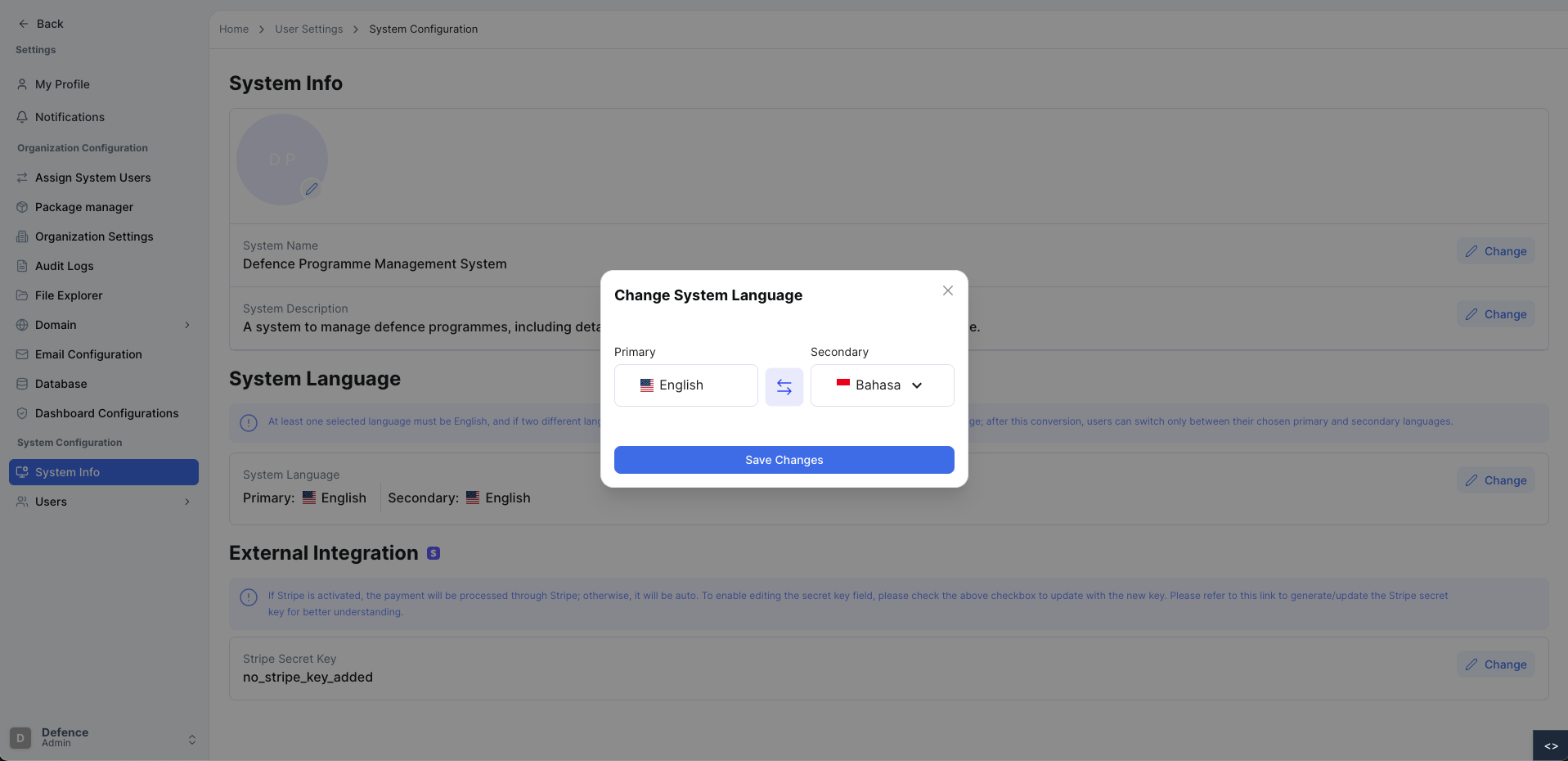
This allows users to personalize their interface without affecting other users.
Language Display in the Topbar
Dalfin displays the currently active system language in the topbar for quick reference.
This helps users easily identify which language the interface is currently using.
What You Can See in the Topbar
View Current Language
The topbar displays the primary language currently configured for the system.
Language Indicator
The language indicator helps users quickly confirm the language being used across the interface.
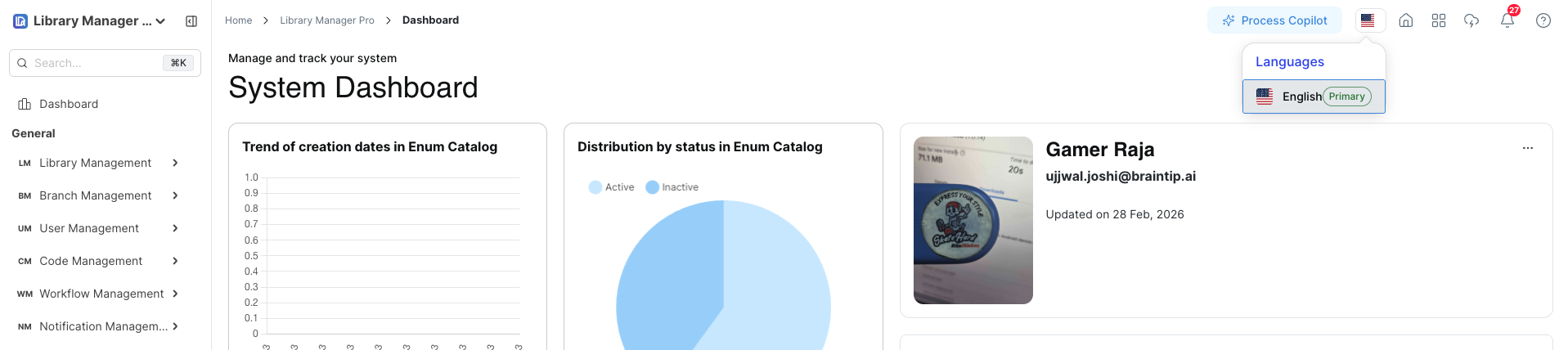
The language shown in the topbar reflects the system’s active language configuration defined in the system settings.
Conclusion
Dalfin’s multi-language capabilities create a global and inclusive platform for users worldwide.
With features such as:
- Support for multiple languages
- Primary and secondary language configuration
- User-specific language preferences
- Quick language switching
- Speech-to-text support
Dalfin ensures users can work comfortably, efficiently, and collaboratively regardless of language.
Start working in the language that suits you best and unlock the full potential of Dalfin’s global experience. 🌐