DB Backup and Restore
Overview
The DB Backup and Restore section allows Organization Admins to:
- Configure scheduled database backups
- Create manual backups
- Restore from previous backups
- Edit or disable backup schedules
- View backup and restore logs
This ensures database safety, recovery, and operational continuity.
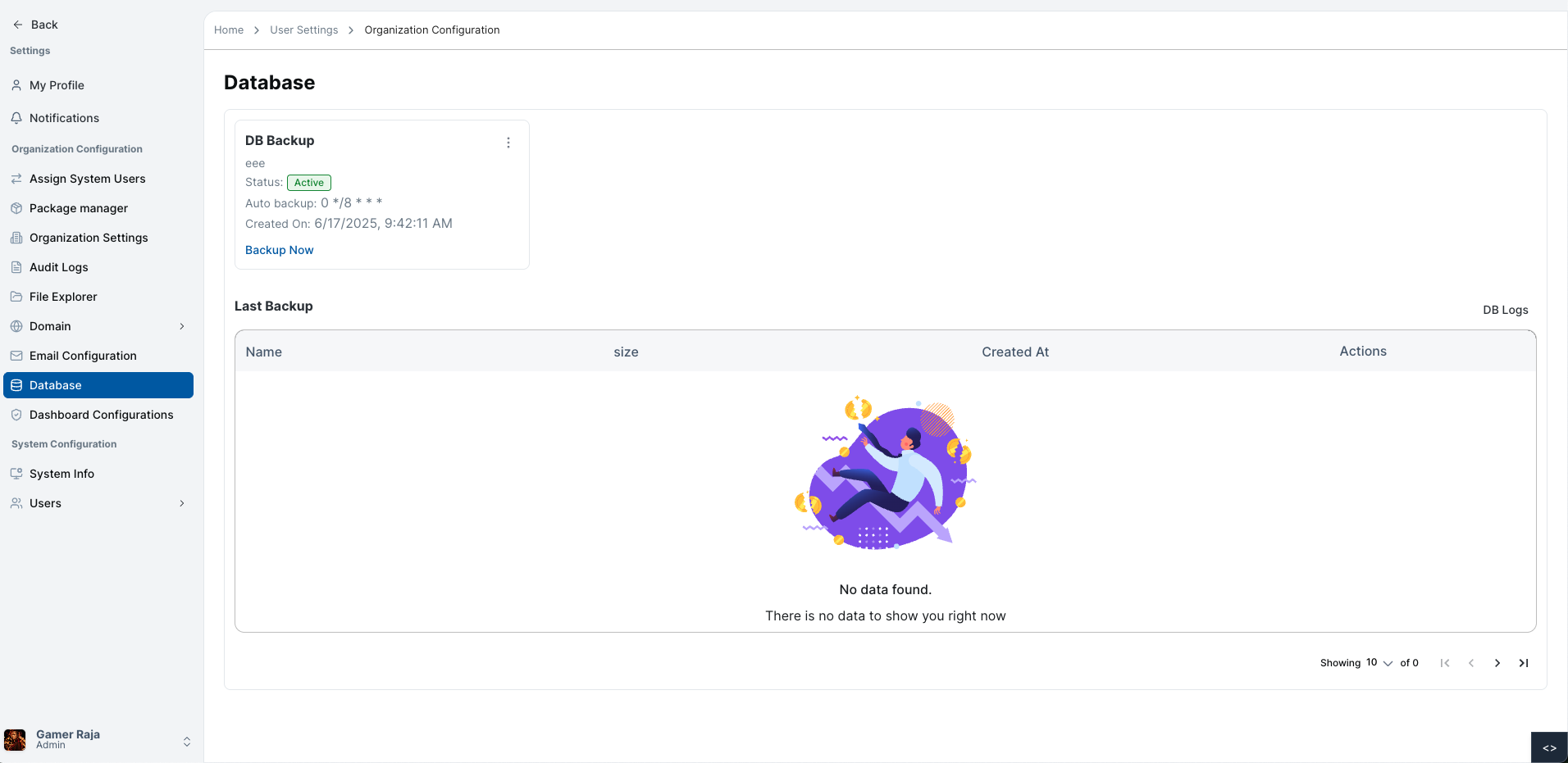
Backup Details
Each backup card contains a menu icon with the following options:
- View – View backup details
- Edit – Edit backup schedule
- Disable – Disable the backup
Viewing Backup Details
To view details of a scheduled backup:
Navigate to DB Backup Page
Go to the DB Backup page.
Open Menu
Click the menu icon on the backup card.
Select View
Choose View from the dropdown.
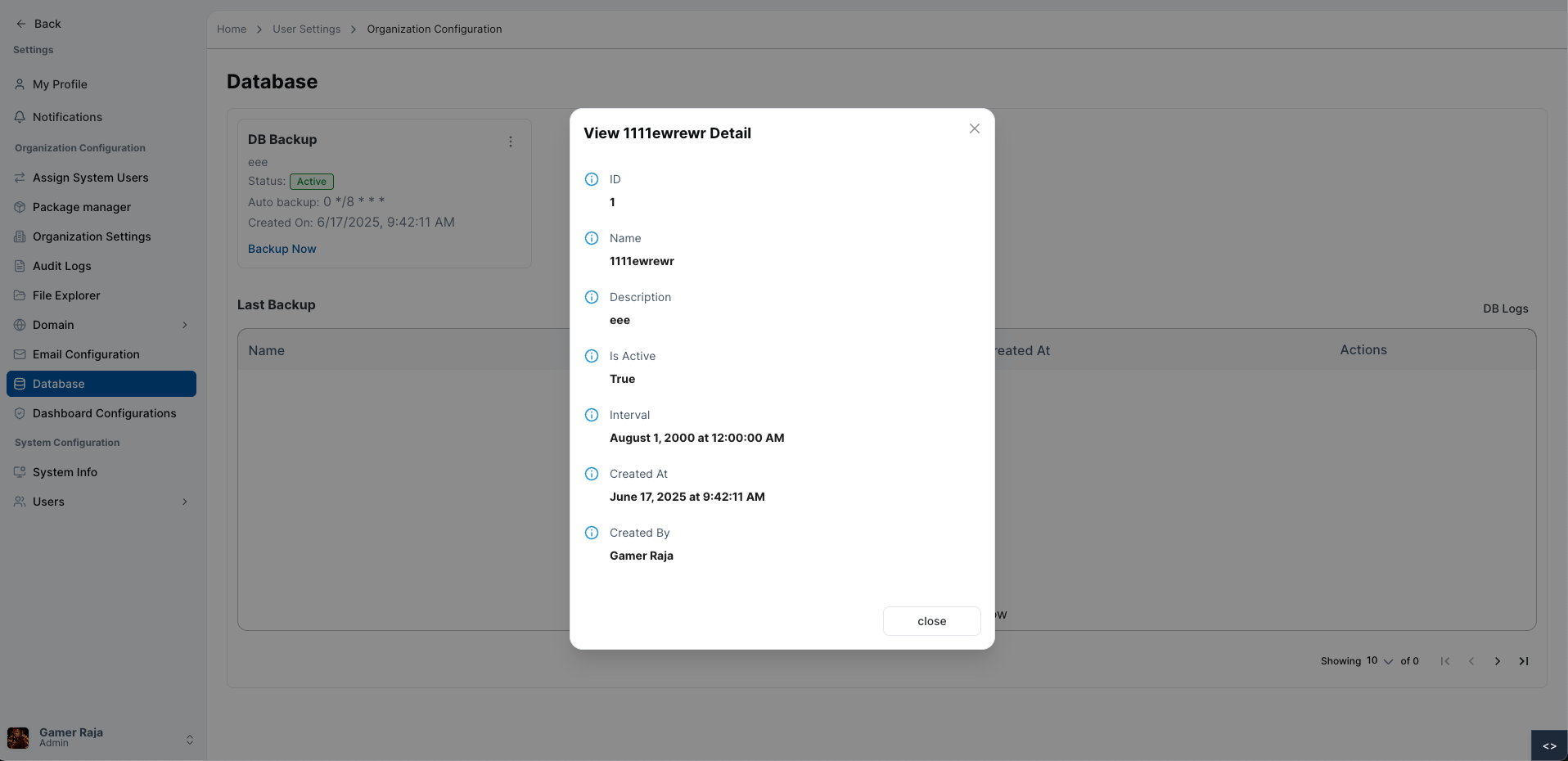
The View Details page displays:
- ID
- Name
- Description
- Is Active
- Interval
- Created At
- Created By
Editing a Backup Schedule
To edit an existing backup:
Open Menu
Click the menu icon on the backup card.
Select Edit
Choose Edit from the dropdown.
Fill the Form
Update the following fields:
- Name – Backup name
- Description – Optional description
- Backup After Every – Choose the interval
Submit Changes
Click Submit to save your updates.
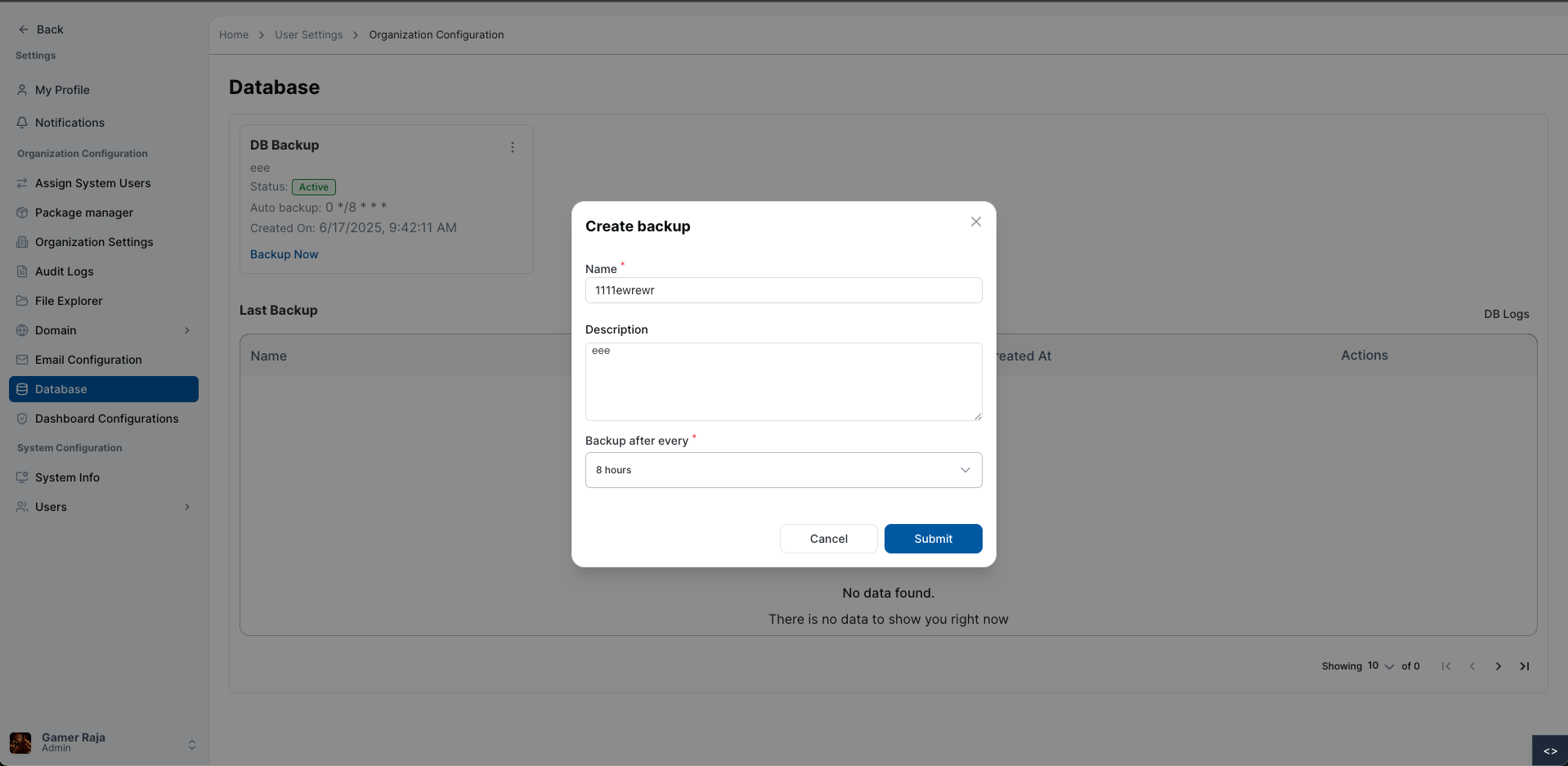
Available Backup Intervals:
- 8 hours
- 12 hours
- 24 hours
- 3 days
- 7 days
Disabling a Backup
To disable a scheduled backup:
Open Menu
Click the menu icon on the backup card.
Select Disable
Choose Disable from the dropdown.
Confirm
A confirmation modal will appear. Click Confirm to proceed.
After confirmation:
- The backup schedule is deactivated.
- Is Active status changes to False.
- No further automatic backups will run for this schedule.
Creating a Manual Backup
To create a manual backup:
Go to DB Backup Page
Navigate to the DB Backup page.
Click Manual Backup
Press the Manual Backup button.
Confirm
Confirm the action in the modal.
The system generates an SQL backup file, which is stored and listed in the DB Logs section.
DB Logs
The DB Logs section provides a detailed record of all backup and restore operations. Each log entry has a menu icon with the following options:
- View
- Restore
- Delete
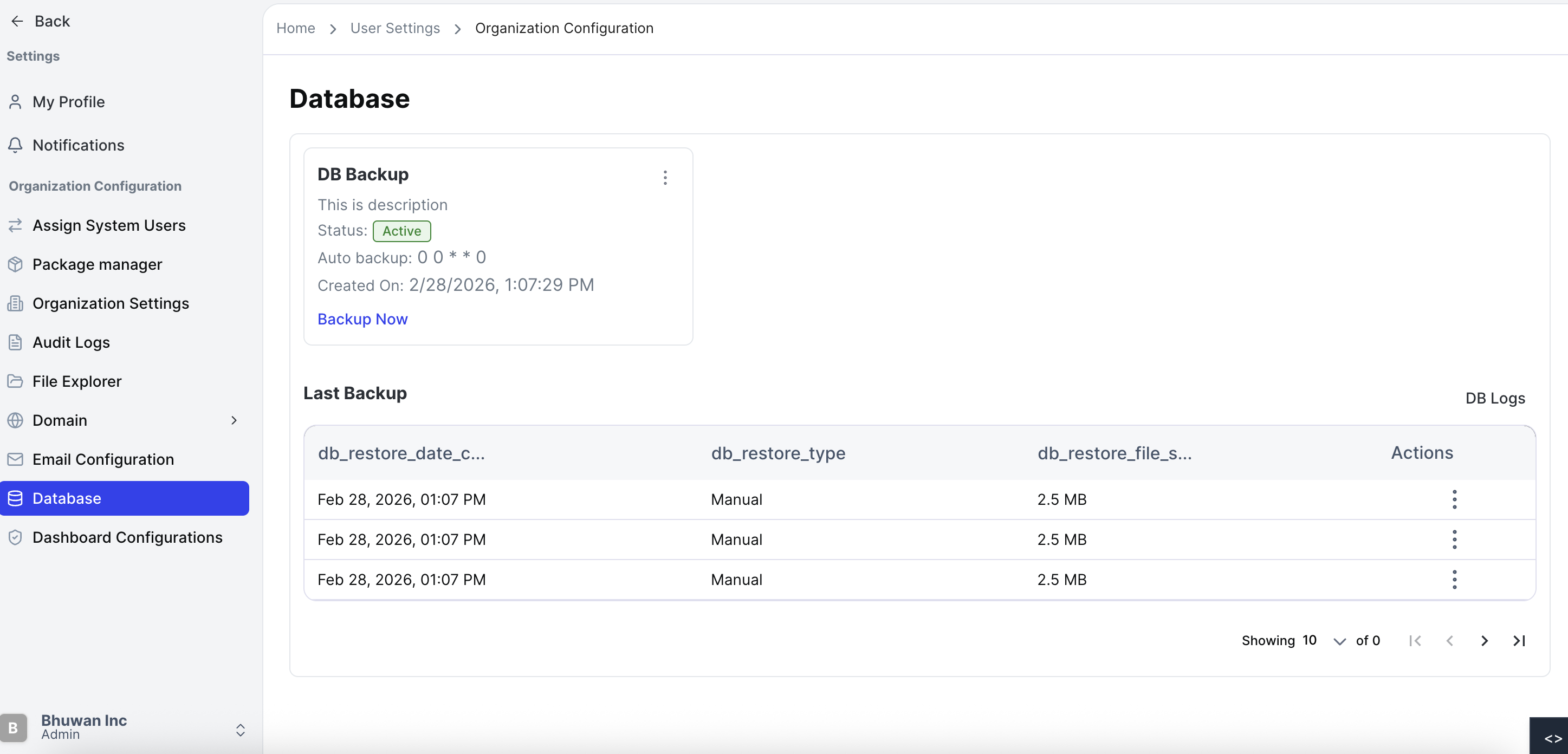
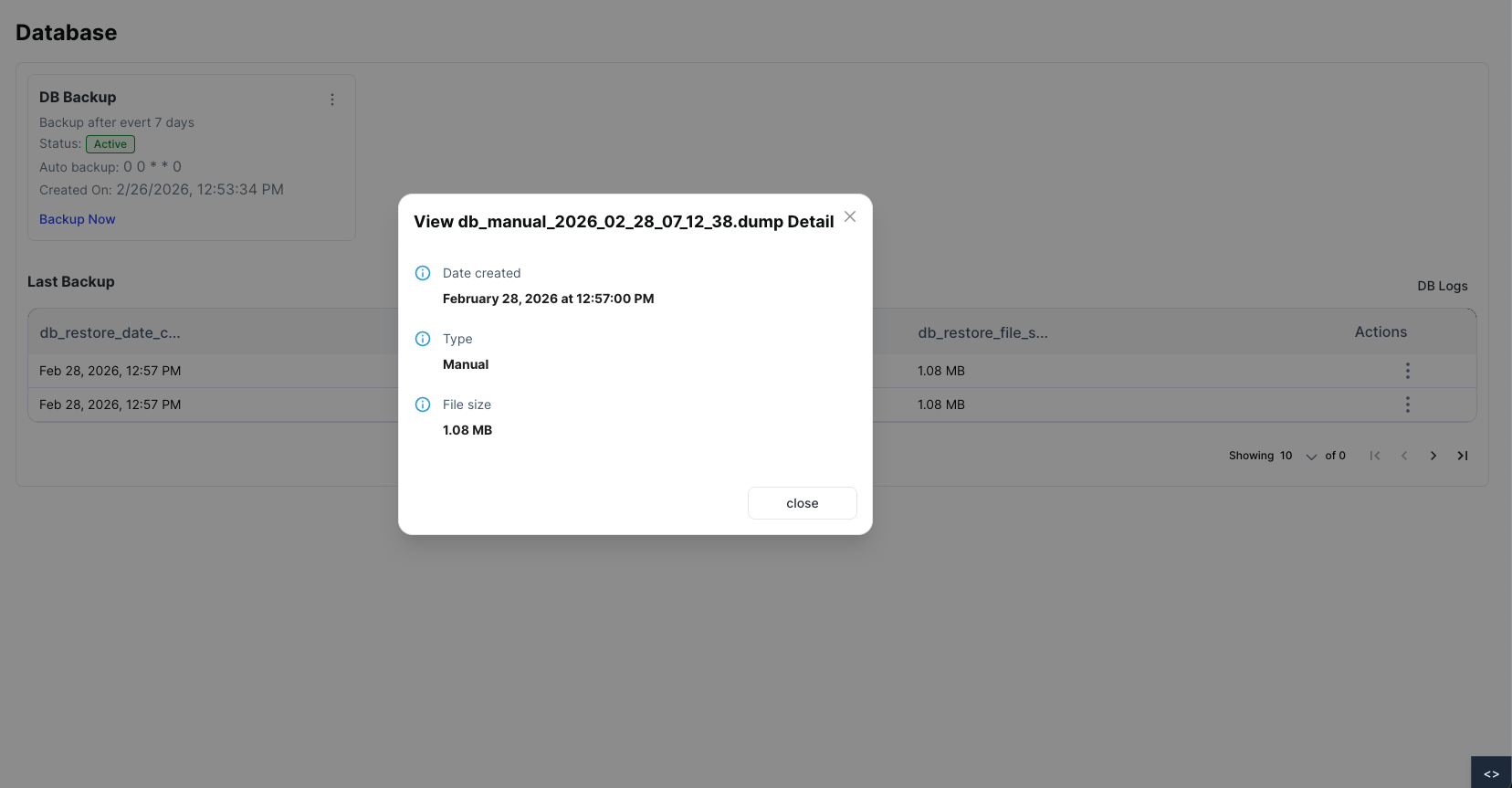
Viewing a Log Entry
To view details of a specific log entry:
The View Details modal/page displays:
- Name
- Date Created
- Type (Backup or Restore)
- File Size
Restoring from a Log Entry
To restore the database from a backup:
Open Menu
Click the menu icon on the log entry.
Select Restore
Choose Restore from the dropdown.
Confirm
Confirm the action in the modal.
During restoration:
- A current backup is automatically created before restoring.
- All organization services are temporarily halted.
- Services resume automatically once restoration is complete.
Important: Restoring a backup temporarily stops all operations across the organization.
Deleting a Log Entry / Backup File
To delete a backup:
Open Menu
Click the menu icon on the log entry.
Select Delete
Choose Delete from the dropdown.
Confirm
Confirm the deletion in the modal.
After deletion:
- The backup file is permanently removed.
- This action cannot be undone.
Caution: Deleting a backup is irreversible. Ensure you select the correct file.
For additional assistance or detailed instructions, refer to the Help section or contact Support.