Notifications
Overview
The Notifications page in Dalfin allows users to view, manage, and search notifications. Users can filter notifications by status and perform actions such as viewing details, marking as read, or deleting notifications.
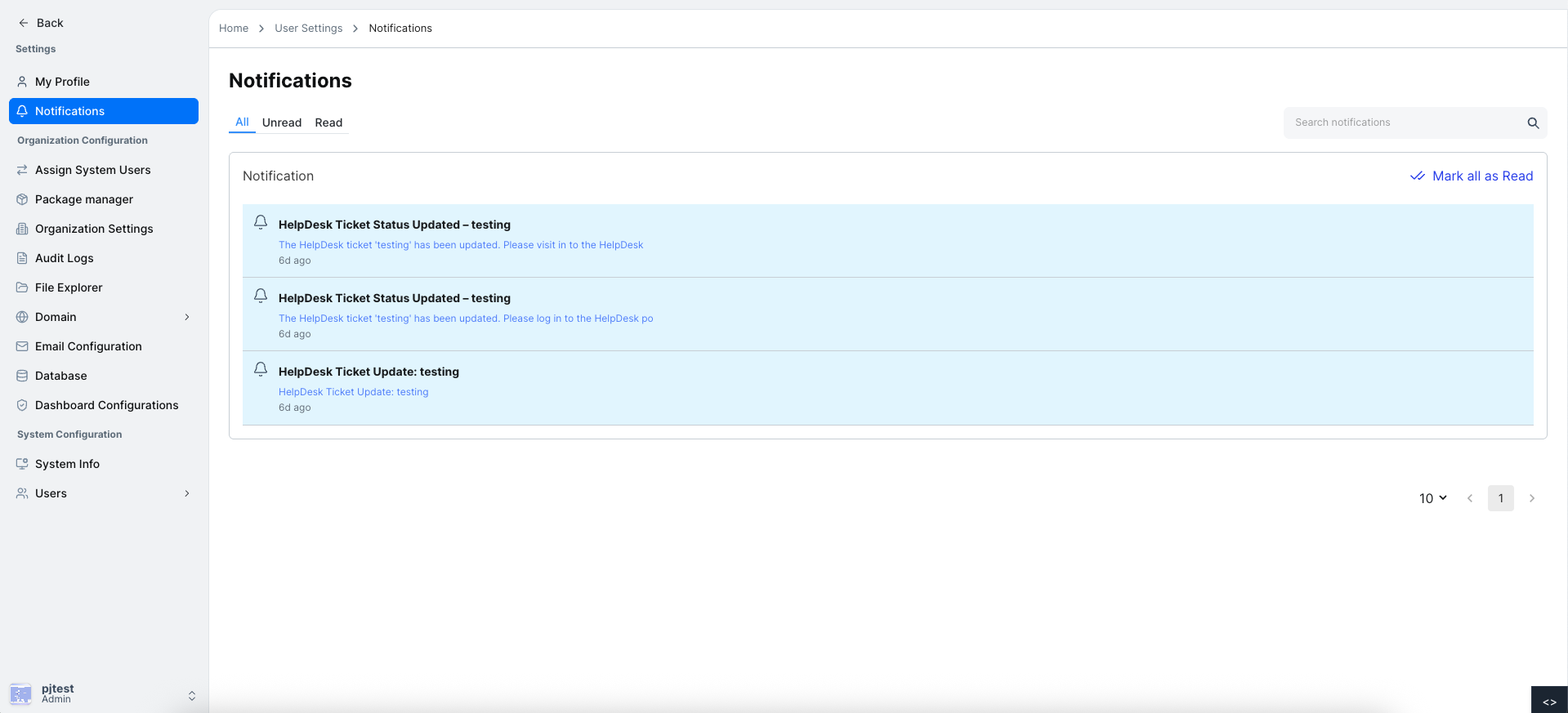
Notifications help users stay updated on system events, workflow updates, and other relevant activities. The page provides an organized way to manage and track all notifications efficiently.
Notifications Tabs
Notifications are categorized into three tabs:
- All – Displays all notifications.
- Unread – Displays only unread notifications.
- Read – Displays only notifications that have been read.
Use the tabs to quickly filter notifications by their read status.
Search Notifications
A search bar is available to search notifications by keywords or content:
- Enter a keyword in the search bar.
- The list of notifications will automatically filter to match the search term.
Notification Card Actions
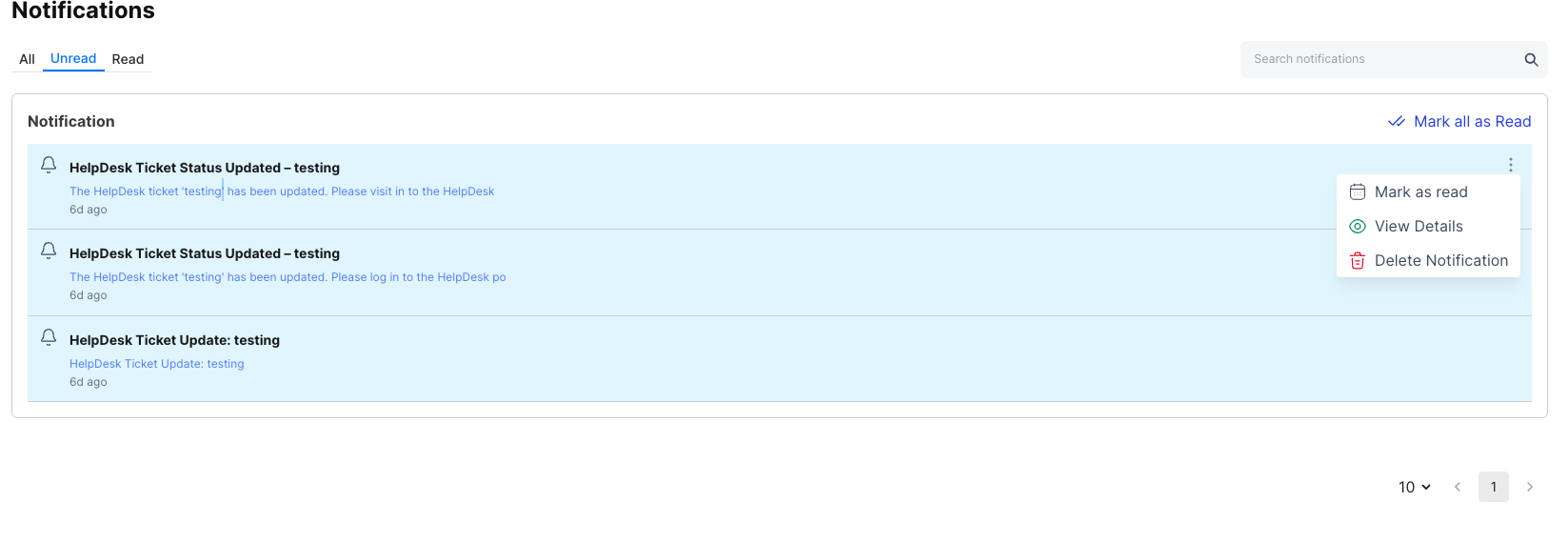
Each notification card has a menu icon with the following actions:
- View Details – Expands the notification card to display the full details of the notification.
- Mark as Read – Marks the notification as read.
- Delete Notification – Deletes the notification from the list.
Viewing Notification Details
- Click View Details from the notification card menu.
- The notification card expands to show:
- Full message/content
- Date and time
- Any relevant metadata

Expanded view allows users to see all the information related to a notification without leaving the Notifications page.
Deleting a Notification
- Click Delete Notification from the notification card menu.
- A confirmation prompt will appear asking if you are sure you want to delete the notification.
- Confirm deletion.
- The notification will be removed from the list.
Deleting a notification is permanent and cannot be undone. Ensure that important notifications are viewed before deleting.
Marking a Notification as Read
- Click Mark as Read from the notification card menu.
- The notification status changes from Unread to Read.
- The notification will move to the Read tab.
Marking notifications as read helps in tracking which notifications have been attended to.
This guide provides a complete overview of the Notifications page in Dalfin, including searching notifications, filtering by tabs, and performing actions like viewing details, marking as read, or deleting notifications.