Email Configuration
Overview
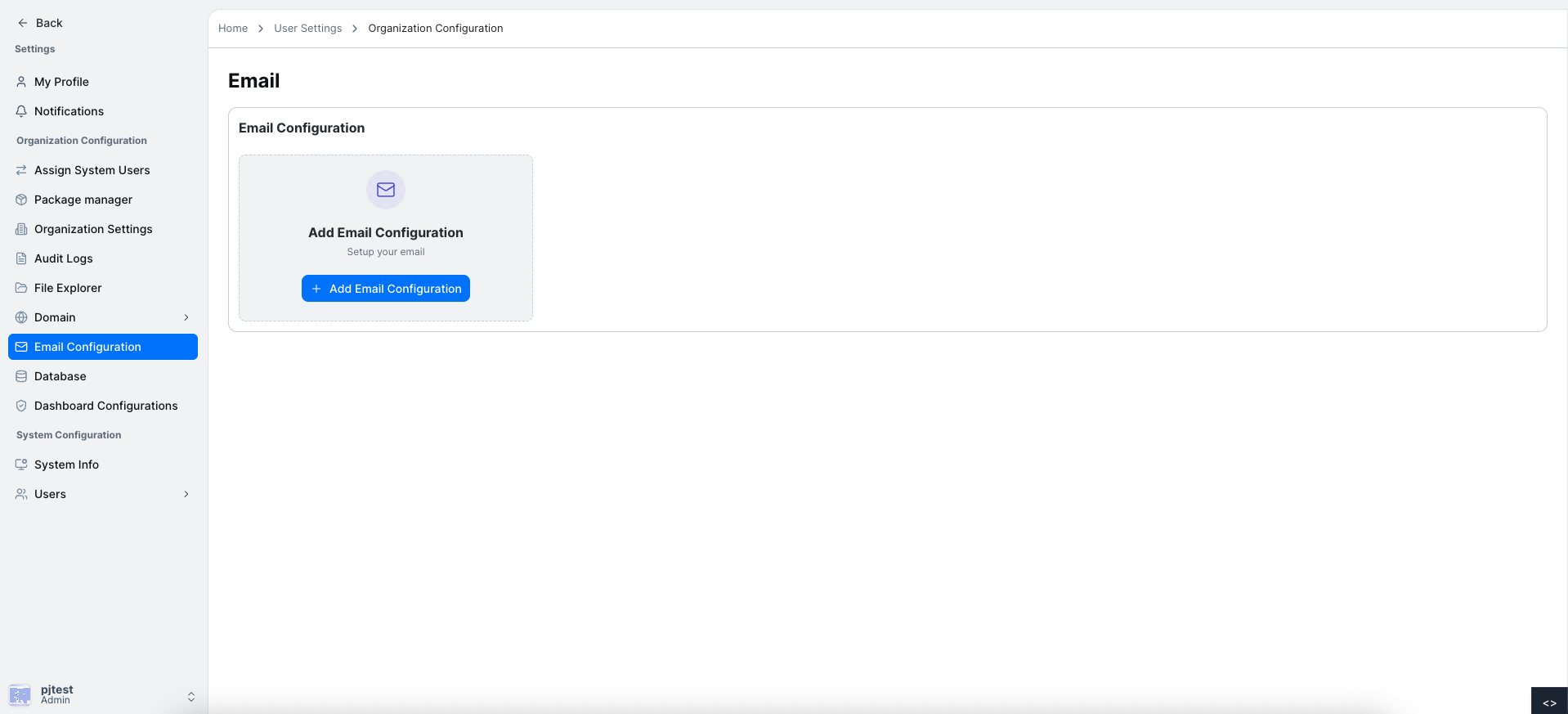
The Email Configuration page allows users to add and manage email settings for different providers including SMTP, Gmail, Office 365, and AWS. Users can set default configurations and test connections before saving.
Users can configure multiple email providers and select one as the default for sending notifications from Dalfin.
Adding a New Email Configuration
Steps to add a new email configuration:
- Click the Add Email Configuration button.
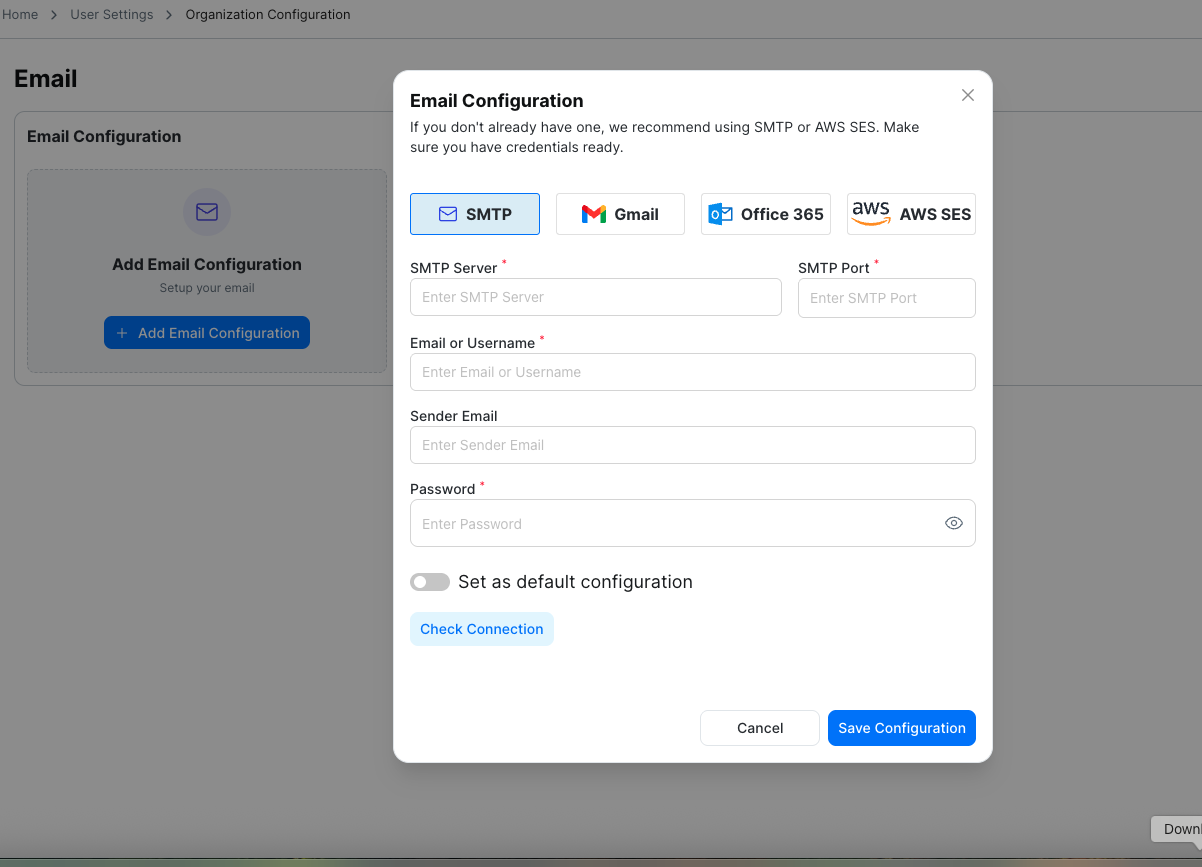
- A form will appear with tabs for SMTP, Gmail, Office 365, and AWS.
- Select the tab corresponding to the email provider you want to configure.
SMTP Configuration
Fields:
- SMTP Server – The server address of your SMTP provider.
- SMTP Port – The port used for sending emails.
- Email or Username – Your email account or username.
- Sender Email – The email address shown as sender.
- Password – Account password for authentication.
- Set as Default – Switch to mark this configuration as default.
- Check Connection – Button to verify the connection.
Gmail Configuration
Fields:
- SMTP Server
- SMTP Port
- Email or Username
- Password
- Set as Default – Switch to mark this configuration as default.
- Check Connection – Button to verify the connection.
Office 365 Configuration
Fields:
- SMTP Server
- SMTP Port
- Email or Username
- Password
- Set as Default – Switch to mark this configuration as default.
- Check Connection – Button to verify the connection.
AWS Configuration
Fields:
- AWS Access Key ID – Your AWS access key.
- AWS Secret Access Key – Your AWS secret key.
- Region Name – AWS region where emails are sent from.
- Sender Email – The email address shown as sender.
- Set as Default – Switch to mark this configuration as default.
- Check Connection – Button to verify the connection.
Saving Email Configuration
After filling in the fields and verifying the connection:
- Click the Save Configuration button.
- A confirmation message will indicate that the configuration has been saved successfully.
- The saved configuration will appear in the list of email configurations.
Ensure that the default configuration is correctly marked, as this will be used for sending all system notifications.
This guide provides a structured overview of the Email Configuration page in Dalfin, including steps for adding, configuring, testing, and saving SMTP, Gmail, Office 365, and AWS email settings.