Quiz
The Quiz module lets you create timed assessments with scoring, feedback controls, and result publishing. You can build quizzes with multiple question types, assign them to users or roles, and track results on a leaderboard.
Creating a Quiz
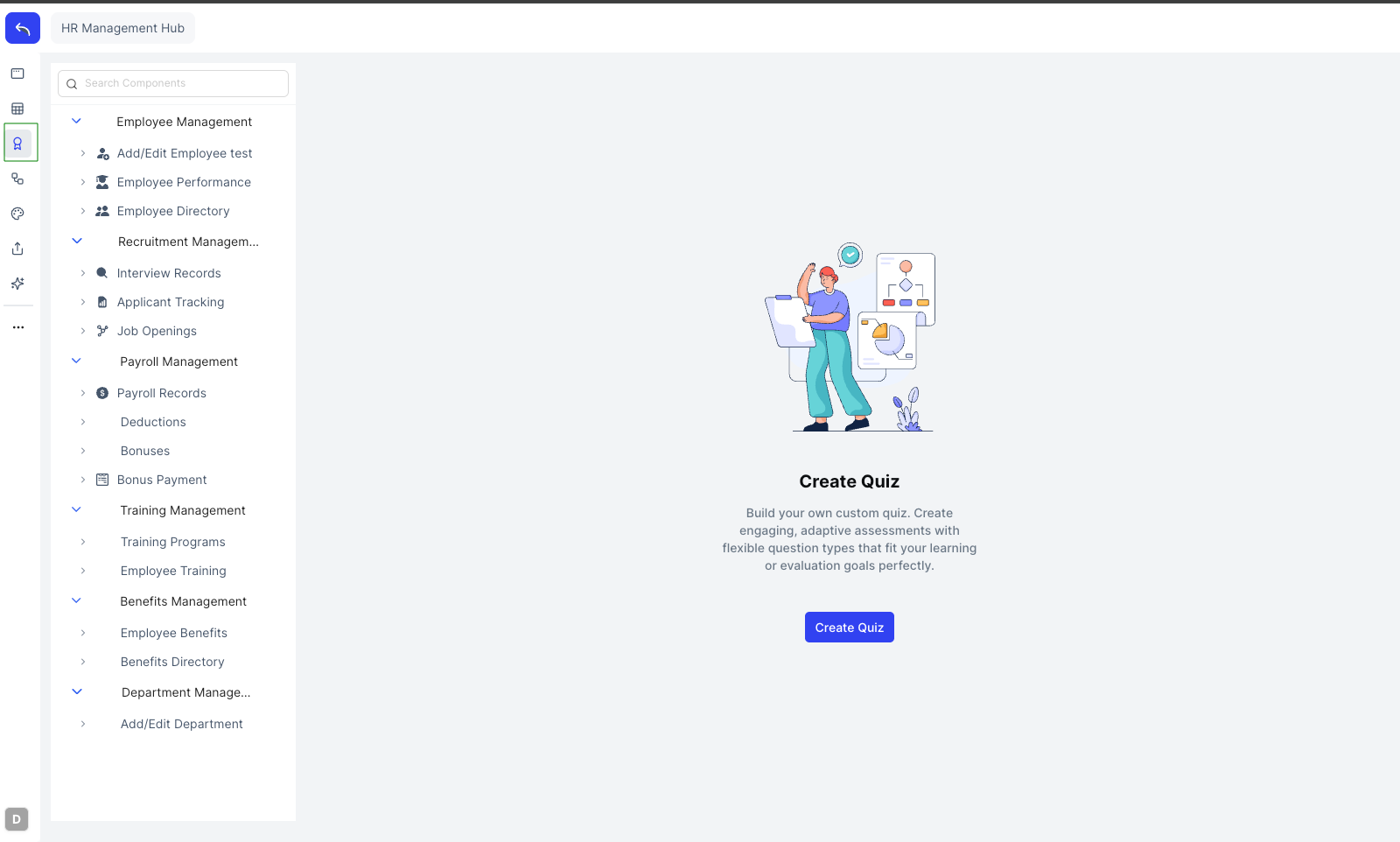
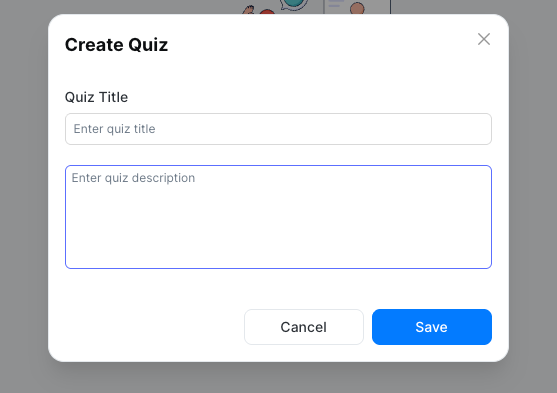
Click Create Quiz in the top bar. Enter a name and description for the quiz, then click Save.
Quiz Settings
Click the settings icon in the top bar to open the quiz settings panel.
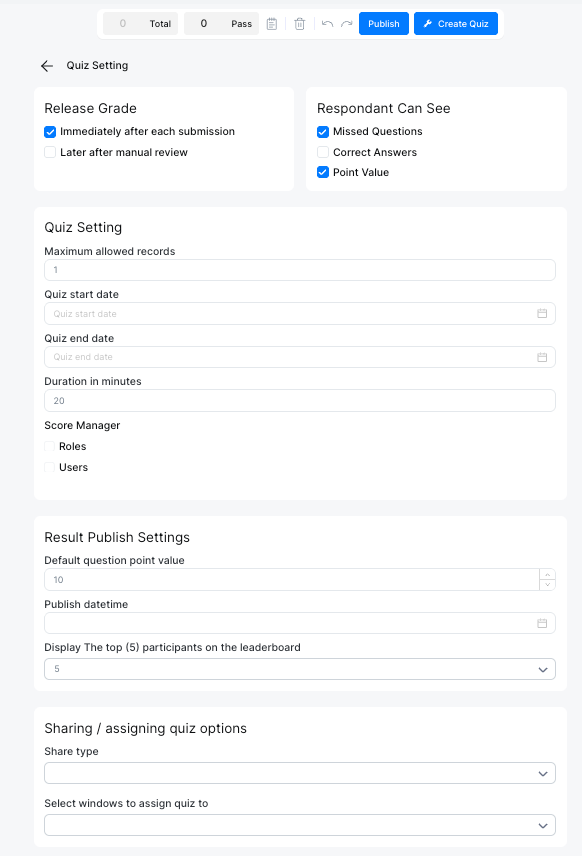
The settings are grouped into four sections:
Release Grade — controls when results are shown to respondents. Choose Immediately after each submission to show results right away, or Later after manual review to release them only after grading.
Respondent Can See — controls what feedback respondents can view: Missed Questions, Correct Answers, and Point Value.
Quiz Setting:
| Field | Description |
|---|---|
| Maximum allowed records | How many times a respondent can submit |
| Quiz start date | When the quiz becomes accessible |
| Quiz end date | When the quiz closes |
| Duration in minutes | Time limit for completing the quiz |
| Score Manager | Assign roles or users responsible for reviewing and scoring responses |
Result Publish Settings:
| Field | Description |
|---|---|
| Default question point value | Default points assigned to each question |
| Publish datetime | When results become visible to respondents |
| Display top N on leaderboard | Number of top participants shown on the leaderboard |
Sharing / Assigning:
- Share type: how the quiz is distributed (link, email, or direct user assignment)
- Select windows to assign quiz to: optionally link the quiz to a window for tracking
Adding Questions
After saving settings, add questions to the quiz. Click the question type dropdown to select the type.
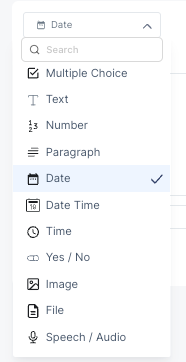
Available question types:
| Type | Description |
|---|---|
| Single Choice | One correct answer from multiple options |
| Multiple Choice | Multiple correct answers |
| Text | Short text answer |
| Number | Numeric answer |
| Paragraph | Long text answer |
| Date | Date selection |
| Date Time | Date and time selection |
| Time | Time selection |
| Yes / No | Binary answer |
| Image | Image upload as response |
| File | File upload as response |
| Speech / Audio | Audio recording or upload |
Configuring a Question
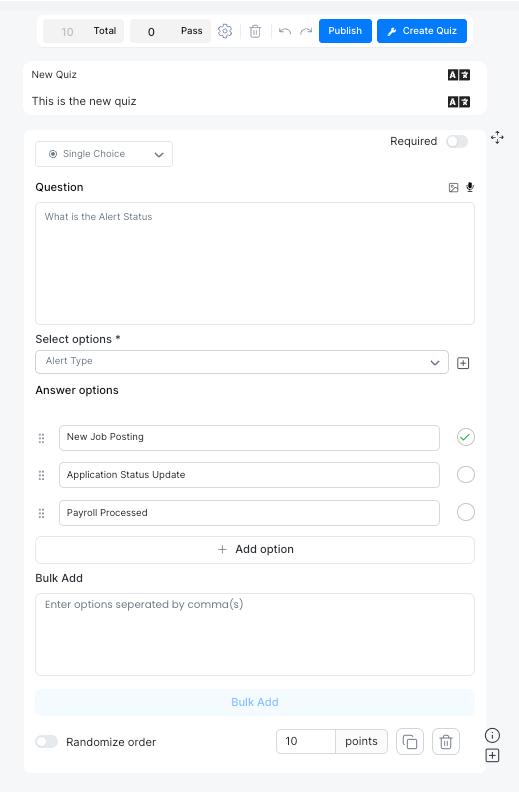
Each question has the following options:
| Option | Description |
|---|---|
| Question | The question text (supports image and audio attachments) |
| Required | Toggle to make the question mandatory |
| Select options | For choice-based questions, link to a window field to populate answer options |
| Answer options | Add or remove individual answer options; mark the correct one |
| Bulk Add | Paste multiple options at once separated by commas |
| Randomize order | Shuffle answer options for each respondent |
| Points | Point value for this question |
The Total and Pass counts in the top bar update automatically as you add questions.
Publishing
Click Publish in the top bar to make the quiz live. Respondents can access it within the configured start and end dates.
After publishing, the quiz appears in the unassigned windows section. Drag and drop it to the desired menu to make it accessible to users.