File Explorer
Overview
The File Explorer allows organization owners to manage all folders and files efficiently. You can view folder structures, check file details, and navigate storage effectively.
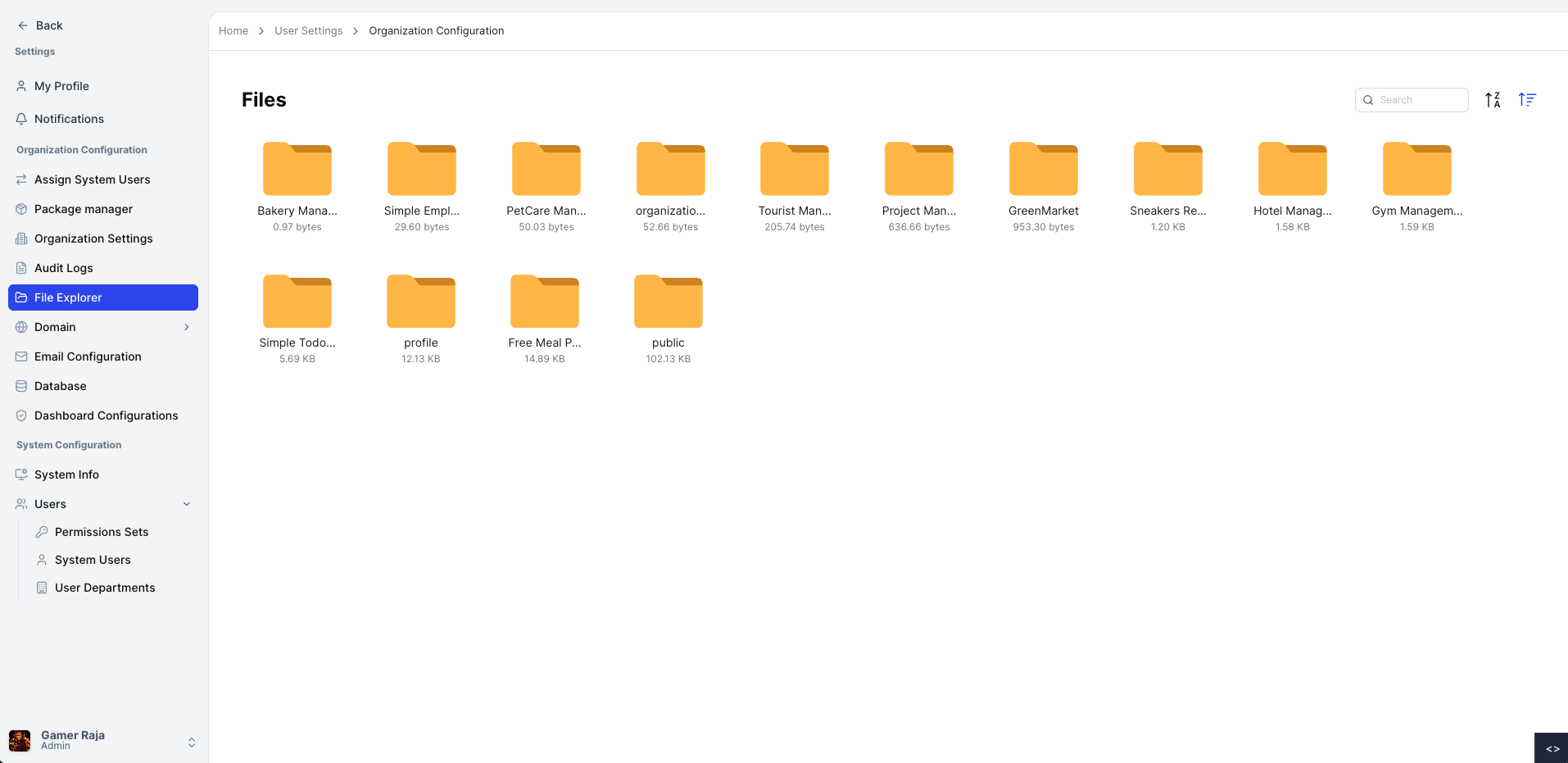
Viewing All Folders and Files
When logged in as an organization owner and on the File Explorer page:
- All folders and files within the organization are displayed.
- Each folder and file shows its size for easy tracking.
Expanding Folders
To explore folder contents:
- Click on a folder.
- The folder will expand to show its contents.
- You will see a list of all files and subfolders within the folder.
- Each file and subfolder will display its size.
Viewing File and Folder Details
File Details
To check information about a specific file:
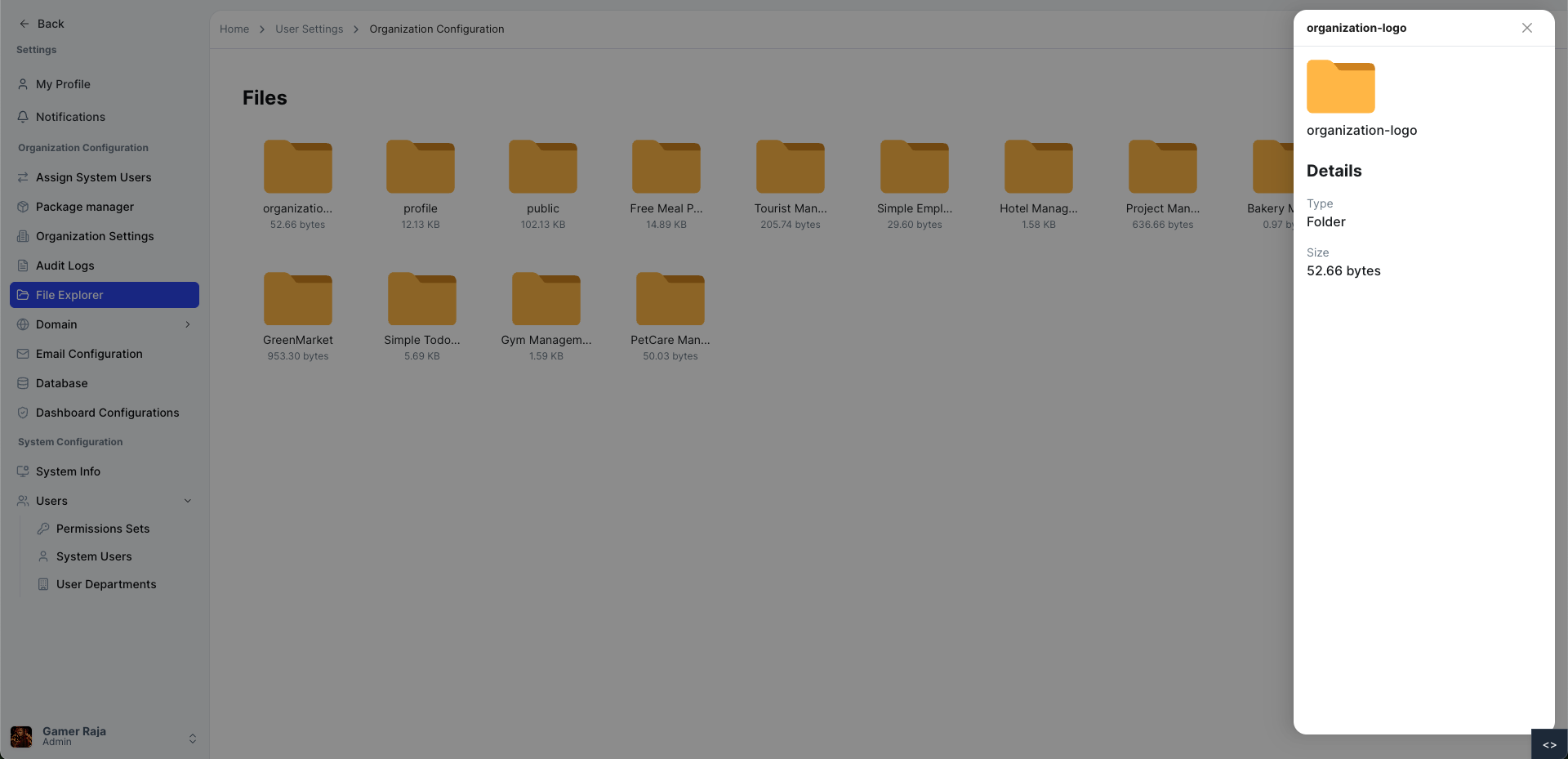
- Click the file in the File Explorer.
- A modal popup will appear showing:
- Name – The file name
- Size – The file size
- Type – The file format
Folder Contents
To view the contents of a folder:
- Click the menu icon on the folder.
- Select the View option.
- A modal popup will appear displaying all files and subfolders inside the folder.
- Each item in the modal shows its name, size, and file type for quick reference.
Searching for Files and Folders
To find a specific file or folder:
- Enter the name in the search bar.
- Click the search button.
- Results matching your query will be displayed, along with their sizes.
Sorting Files and Folders
You can sort files and folders alphabetically or by size using the sort icons in the column headers:
- Click the up/down arrow icons next to the Name or Size column headers.
- The list will toggle between ascending and descending order.
- Sorting applies to both files and folders, making it easy to find what you need.
Note: Name sorting uses the alphabetical icon (A-Z / Z-A) and size sorting uses the size icon (smallest → largest / largest → smallest).
Viewing Folder Structure
To navigate folder hierarchies:
- Check the folder tree structure on the File Explorer page.
- Navigate through folders and subfolders to see their contents.
For additional assistance or detailed instructions, please refer to the help section or contact support.