User Management – System Users
Overview
As a System Administrator, you can manage system users, including their details, roles, and permissions.
Background
You must be logged in as a System Administrator and be on the System User Management page under User Management.
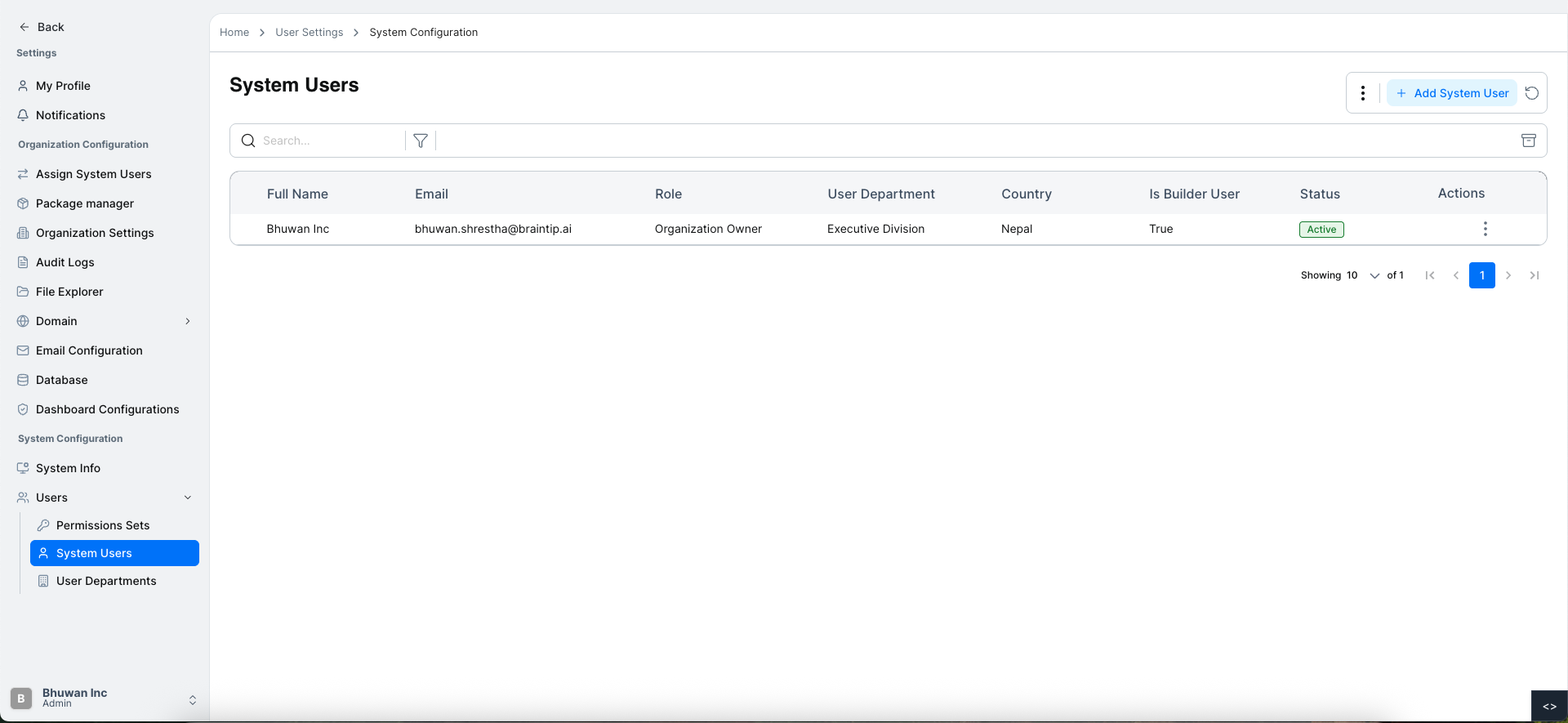
Viewing List of System Users
When you open the System Users page, you will see a table listing all existing system users.
Each user entry displays the following information:
- Full Name
- Email ID
- User Role
- User Department
- Country (if provided)
Adding a New System User
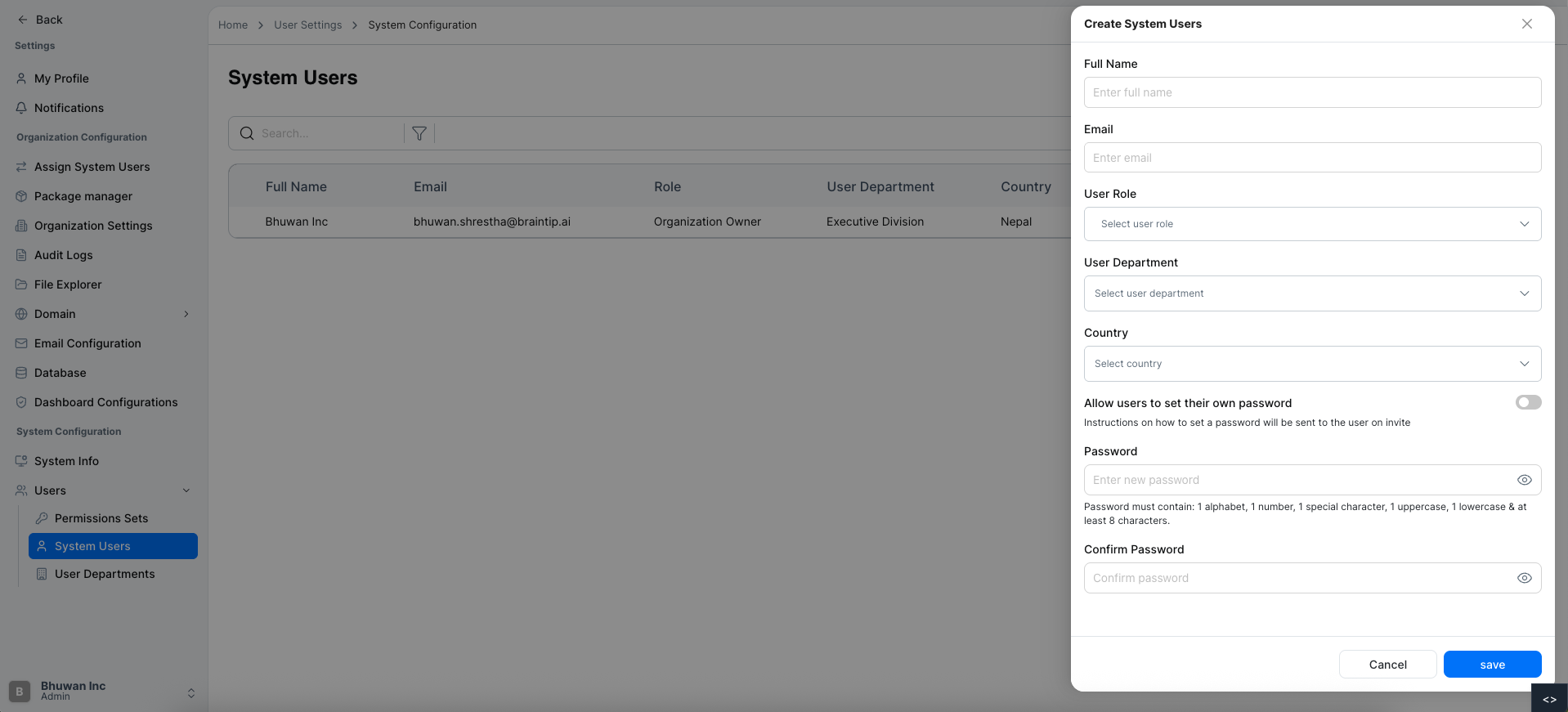
To create a new system user:
Click Add User
Click the Add User button.
Enter User Details
Fill in the required fields:
| Full Name | Email ID | User Role | User Department | Country | Allow Users To Set Their Own Password |
|---|---|---|---|---|---|
| John Doe | john.doe@example.com | Administrator | IT Department | USA | false |
Save the User
Click the Save button.
User Created
The system user will be created successfully.
Confirmation
A confirmation message will appear indicating the user has been added.
Password Setup Email
An email will be sent to the user with instructions to set their password.
Refreshing the System Users List
To reload the latest system user data:
- Click the Refresh icon located near the Add System User button.
The list will refresh and display the user information.
Exporting System User Data
The system users list can be exported for reporting or external use.
Export to CSV
- Click the menu icon next to the Add System User button.
- Select Export to CSV.
- The system will download the system users list as a CSV file.
Searching for a System User
If there are many users, you can quickly locate a specific user using the search feature.
Open System Users
Navigate to System Users.
Enter Search Term
Type the user name or email in the search bar.
View Results
Matching users will appear in the list.
Filtering System Users
You can filter the users list based on status to quickly locate specific records.
Available filter options:
- Active
- Inactive
Open System Users
Navigate to System Users.
Click Filter Icon
Click the Filter icon located above the system users table.
Select Status
A filter form will appear.
Choose the desired Status from the dropdown:
- Active
- Inactive
Apply Filter
After selecting the status, the table will display system users matching the selected filter.
Archiving All System Users
You can archive all users using the Archive icon.
Archiving moves users to an archived state without deleting their data.
Open System Users
Navigate to System Users.
Click Archive Icon
Click the Archive icon located near the filter and action buttons above the table.
Archive Complete
The system will archive all system users.
Viewing Details of a System User
You can view detailed information about a system user using the Actions menu in the table.
Open System Users
Navigate to System Users.
Open Actions Menu
Locate the user in the table and click the Actions menu icon.
Select View
Click View from the dropdown options.
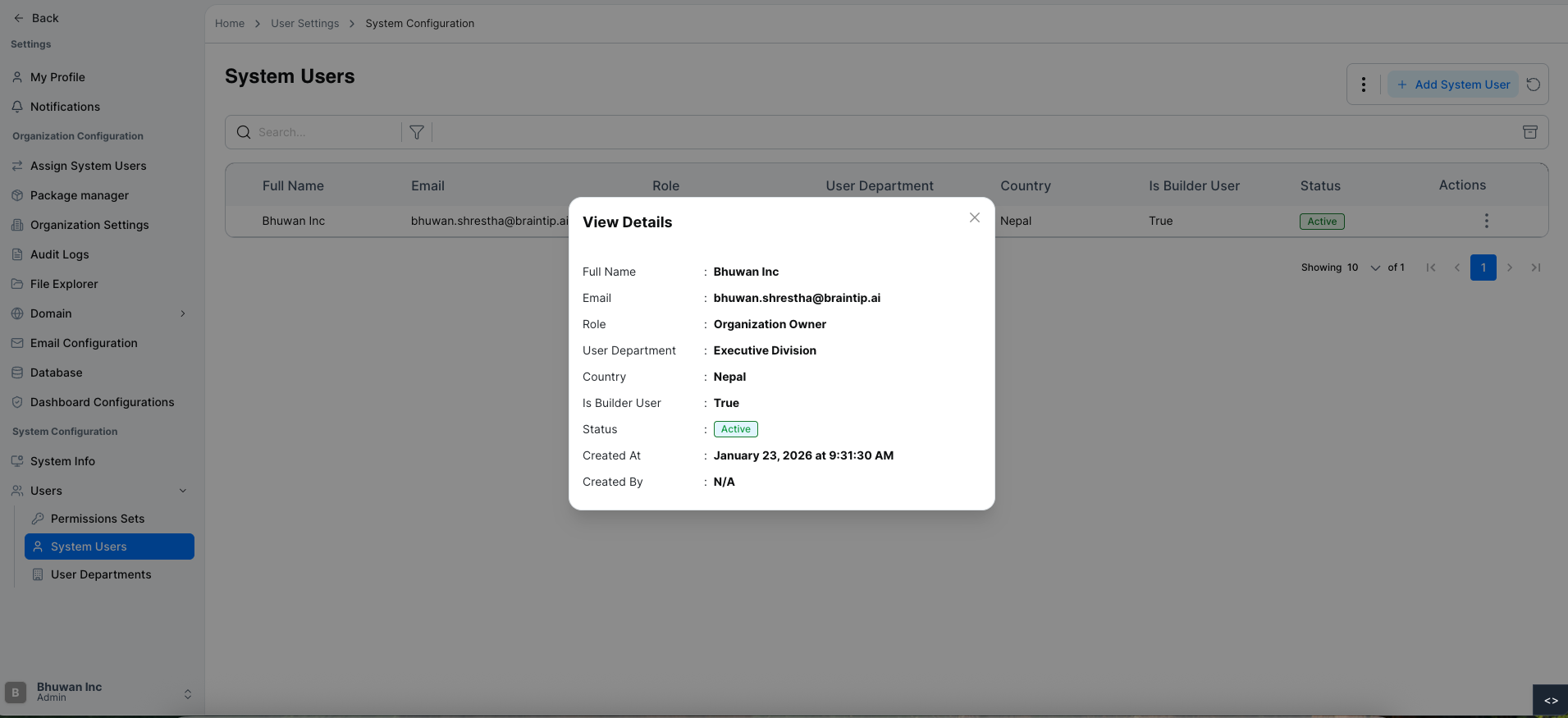
Review User Details
A details panel will appear showing the following information:
- Full Name
- User Role
- User Department
- Country
- Is Build User Status
- Created At
- Created By
Changing a System User Password
Administrators can reset or change a user's password through the Change Password option in the Actions menu.
Open System Users
Navigate to System Users.
Open Actions Menu
Find the user in the table and click the Actions menu icon.
Select Change Password
Click Change Password from the dropdown menu.
Update Password
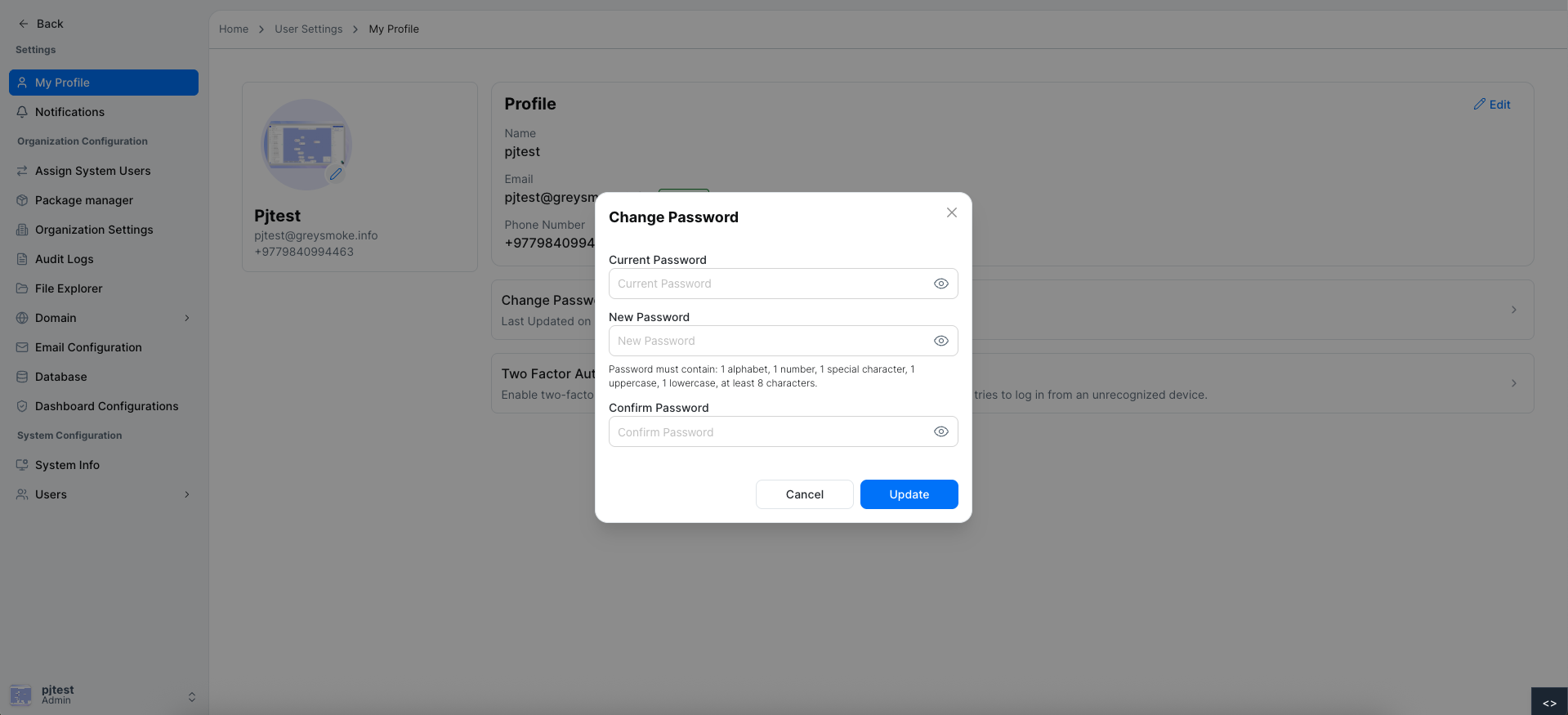
A Change Password form will appear with the following options:
- Send Email to Reset Password – sends a password reset link to the user's email.
- New Password – manually enter a new password.
- Confirm Password – re-enter the new password to confirm.
Submit Password Change
Click the Change Password button to apply the update.
For additional assistance or more detailed instructions, please refer to the help section or contact support.