Domain Management
Overview
The Domain Management section allows Organization Owners to manage:
- Default system domains provided by Dalfin
- Custom domains
- System domain mappings
- DNS configuration and verification
A dropdown at the top of the page enables switching between:
- Domain Manager
- System Domain Manager
Domain Manager
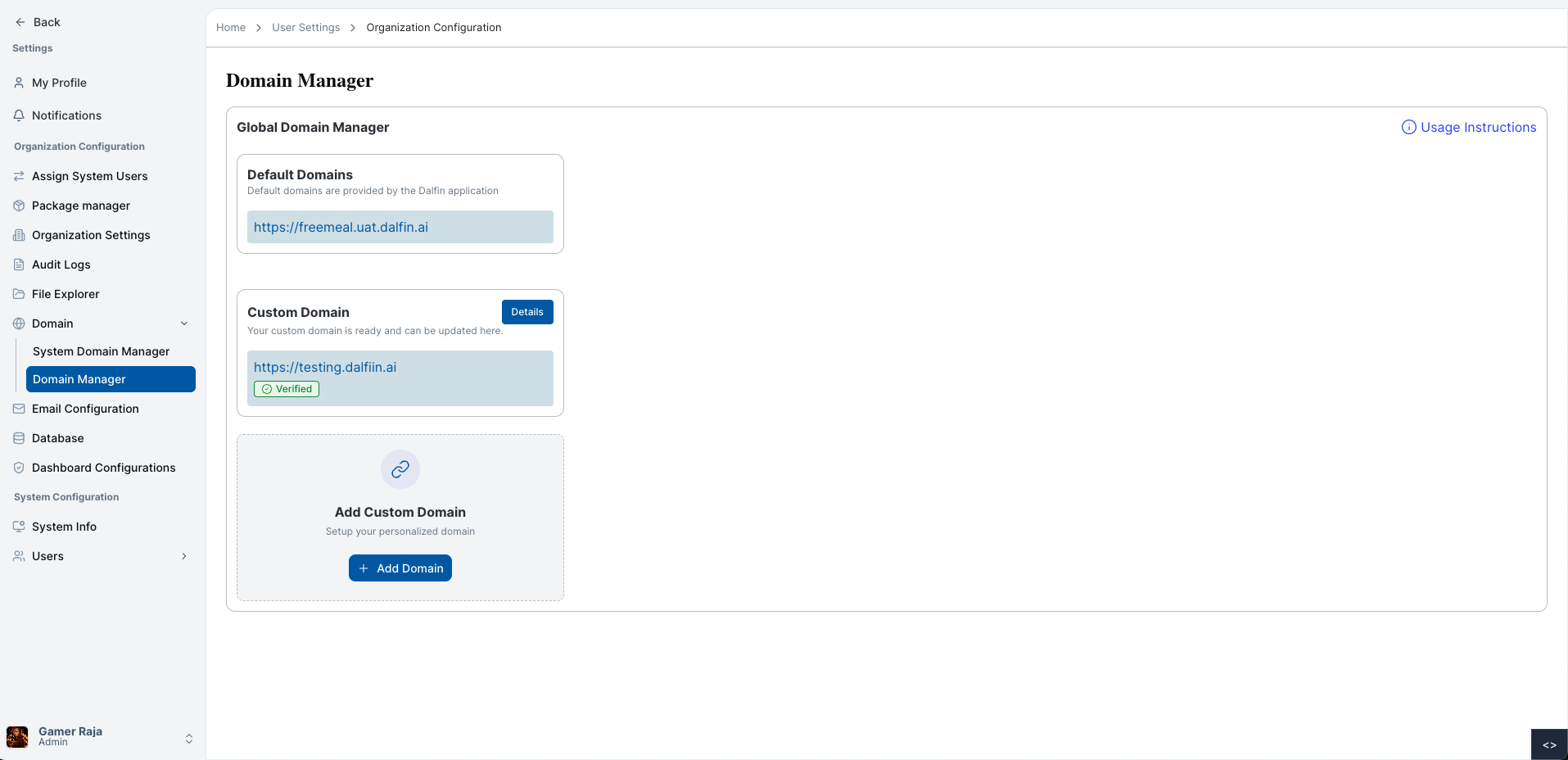
The Domain Manager section includes default domains and custom domains.
Viewing Default and Usage Information
When logged in as an Organization Owner and navigating to the Domain Manager page:
- You will see the default domain assigned by Dalfin.
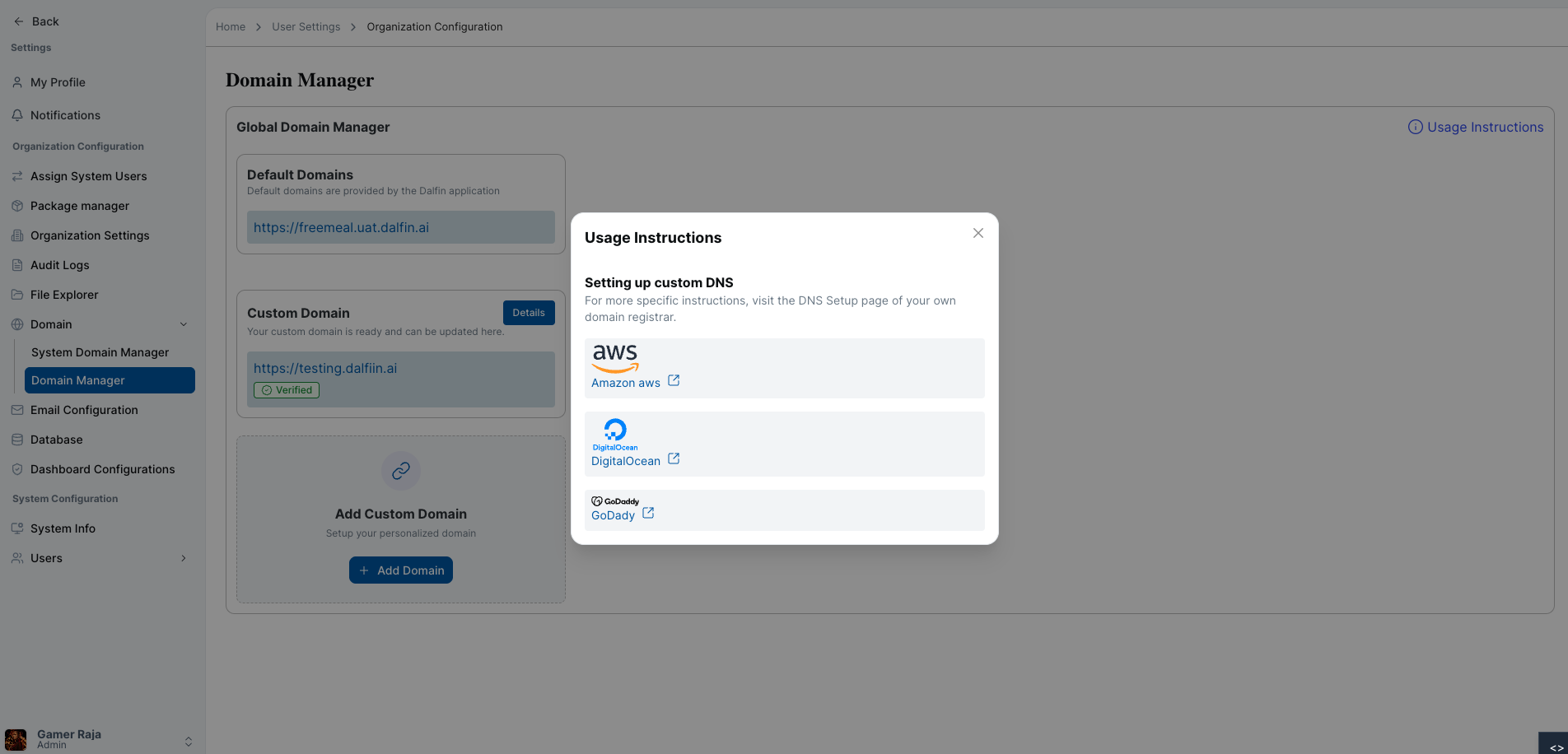
- Usage information for integrated domain providers such as Digital Ocean, AWS, and GoDaddy will be displayed.
- The option to add a custom domain will be available.
Default System Domains
- Displays system-provided domain links.
- These domains are pre-configured and ready to use.
Custom Domains
- Displays all added custom domains.
- Each domain includes a Details button.
Viewing Domain Details
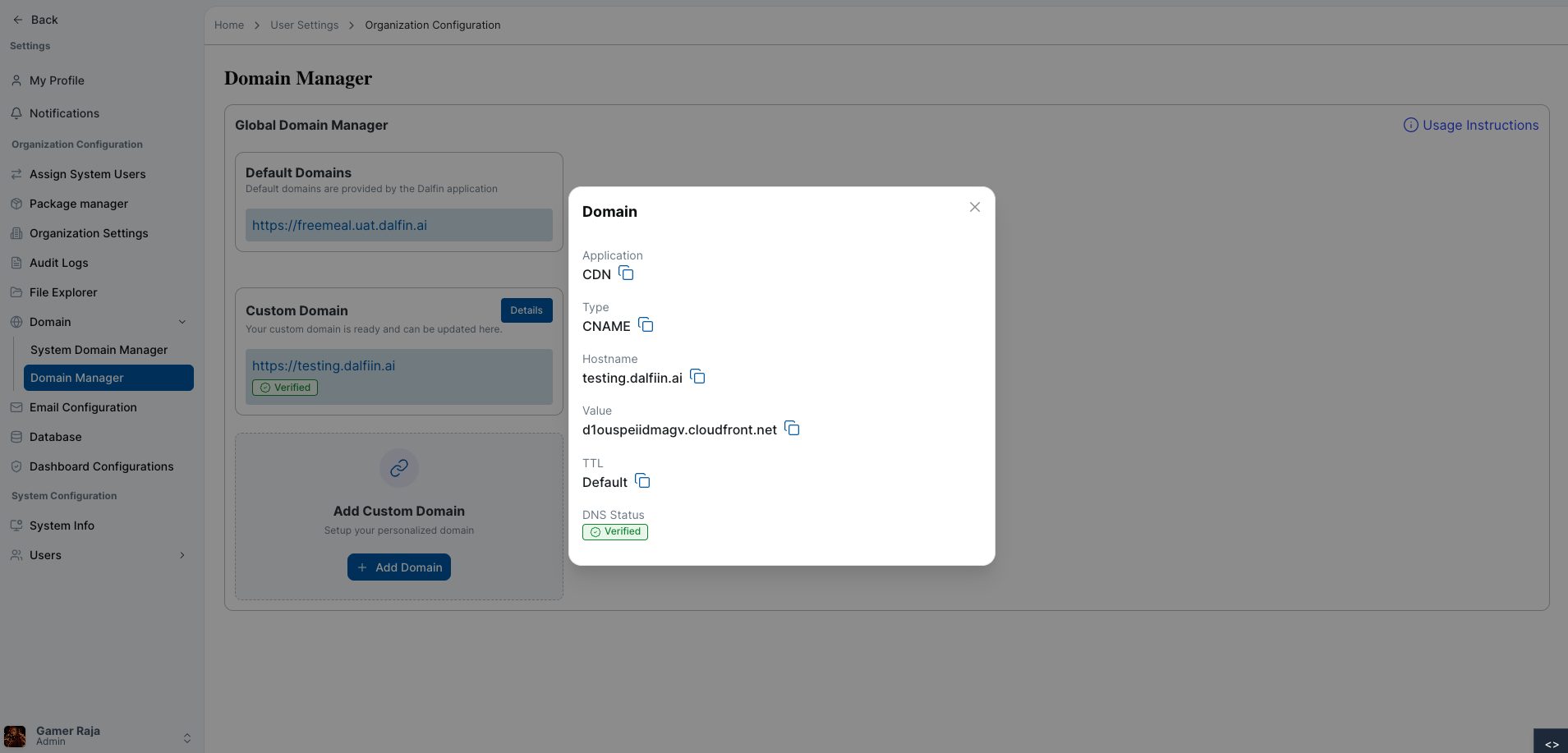
To view DNS configuration details:
Click Details
Click the Details button next to a custom domain.
Review Configuration
A detailed view will appear showing:
- Application
- Type
- Hostname
- Value
- TTL Value
- DNS Status
Adding a Custom Domain
To add a new custom domain:
Initiate Addition
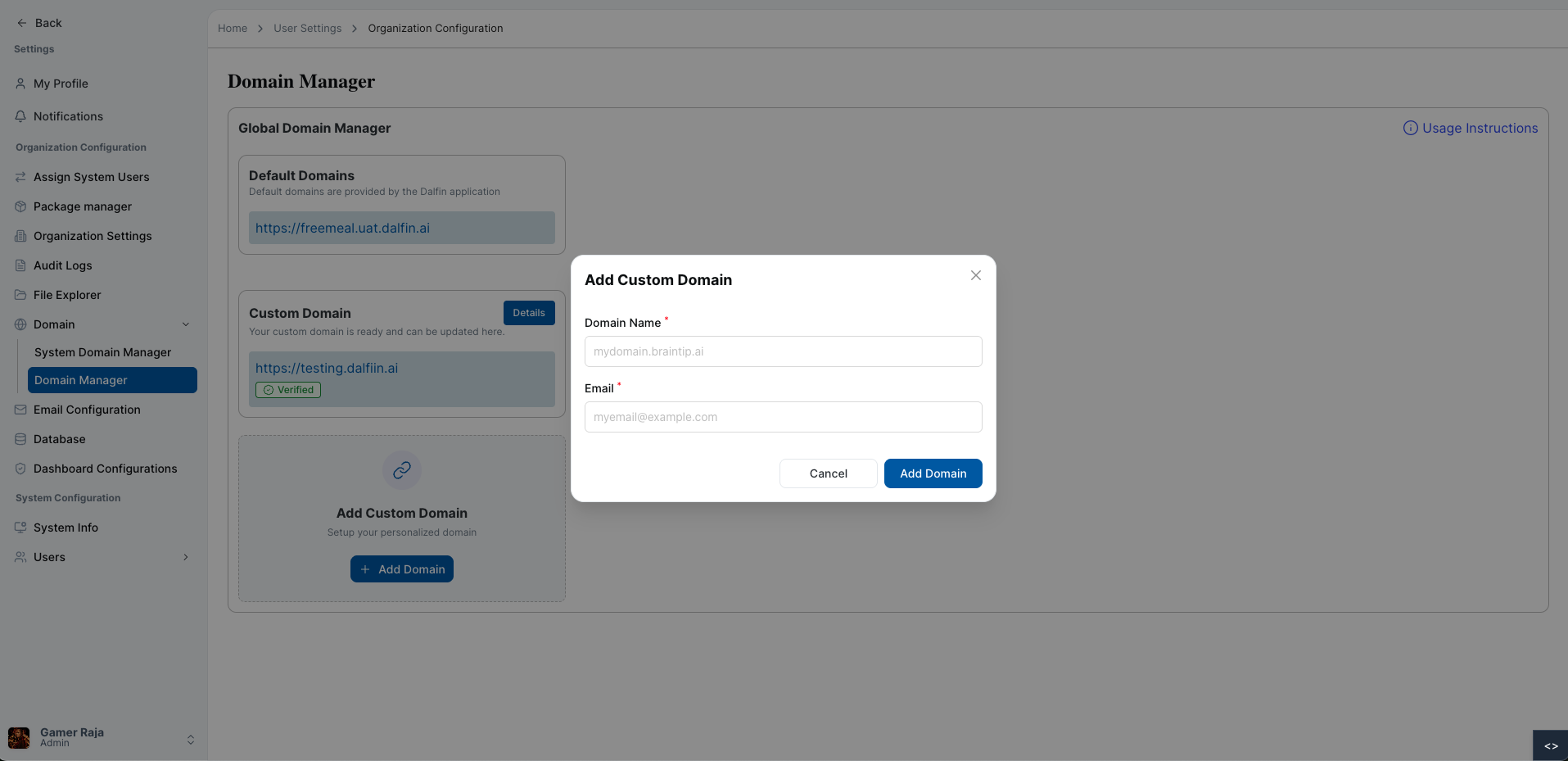
Click the Add Custom Domain button. A popup modal will appear.
Enter Details
Fill in:
- Domain Name
- Email Address
Submit
Click Add Domain to submit.
After submission:
- The domain will enter Pending Verification status.
- Two CNAME records (Hostname and Value) will be generated.
- Add these records in your domain provider’s DNS settings.
- Verification may take up to 30 minutes after correct mapping.
Note: Custom domains require a subscription of $5 per domain per month to activate.
Verification and Setting as Default
Once DNS records are correctly configured:
Return to Domain Manager
Navigate back to the Domain Manager page.
Wait for Validation
The verification status will update automatically once validated (may take up to 30 minutes).
Set as Default
After verification, you can set the custom domain as Default.
After setting as default:
- The system can be accessed using the custom domain.
- Emails and system access will use your chosen domain.
Handling Verification Issues
If verification fails:
- Confirm the CNAME records are entered correctly in your domain provider’s DNS settings.
- Wait up to 30 minutes for DNS propagation.
- Recheck the Domain Manager page for status updates.
- Contact support if issues persist.
Usage Instructions
A Usage Instructions icon is available at the top-right corner of the page.
Click the Icon
Click the Usage Instructions icon.
Follow Guidance
Setup guidance will appear with DNS configuration steps.
System Domain Manager
The System Domain Manager allows management of system-level domain mappings.
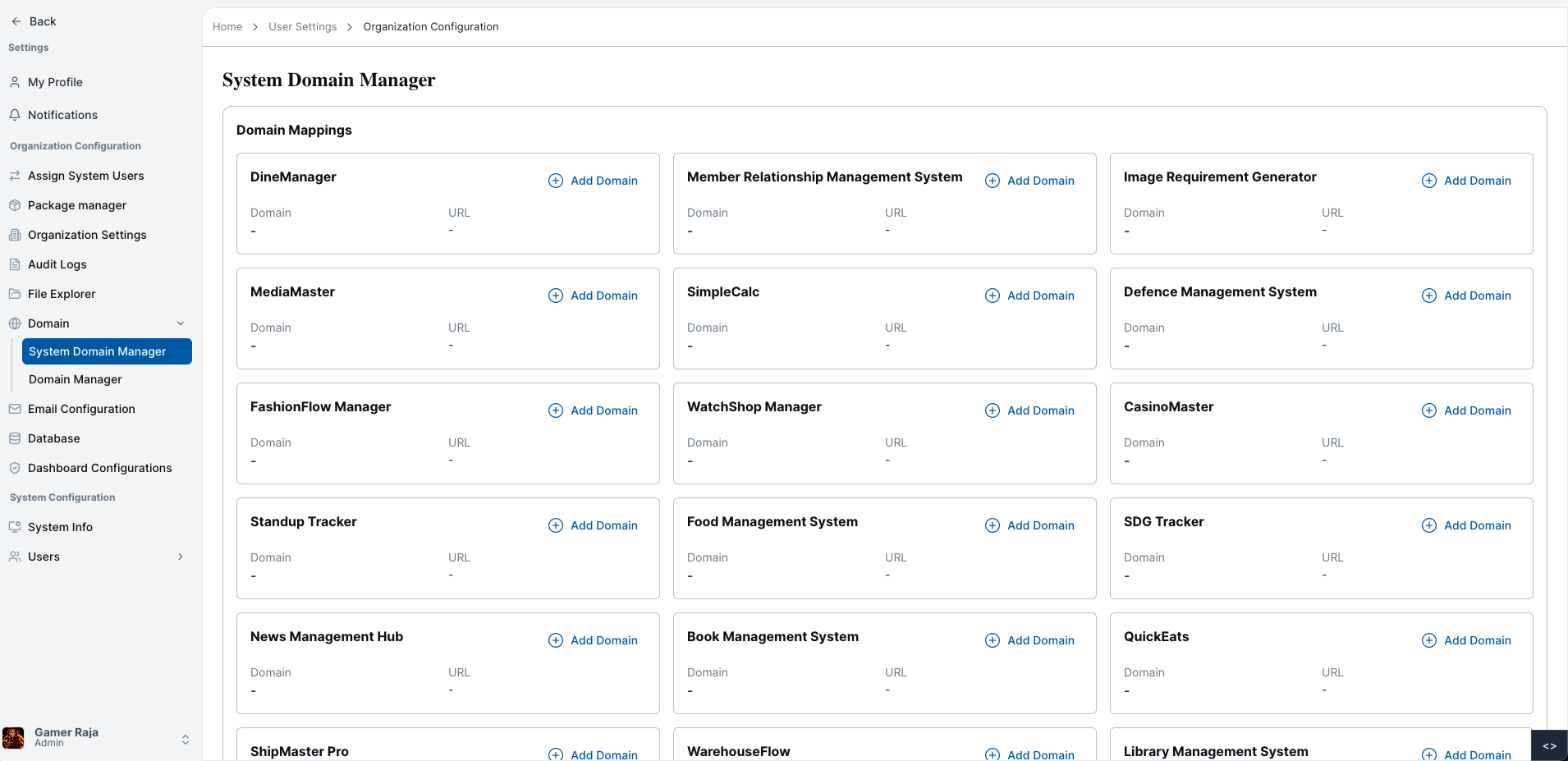
System Domain Mappings
- Displays system domain mappings in card view.
- Each card represents a mapped system domain.
- Cards show domain and mapping details clearly.
Adding a System Domain
To map a domain to a system:
Click Add Domain Icon
Click the Add Domain icon (usually a plus button).
Fill the Form
A form will appear. Enter:
- System URL
- Domain Name
Submit
Click Submit button
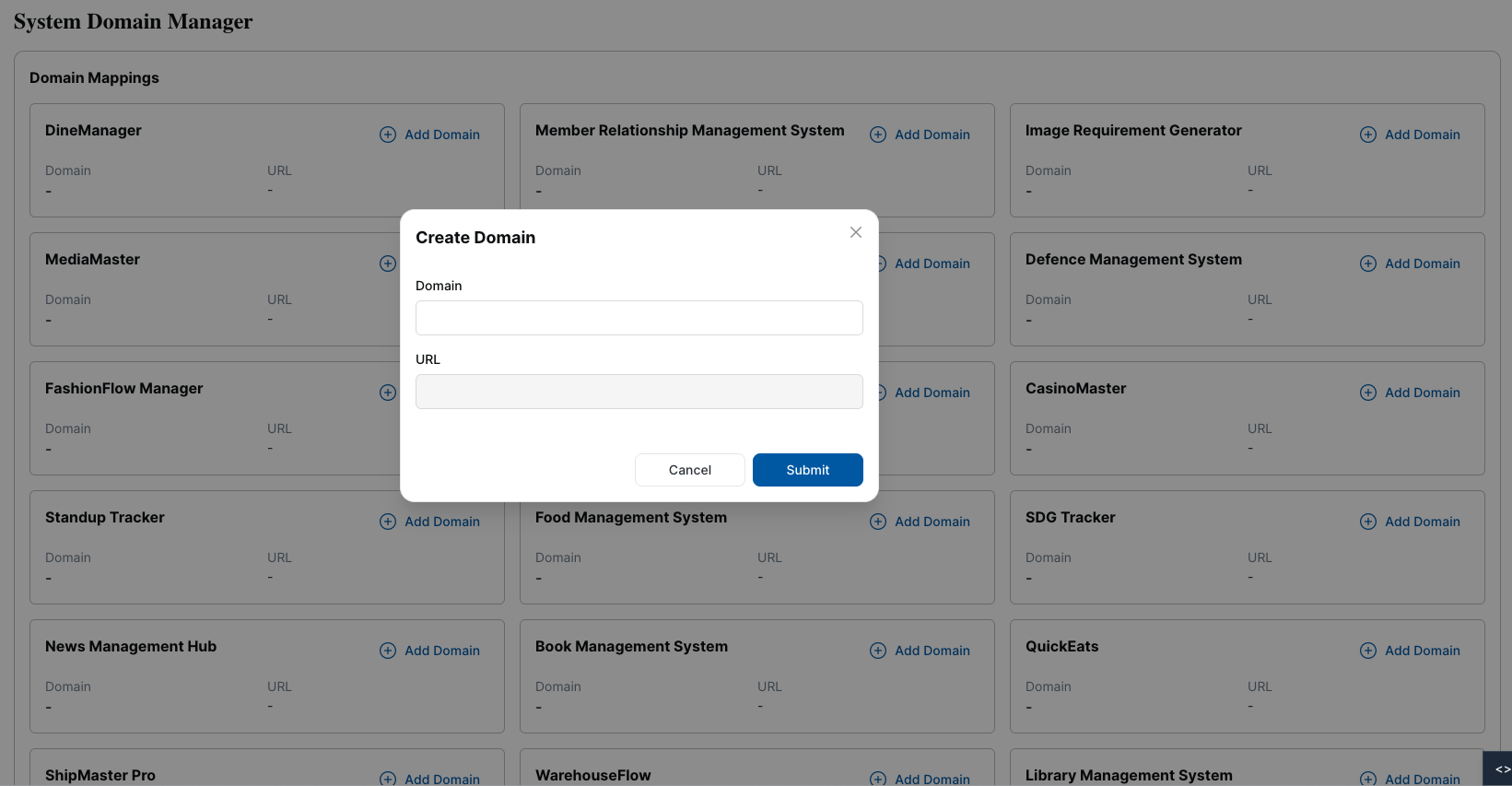
The new mapping will appear in the card list after successful submission.
For more specific instructions, visit the DNS Setup page of your own domain registrar.