Public Share
Public Share lets you share a window or quiz with external users who do not have an account in the system. You can share via a generated link or by sending an email invitation, with controls over expiry, record limits, and access permissions.
Accessing Public Share
Click the Share icon in the left sidebar. The Shared Windows page lists all active shares with their UUID, recipient email, expiry date, maximum records allowed, records submitted, and access level.
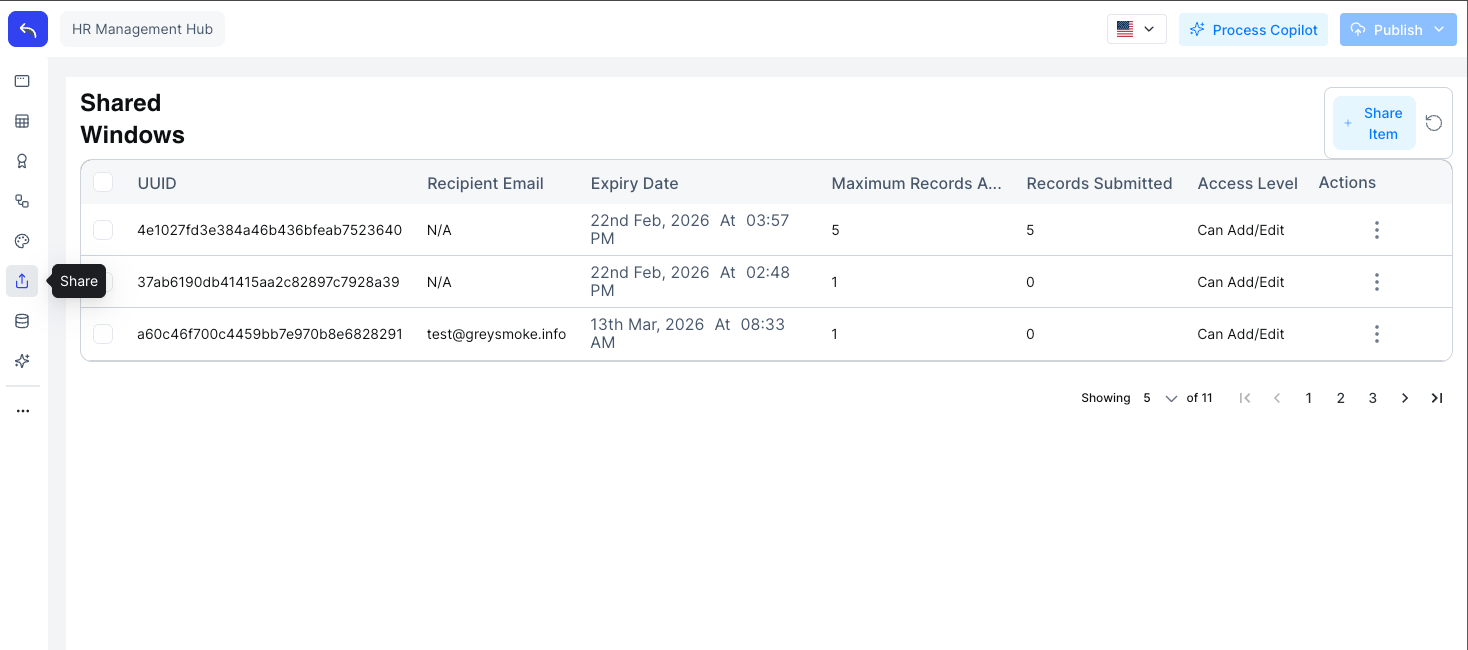
Click + Share Item in the top right to create a new share.
Creating a Share
Generates a public link that anyone with the URL can use to access the shared window.
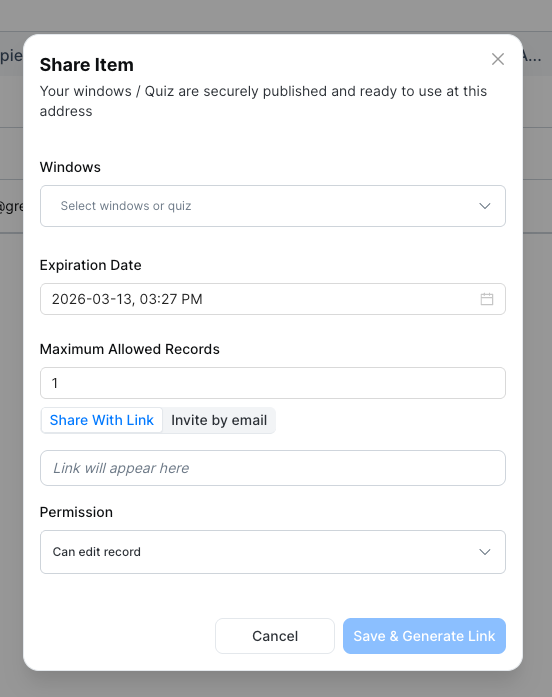
| Field | Description |
|---|---|
| Windows | Select the window or quiz to share |
| Expiration Date | When the link stops working |
| Maximum Allowed Records | How many records a user can submit through this link |
| Permission | Access level granted to the user (e.g. Can edit record) |
Click Save & Generate Link. The link appears in the field and can be copied and shared.
Managing Shares
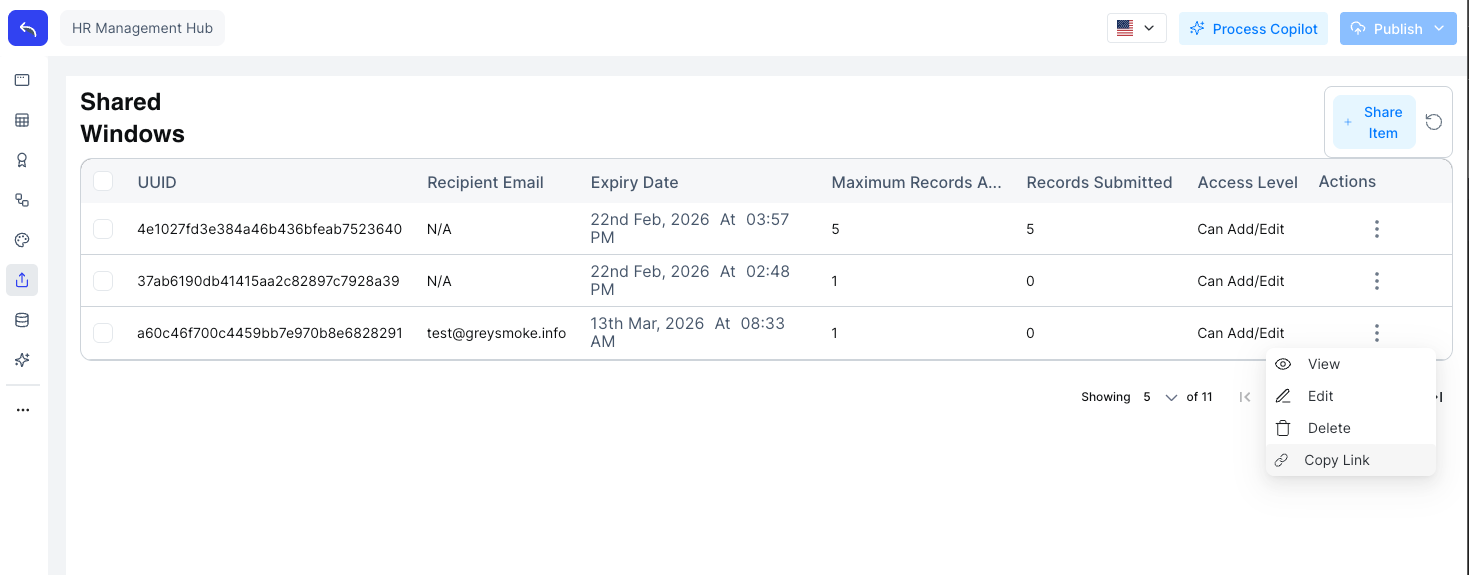
Click the ⋮ menu on any share row to see the available actions.
| Action | Description |
|---|---|
| View | Open the share details and submitted records |
| Edit | Update the share settings |
| Delete | Remove the share and revoke access |
| Copy Link | Copy the share URL to clipboard |
Viewing Details and Records
Clicking View opens the share details showing the UUID, recipient email, expiry, access level, record counts, and creation date.
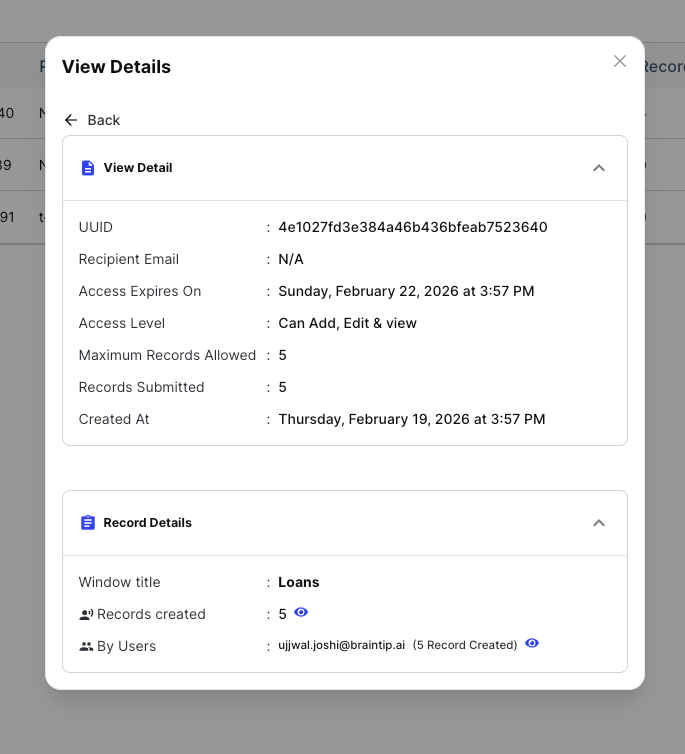
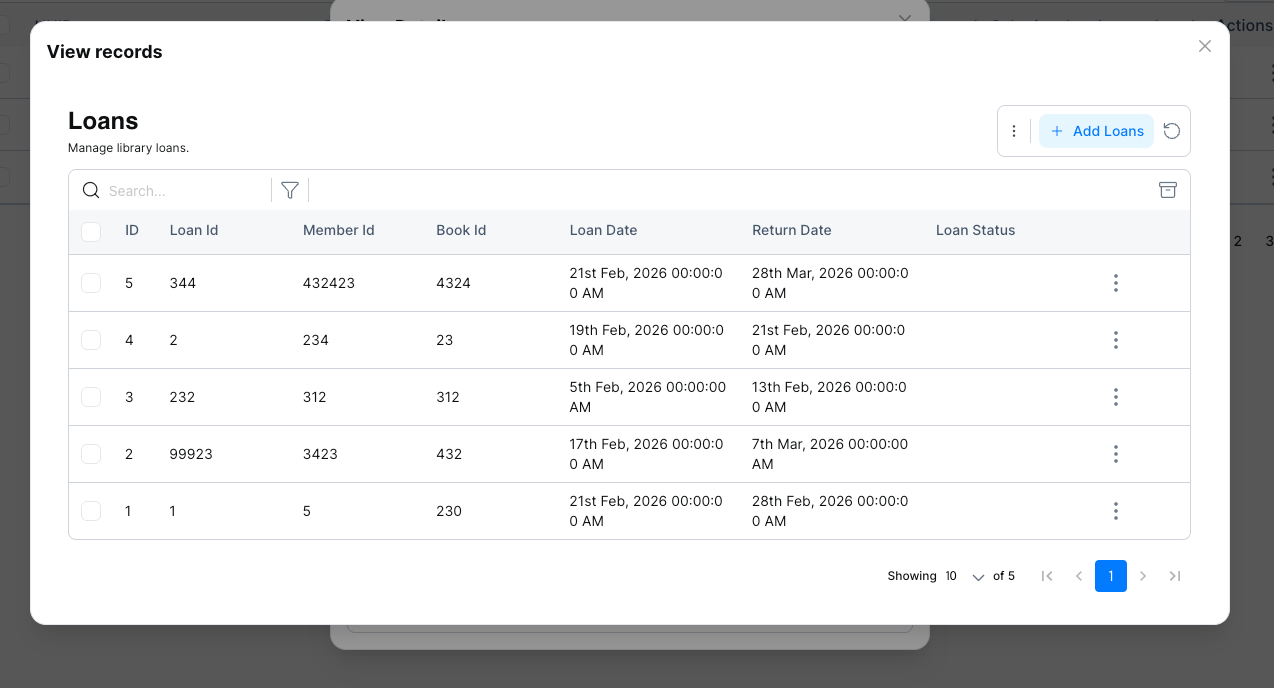
Click the eye icon next to Records created to open the submitted records for that share.