Sandbox Manager in Dalfin Application
The Sandbox Manager allows administrators and developers to create isolated environments for customizing and testing new features without affecting the live production system.
Using a sandbox, teams can safely develop, experiment, and validate changes while users continue their normal work in production without interruption.
Creating a Sandbox
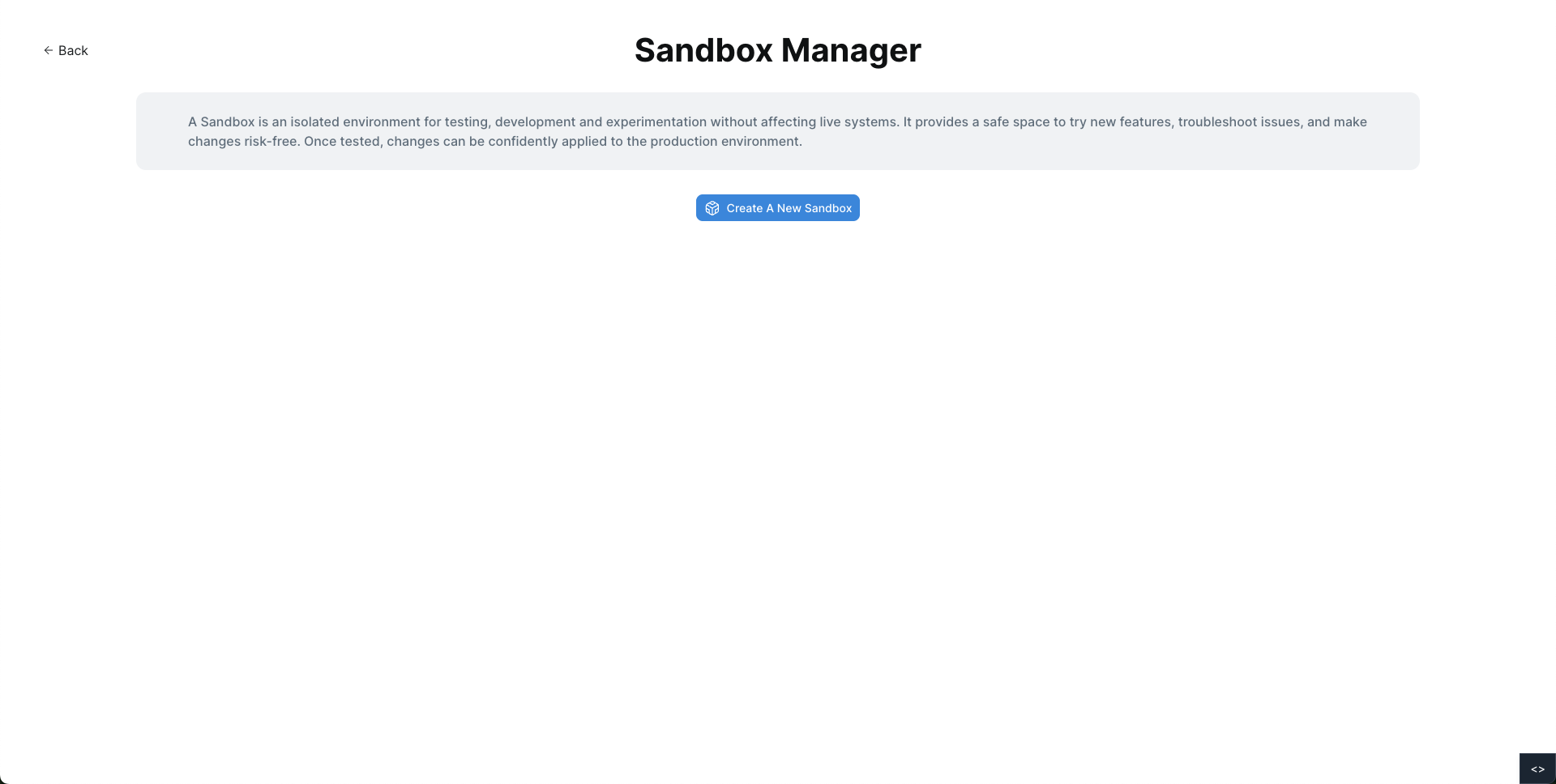
To start developing or testing in an isolated environment, create a new sandbox.
Open Sandbox Manager
Navigate to the Sandbox Manager section in the system configuration panel.
Create a New Sandbox
Click Create New Sandbox to begin creating a sandbox environment.
Environment Generation
The system automatically provisions a dedicated sandbox environment with its own workspace and domain.
Start Development
Once the environment is created, you can begin customizing and testing features inside the sandbox.
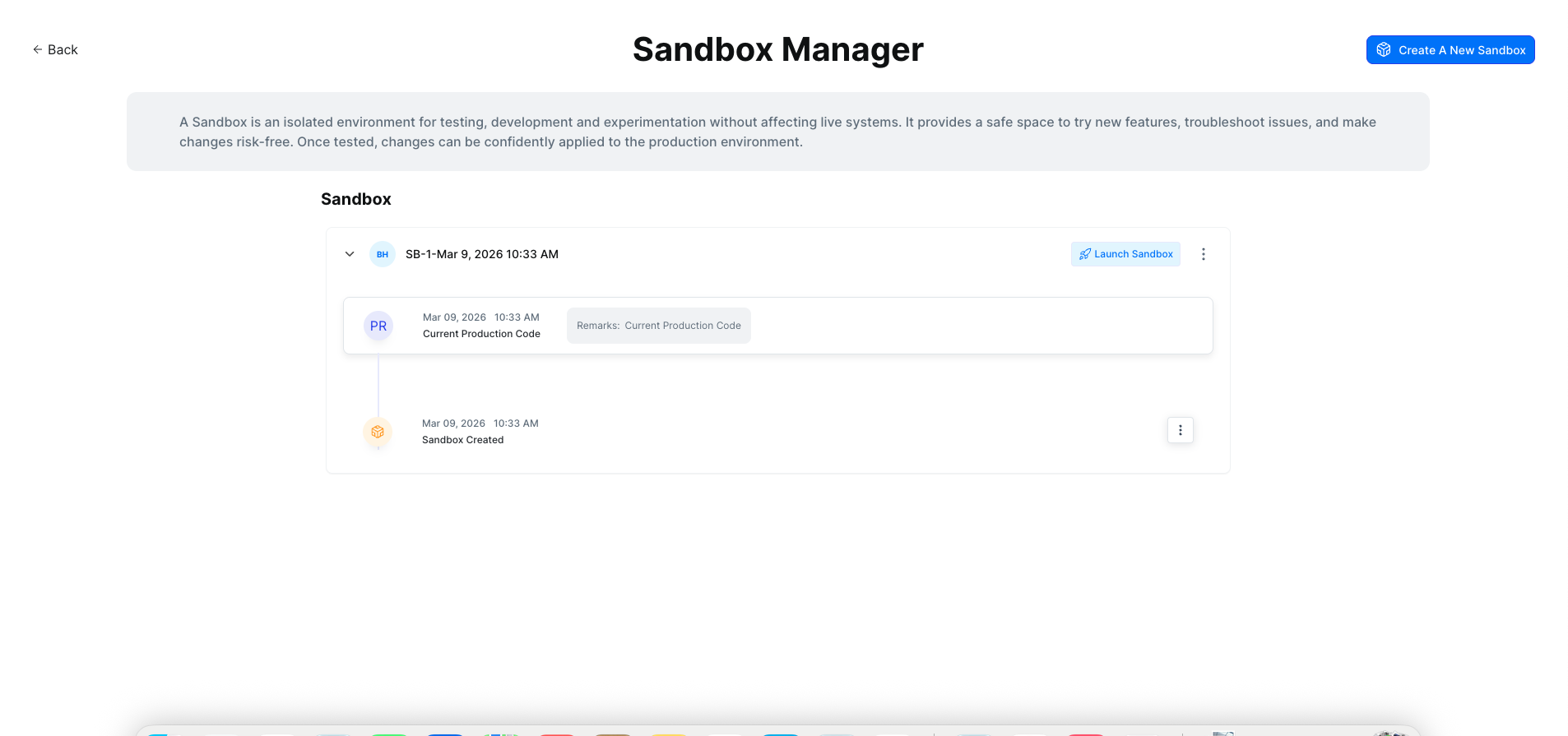
Sandbox Workflow
The Sandbox Manager follows a structured workflow that allows teams to safely develop, test, and deploy system changes.
1. Development Environment (Branch from Production)
The sandbox acts as a development environment branched from the production system.
Key characteristics:
- A separate domain dedicated to development
- A fully isolated environment
- Access to customization tools such as the BrainGrid Controller
This environment allows you to:
- Create new process orchestrator
- Modify UI components
- Adjust system logic
- Implement new features
All development work happens without impacting the live system.
2. Sync with Production Database
While working in the sandbox, you can enable Sync from Production Database.
This feature keeps the development environment aligned with the latest production data.
Benefits include:
- Access to real-time production data
- More accurate testing scenarios
- Development based on current system activity
This ensures your customizations are built on relevant and up-to-date data.
3. Staging Environment Testing
After development is complete, changes can be merged into the staging environment.
The staging server acts as a final testing layer before production deployment.
In staging you can:
- Test new features
- Validate integrations
- Verify system process orchestrators
- Confirm data flow and user interactions
If issues are discovered, you can revert changes back to development for further adjustments.
4. Merge to Production
Once all testing is complete, the finalized changes can be merged into the production system.
This process updates the live environment with:
- New features
- System improvements
- Process orchestrator customizations
The deployment process is designed to be efficient and stable.
5. Continuous Production Operations
During development and testing, the production system remains fully operational.
This means:
- Users can continue data entry and daily operations
- No disruption occurs during development
- No maintenance downtime is required
Development and business operations run in parallel without interference.
Benefits of Sandbox Manager
-
Safe Customization
Develop and test features without affecting production. -
Real-Time Data Synchronization
Work with the latest production data. -
Reliable Testing Environment
Use staging to validate features before deployment. -
Smooth Deployment Process
Easily merge verified changes into production. -
No System Downtime
Users continue working while development occurs in parallel.
Summary
The Sandbox Manager provides a powerful framework for safe system development and deployment within Dalfin.
By separating development, staging, and production environments, teams can confidently experiment, test features, and release improvements while keeping the production system stable and fully operational.