User Role Assignment Feature
Overview
As an Organization Owner, you can assign and manage user roles within systems.
Role assignments can be performed:
- Within a single system
- Across multiple systems
All role management actions are handled from the System Management page.
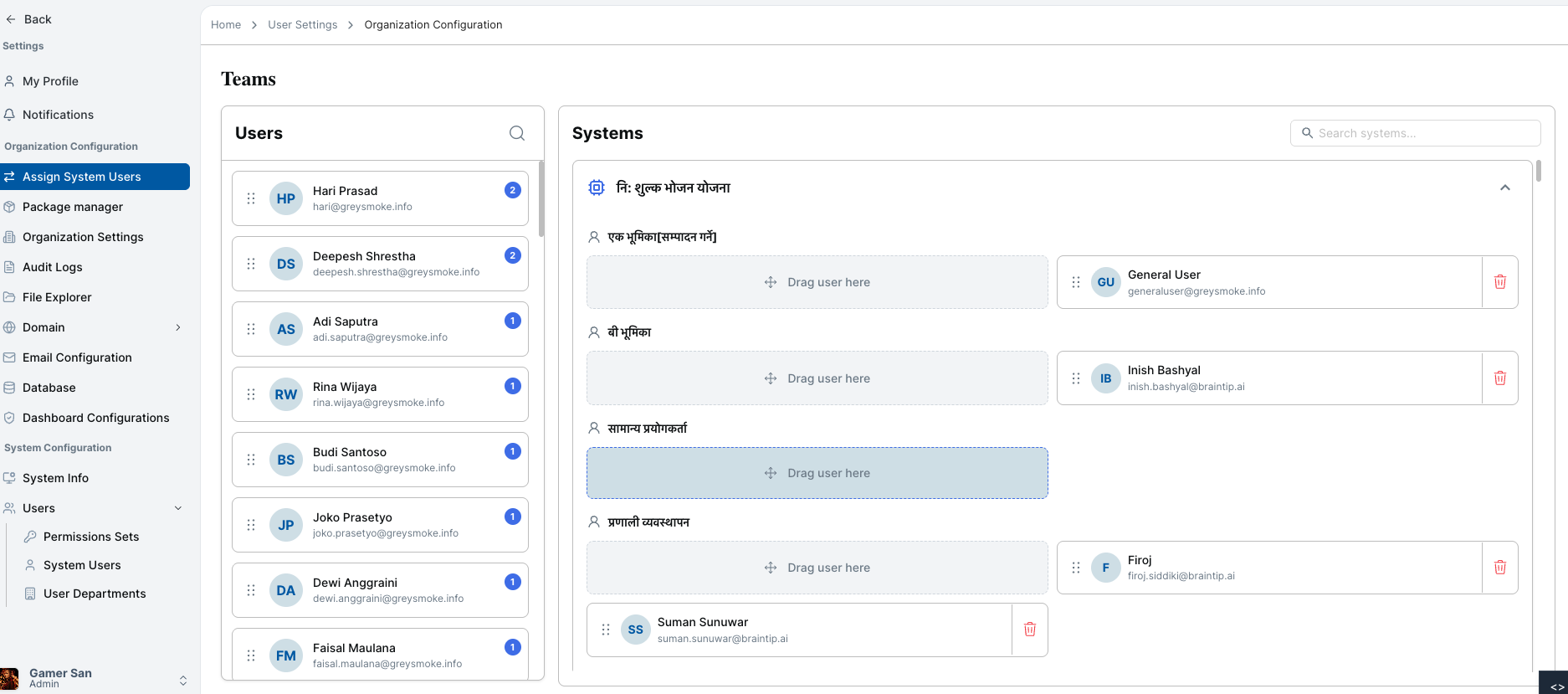
Accessing Role Assignment
To begin assigning users:
- Log in as an Organization Owner.
- Navigate to the System Management page.
- Click Assign System User for the desired system.
Assigning Users Within the Same System
You can modify roles inside a single system by dragging users between role levels.
Steps:
- Click Assign System User.
- View the list of users and their current roles.
- Drag a user up or down within the same system.
- The role updates automatically.
- A confirmation message will appear.
Assigning Users Across Different Systems
You can also move users between systems.
Steps:
- Click Assign System User in the source system.
- View the list of users and roles.
- Drag the user left or right to another system.
- Drop the user into the desired role.
- The role will be updated in the target system.
- A confirmation message will appear.
Reassigning Users to New Roles
Whether within the same system or across systems:
- Simply drag and drop the user into the desired role.
- Changes are applied instantly.
- A success notification confirms the update.
User role updates take effect immediately after confirmation.
💡
For additional assistance or detailed guidance, please refer to the help section or contact support.