Dashboard Configuration
Overview
The Dashboard Configuration page allows users to manage system-wide dashboard settings and control access permissions for different roles and users.
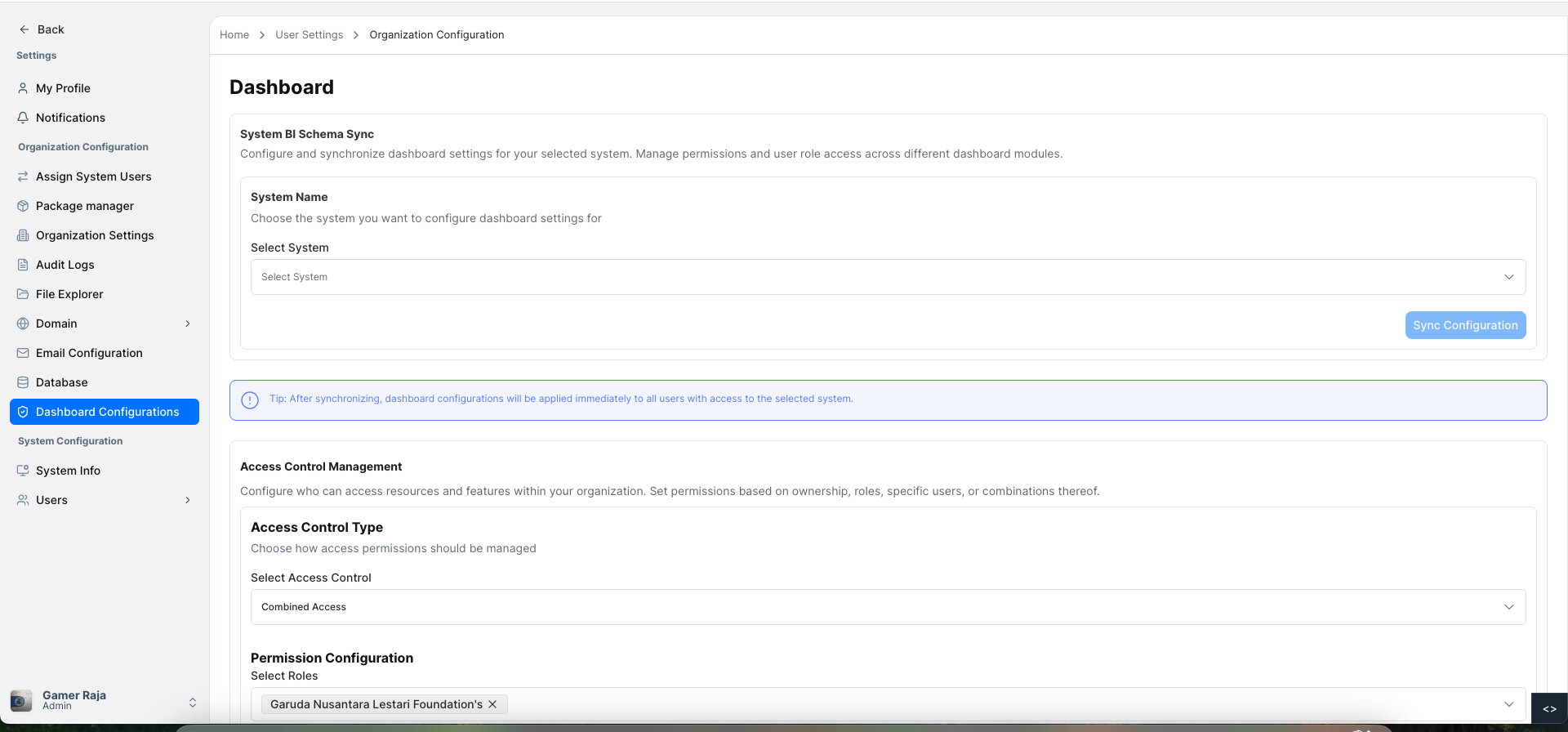
Users can configure BI schema synchronization for specific systems and manage access control settings for dashboards to ensure secure and appropriate visibility.
System BI Schema Sync
The System BI Schema Sync section allows users to synchronize the dashboard configuration with a selected system.
Steps to configure BI schema sync:
-
Navigate to the System BI Schema Sync section.
-
Select a system from the System Name dropdown.
Example Systems:
- Bugtracker
- Petroleum Management System
- Other available integrated systems
-
Click the Sync Configuration button to submit and apply changes.
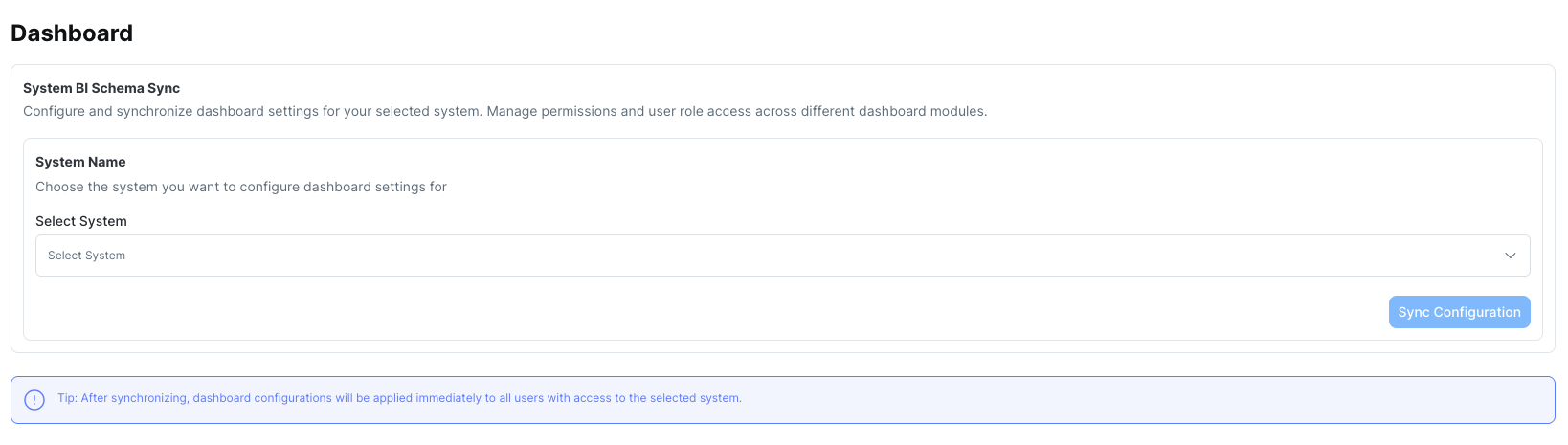
Synchronizing the system ensures that dashboard settings align with the selected system's data schema and latest configuration.
Access Control Management
The Access Control Management section allows users to define permissions for dashboards based on roles and individual users.
Steps to configure access control:
-
Navigate to the Access Control Management section.
-
Select an Access Control Type:
- Choose how access permissions should be managed (e.g., Role-based, User-based).
-
Configure Permission Settings:
- Select Roles – Choose roles that should have access to the dashboard.
- Select Users – Select specific users to grant access.
Example Users:
- Rajan Panday — Active
-
Click Save to apply access control settings.
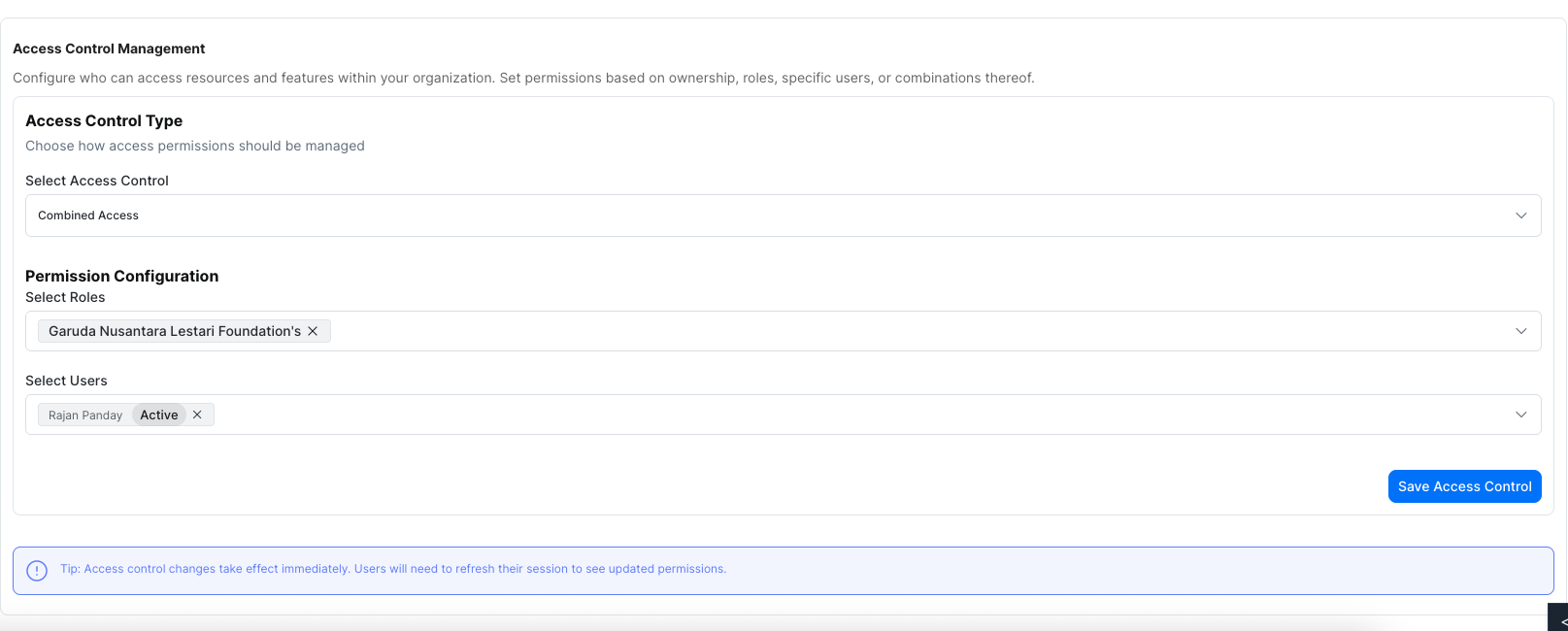
Combined access requires at least one role to be selected to ensure proper permission control.
This guide provides a structured overview of the Dashboard Configuration page in Dalfin, including steps for syncing BI schemas and managing access permissions effectively.